(A3,1) Formatting & Paragraphing
Learn how to format text in the Rich Text Editor, including bolding, italicising, changing colours, and adjusting alignment and paragraph styles.
(A3,1) Formatting & Paragraphing
Formatting Text
In the Rich Text Editor, by clicking the respective icons, you are able to:
Bold

Italicise

Change font colour

Highlight text

Create Numbered list

Create Bullet list

Note: To underline a text, use the keyboard shortcut (Windows: control + U, MacOS: command + U)
Click the dropdown arrow next to the respective icons to select the font or highlight colour. For more colour options, click

.
You are able to Undo and Redo your work by clicking the respective

and

icons in the Rich Text Editor.
Changing Text Alignment and Style
In the Rich Text Editor, you are able to align your text left/center/right/justify, change the font type and paragraphing style.
To adjust the text alignment, click

and select an alignment type.
Click the dropdown arrow beside “English” to change the font type.
To change the paragraphing style, click the dropdown arrow beside “Paragraph”.
Note: To ‘adjust’ the font size, you can select a different paragraphing style (i.e. heading style).
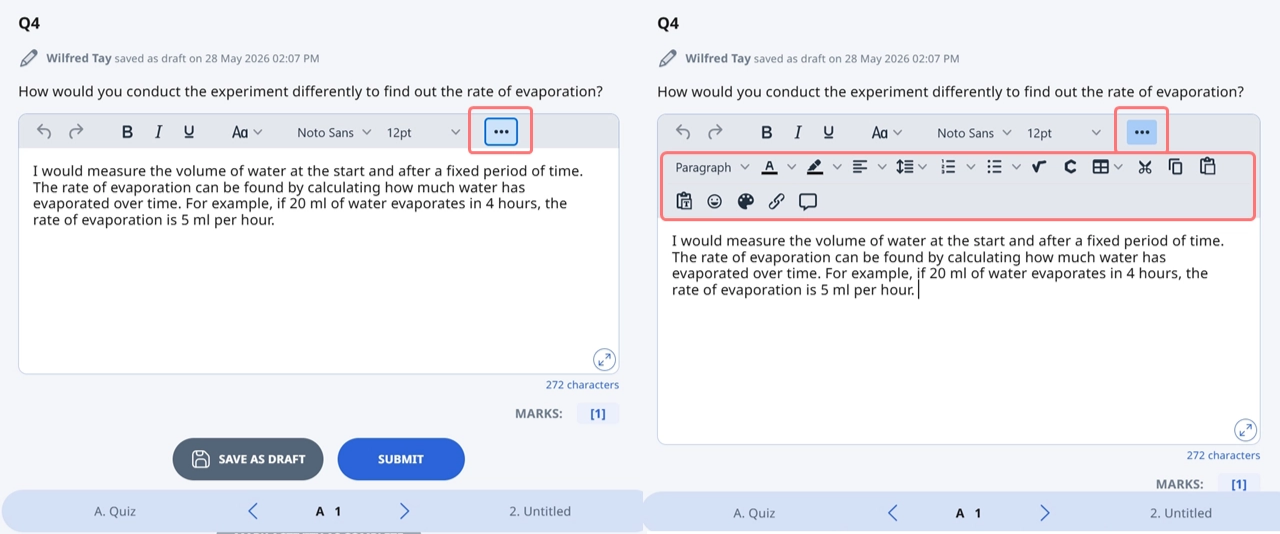
Note: From R4 (Jun 2026), the Rich Text Editor field will be collapsed by default to provide more space for typing. You can expand or collapse the toolbar, and the state of the toolbar will be retained, even after you refresh the page or close the tab.