(B3) View and Respond to Teacher Comments
Learn how to view your teacher's feedback on assignments and reply with text, files, or drawings directly in the Teacher Comments tab.
(B3) View and Respond to Teacher Comments
View Teacher Comments
Your teacher may leave Comments on your responses to Free-Response, File Submission, and Audio-Response Questions.
Open the Assignment and navigate to the Free-Response, File Submission, or Audio-Response Question.
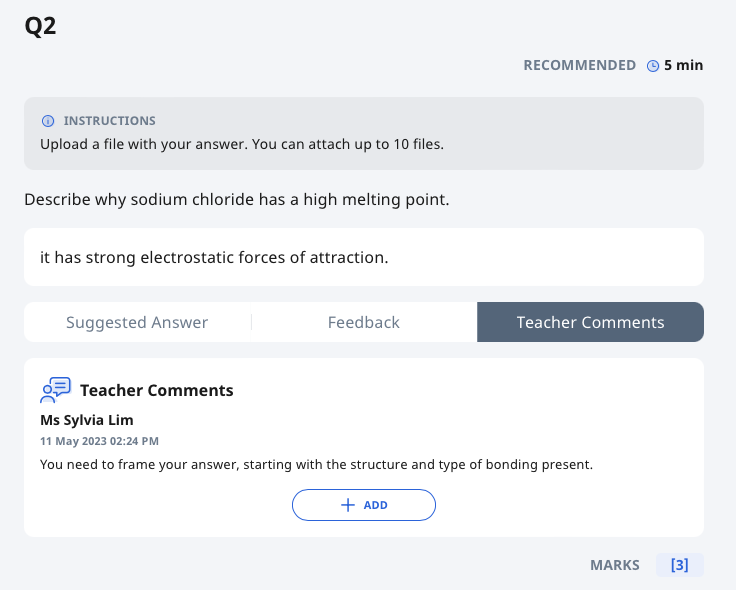
Select the Teacher Comments tab to view the comments given by your teacher. To view the comments left by your teacher for a Google-attached File, click here
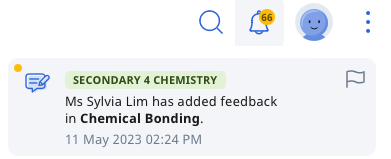
Note: If enabled by your teacher, you will receive a notification that feedback has been given on your Assignment.
Respond to Teacher Comments (Enhanced)
Open the Assignment and navigate to the Free-Response, File Submission, or Audio-Response Question.
Select the Teacher Comments tab to view the feedback given by your teacher.
Click Add to bring out the text box. Type your response, insert a drawing, attach a file, add file from Google or upload an audio recording, then click Post.
You can also mention your teacher(s) in the comment by typing '@' and selecting their names from the dropdown list. Your teacher(s) will be notified.
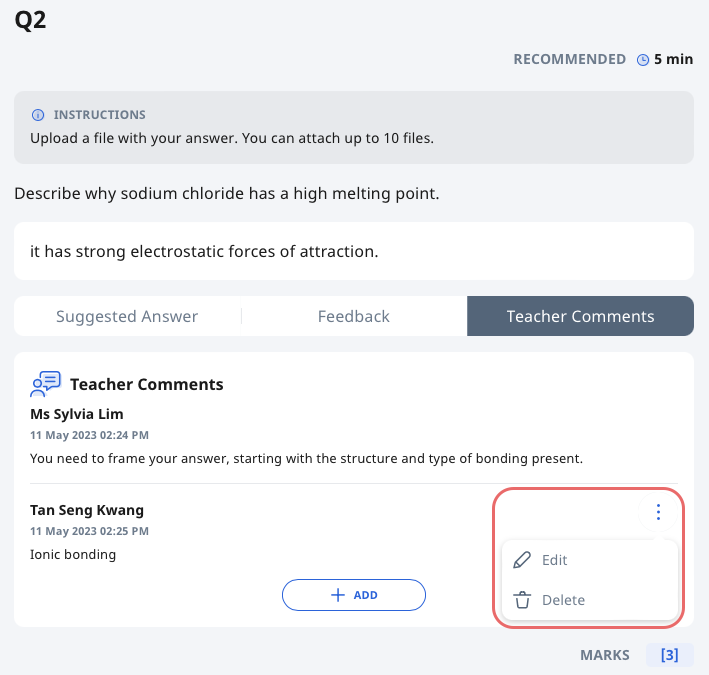
Click Overflow (3-dot icon) to Edit or Delete your comment.
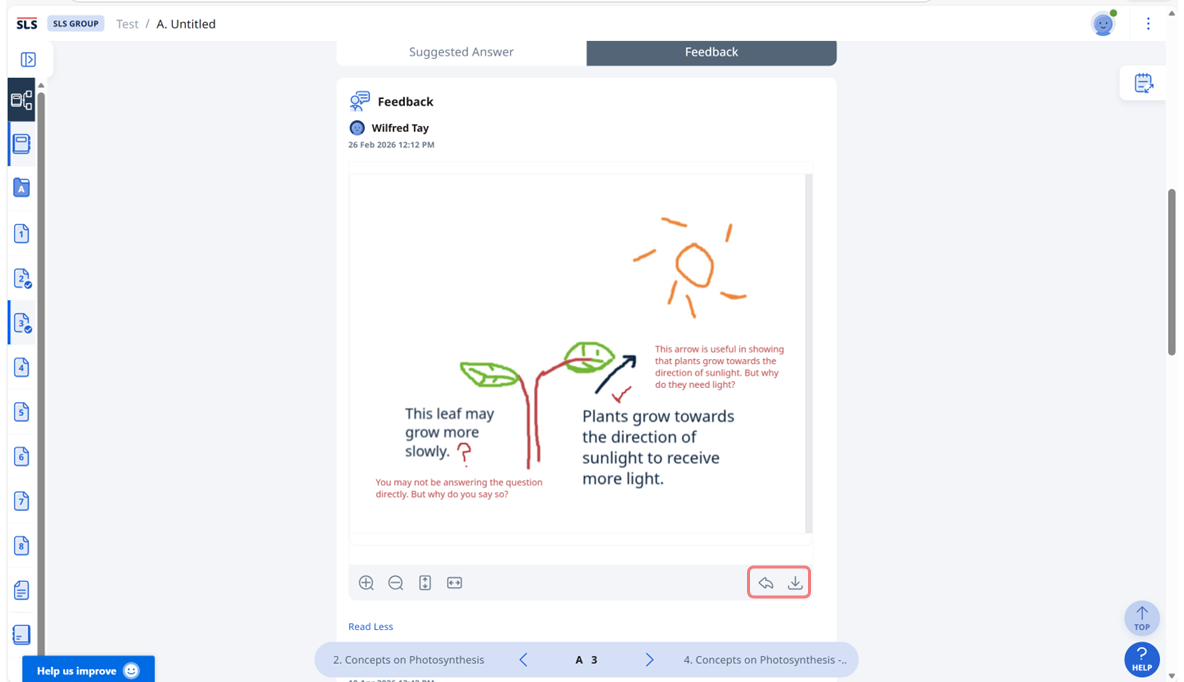
Note: If your teacher has provided feedback using the Drawing Tool, you may click Reply to respond to your teacher’s comments by annotating on the same image. You may also download the image (png) for future reference.