Bookmarking Tips
Bookmark SLS quickly on your browser or add it to your device's home screen for easy access.
Bookmarking Tips
Bookmark SLS (Google Chrome)
Open Google Chrome.
Enter https://vle.learning.moe.edu.sg/login (opens in new tab) in the address bar. Access the site.
Click the Star at the right of the Address Bar to save the page as a bookmark. Alternatively, you can also press Ctrl+D on your keyboard.
A dialog box will appear. Click Done and the bookmark will be saved to the Bookmarks bar.
Bookmark SLS (Safari)
Open Safari.
Enter https://vle.learning.moe.edu.sg/login (opens in new tab) in the address bar. Access the site.
Click Bookmarks from the top menu and select Add Bookmark. Alternatively, you can also press Ctrl+D on your keyboard.
A dialog box will appear. Click Done and the bookmark will be saved to the Bookmarks bar.
Add SLS to the Home Screen (Android)
Open Google Chrome.
Enter https://vle.learning.moe.edu.sg/login (opens in new tab) in the address bar.
Click the Overflow (3-dot icon). It is at the top-right corner of Chrome.
Tap Add to Home Screen.
In the pop-up that appears, edit the title (if needed). This is the text that will appear under your shortcut's icon on the Home Screen.
Tap Add. Touch and hold the icon to place it manually on your Home Screen. Alternatively, tap Add automatically/Add to home screen.
Add SLS to the Home Screen (iPhone/iPad)
Open Safari on your iPhone or iPad.
Enter https://vle.learning.moe.edu.sg/login (opens in new tab) in the address bar.
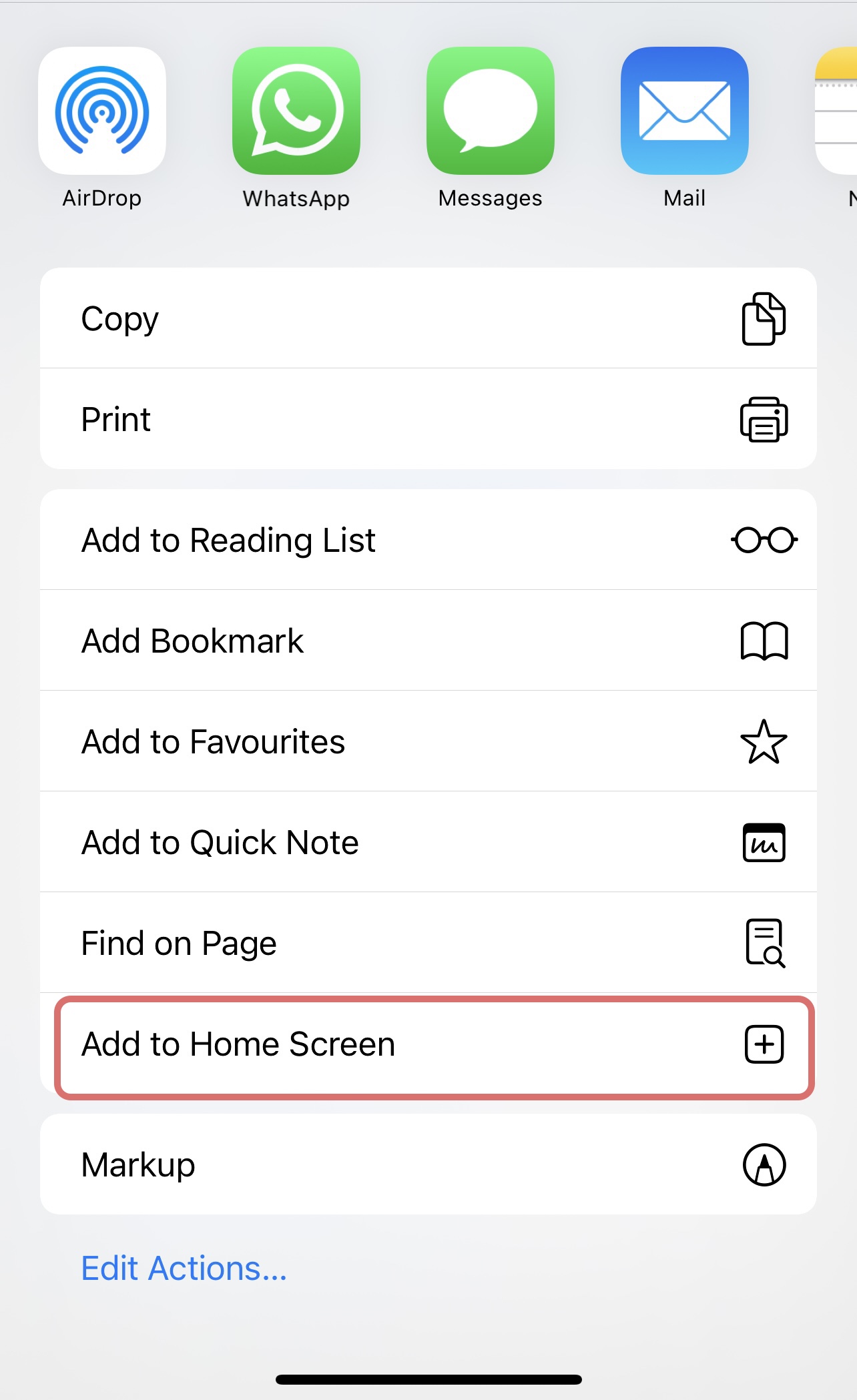
Tap the Share icon. It is at the bottom of the screen.
Tap Add to Home Screen.