
(A1) Submit Modules
Share your modules with teachers on SLS by submitting them to the Community Gallery. Learn how to prepare, submit, and resubmit modules for approval.
(A1) Submit Modules
If you have a Module that you would like to share with teachers on SLS, you may submit it to the Community Gallery.
Module Submission Checklist:
Update the Module Description to give other users an overview of what the Module is about.
Tag your Module with the appropriate Module Tag. You may refer to Add Module Tags for more information.
Ensure collaborative features (eg. Padlet, Mentimeter, Nearpod, etc.) and documents (e.g. Google Docs, Google Slides, etc.) have read-only rights because embedded content can be viewed by all.
Ensure your Module meets Copyright guidelines.
Your submission will be featured after it has been approved by one of the Community Gallery Administrators (CG Admins).
Check Module for Submission
Open the Module that you wish to submit to the Community Gallery.
Click the Overflow (3-dot icon) on the top right of the header, and select Check for Submission (Community Gallery).
You will be prompted to check that the content of the Module is in line with the Copyright guidelines.
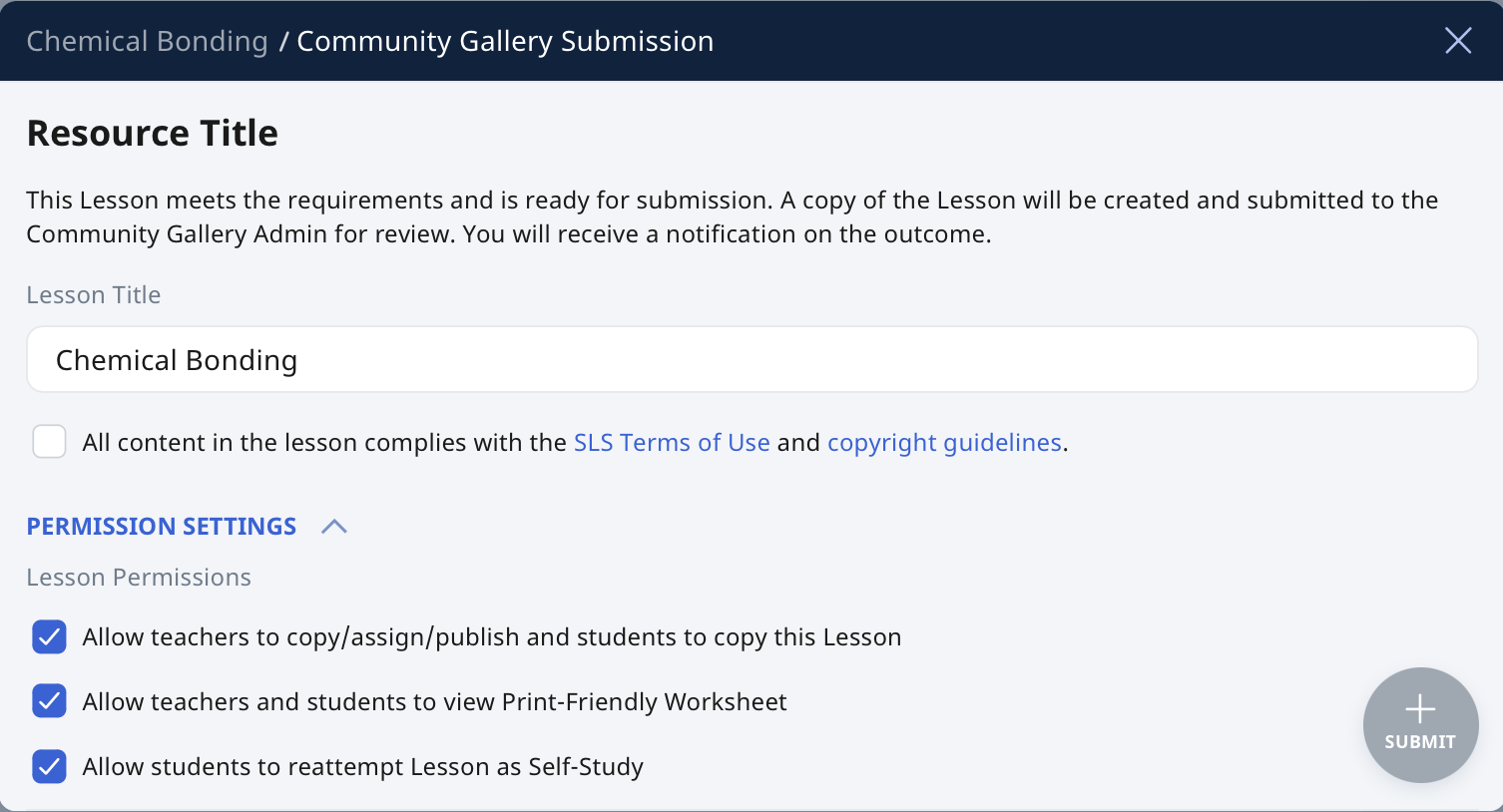
If the Module is ready for submission, check the box to acknowledge that the content complies with SLS Terms of Use and the Copyright Guidelines.
Note: To make any edits before submission, close the Community Gallery Submission subpage and click the Pencil icon

to enter the Module Editor page.
On the same subpage, you may wish to rename the Module Title, and edit the Permission Settings by selecting the checkboxes beside:
Allow teachers to copy/assign/publish and students to copy this Module
Allow teachers and students to view print-friendly worksheet
Allow students to reattempt Module as self-study
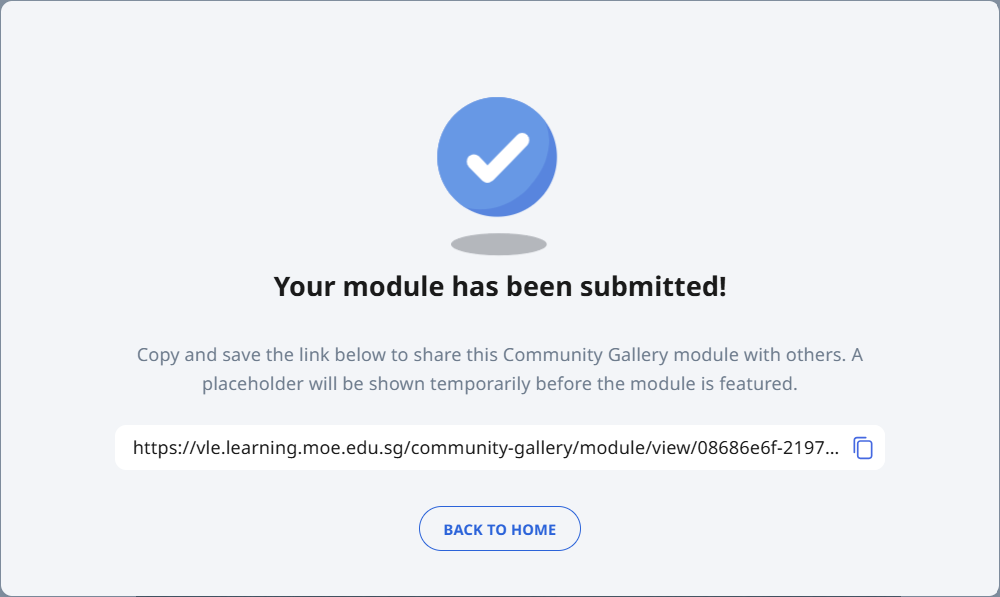
Once done, click Submit to proceed. After submitting to Community Gallery, a notification message will indicate that you have submitted a copy of your Module for approval.
After the module has been submitted, a shareable link will be generated (see image below). This link can be distributed to teachers, allowing them to access and copy the module for use in their schools.
You will receive a notification informing you whether the the Community Gallery Administrators have approved your submission or returned it.
Resubmit Modules
You will receive a notification if your module has been returned.
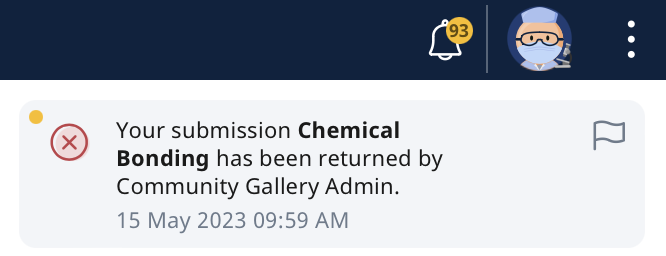
Click the notification to open the copy of the Module, which will show a banner asking you to please check feedback.
You may either click on Feedback or Admin Reviews to open the Admin Reviews subpage which will inform you of the reason(s) why your Module has been returned.
You may respond to the administrator by clicking on Add Review.
To resubmit your Module to the Community Gallery after making the edits, click the Overflow (3-dot icon) on the top right of the header, and click Check for Submission (Community Gallery).