
(A3) Attempt Self Study Resources
Find and attempt self-study lessons from the MOE Library, Class Groups, or My Drive. Completed lessons are saved to your Self-Study List for easy review.
(A3) Attempt Self-Study Resources
You can attempt Self-Study Resources from 3 locations:
MOE Library
Class Group Resources
My Drive
When a Module is attempted from one of the above three locations, it will be automatically added to the Self-Study List.
Attempt MOE Library Modules
To search for and attempt a Lesson from the MOE Library:
Click on MOE Library.
Alternatively, open the left menu and click Resources, then MOE Library.
Search for Lessons you want to attempt as part of revision or learn more about a new topic.
To view Lesson details:
Click the View Details icon on the Lesson card.
You can view:
Lesson description
Activities and sections (if any)
Lesson creator
Last edited date
Click the Expand icon to open the Lesson in a new tab.
To start a Lesson:
Click the Lesson card.
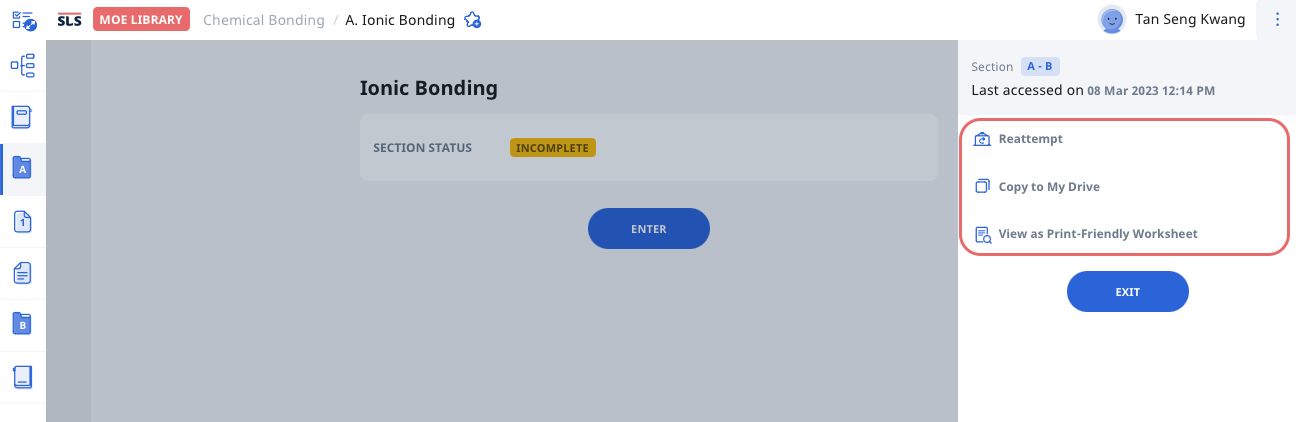
In the Lesson, open the right menu to:
Reattempt (after starting the Lesson)
Copy to My Drive (if enabled)
View as Print-Friendly Worksheet (if enabled)
To revisit a Lesson:
Go to the Self-Study List.
Your previous responses are saved.
Note:
If you reattempt a Lesson, your previous responses will be deleted.
To keep your responses, copy the Lesson to “My Drive” before reattempting.
When an MOE Library Module is updated, you can still access all previously attempted versions from the Self-Study page. A banner will appear at the top of the Module with a direct link to view and attempt the new version.
Attempt Class Group Resources
To search for and attempt a Lesson from Class Group Resources:
Go to Class Groups.
Alternatively, open the left menu and click Class Groups.
Select a Class Group.
Click the Resources tab.
Search for or select a Lesson.
To view Lesson details:
Click the View Details icon on the Lesson card.
Click the Expand icon to open the Lesson in a new tab.
To start a Lesson:
Click the Lesson card.
In the Lesson, open the right menu to:
Reattempt (after starting the Lesson)
Copy to My Drive (if enabled)
View as Print-Friendly Worksheet (if enabled)
To revisit a Lesson:
Go to the Self-Study List.
Your previous responses are saved.
Note:
If you reattempt a Lesson, your previous responses are deleted.
To keep your responses, copy the Lesson before reattempting.
Attempt Modules from My Drive
To search for and attempt a Lesson from My Drive:
Go to My Drive.
Alternatively, open the left menu and click Resources, then My Drive.
To view Lesson details:
Click the Overflow (3-dot) icon.
Select View Details.
Click the Expand icon to open the Lesson in a new tab.
To start a Lesson:
Click Open under the Lesson title.
In the Lesson, open the right menu to:
Reattempt (after starting the Lesson)
View as Print-Friendly Worksheet (if enabled)
To revisit a Lesson:
Go to the Self-Study List.
Your previous responses are saved.
Note:
If you reattempt a Lesson, your previous responses are deleted.
To keep your responses, copy the Lesson before reattempting.