Access Planner
Use the Planner to manage your learning schedule, create tasks, and view upcoming assignments by day, week, or month.
Access Planner
Planner allows you to manage your personal learning schedule and timetable.
You can view the Planner by Tasks or Calendar. You can create tasks and events and view assignments which are due soon.
Navigating to the Page
There are three ways to access the Planner:
From the homepage, click the View Planner icon .
Open the left menu and click Planner.
Enter a Class Group and select the Planner tab.
Note:
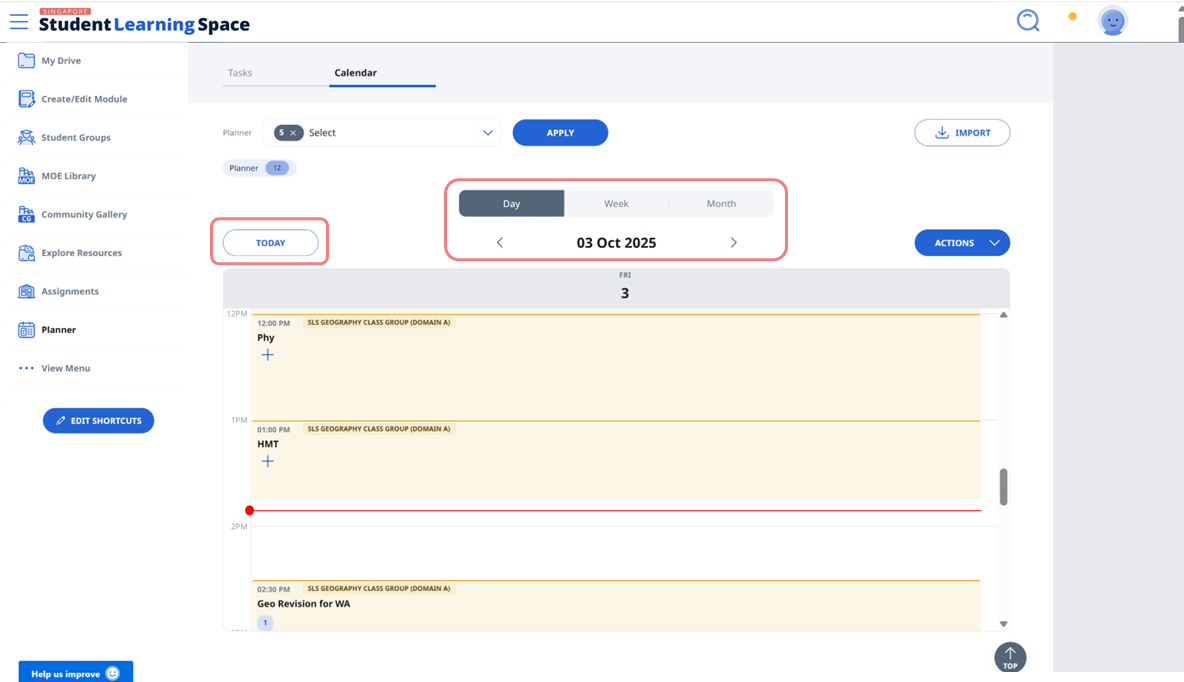
When viewing the Planner from the homepage or left menu, you will be able to select the Class Groups you wish to view the events for. From the Planner dropdown list, select the Class Group(s) you wish to view the events for. Click Apply to proceed. The total number of Class Groups selected will be indicated.
When viewing the Planner from a Class Group, you will only be able to view Class Group Events for that particular Class Group.
To view certain Class Group Events as default, pin those Class Groups. You may refer to Pin Class Groups for how to do so.
The Planner may be viewed by Day, Week or Month. Click the relevant tab for your preferred view.
To view other dates, click the Left or Right arrows to see the past or future respectively.
To return to the current date, click Today.
To know what events are happening at the moment, refer to the red line.