(A1,vii) Switch to Student Account
Teachers can switch between Teacher View and Student View on SLS to experience the platform as a student. Learn how to switch accounts using the right menu or within a group.
(A1,vii) Switch to Student Account
Switch to Student Account
Teachers are able to use Student View to experience SLS as a student. Teacher View and Student View are not dependent on each other.
Open the right menu and click Switch to Student Account.
Alternatively, enter a Student Group or a Professional Development Group and click Switch to Student Account.
You can add your teacher-student account into a Class Group to attempt Assignments as a student. To find out more on how you can add a teacher-student account into a Class Group, click here.
From March 2025 Update, a prompt will appear if you are accessing a resource which requires you to be in your Student Account. Click Proceed to switch to your Student Account.
Switch to Teacher Account
In your teacher-student account, open the right menu and click Switch to Teacher Account.
Alternatively, enter a Student Group or a Professional Development Group and click Switch to Teacher Account.
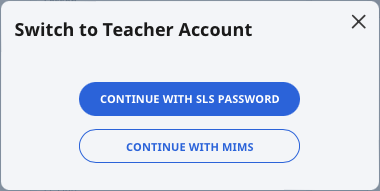
You will be prompted to log in with MIMS or with your SLS password.