
(A1,2) Add Existing Components from Resources
Learn how to add existing questions and media files to your module from the Library, Starred Resources, or QTI files in the Module Editor.
(A1,2) Add Existing Components from Resources
Add Existing Questions from Resources
The following question types can be added from Library (MOE Library, Community Gallery, and My Drive) or Starred Resources.
Multiple-Choice/Response Question
Fill-in-the-Blanks Question
Click-and-Drop Question
Error-Editing Question
Free-Response Question
Audio-Response Question
The following question types can be added from File (QTI)
Multiple-Choice/Response Question
Fill-in-the-Blanks Question
Free-Response Question
In the Module Editor page, select an Activity and hover your mouse over Questions in the Component Bar, followed by Add From Existing. Select either Question from Library, Question from Starred Resources, or Question from file (QTI).
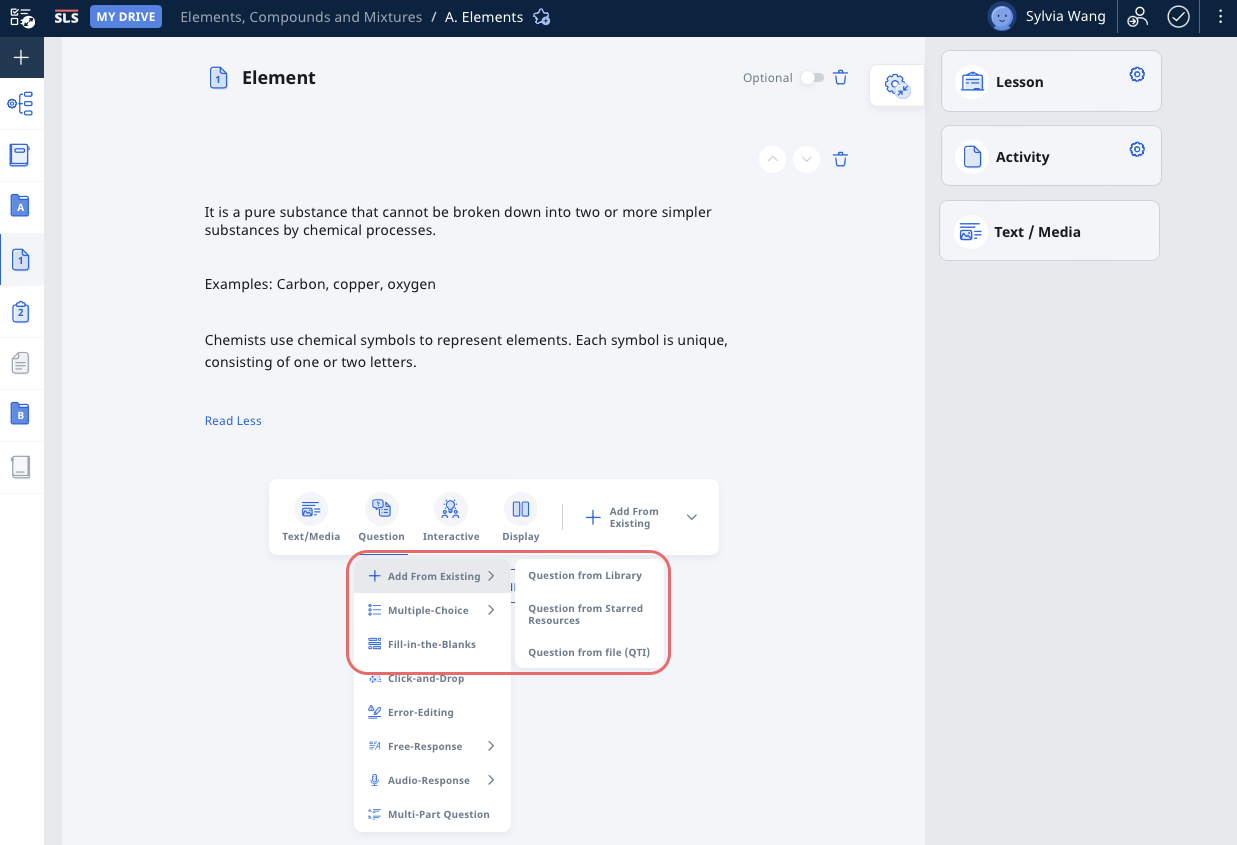
Add Existing Questions from Library and Starred Resources
When you add Question from Library, you may search for Questions across MOE Library, Community Gallery and My Drive. You can also apply Search Filter to narrow down your search.
When you add Question from Starred Resources, you are unable to search for Starred Questions.
Click the View Details icon to view the Question Details.
Select the Questions you wish to add to your Activity by selecting the relevant Question cards.
To add your selected Questions, click Choose.
The chosen Question will inherit the Question Details from the Question in Library or Starred Resources. To edit the Question details, click the Settings icon in the Question card.
Add Existing Questions from File (QTI)
In the Module Editor subpage, select an Activity and hover your mouse over Questions in the Component Bar, followed by Question from file (QTI).
Upload a compatible QTI file and click Upload
Once the upload is complete, the questions will be displayed in the Activity.
Note: For questions uploaded from a QTI-compatible file, you will not be able to filter or choose questions.
Add Media Files from Library
Media files can only be added via Rich Text and on a Module/Section Cover.
Note: Only images from Library and Starred Resource can be added on a Module/Section Cover.
The following media files from Modules can be added from My Drive, Community Gallery, MOE Library, and Starred Resources.
Images
Videos
Interactives
Audio
PowerPoint
Word
Excel
PDF
ZIP
When editing a Component allowing Rich Text, click the Add Media icon .
Click Add File from Library or Add File from Starred Resources to add an existing media file or Upload File to upload a file from your device.
Teachers can search for Media in their Library using the Search Bar. Click Filter to filter the Resource Type. Click Apply and Apply Selected Filters to proceed.
To insert a Media file into the Module, click the corresponding Media Object card.
Video Tutorial
