
(B2) Create New Folders
Learn how to create and organise folders in My Drive. You can also add sub-folders and navigate multiple folder levels with ease.
(B2) Create New Folders
Create a New Folder in My Modules Tab
From the homepage, click My Drive. Alternatively, open the left menu from the header on the homepage. Click Resources, followed by My Drive. By default, you will be in the My Modules tab.
On the listing page, click + New Folder.
In the Add New Folder subpage, enter a Folder Name.
Click Add New Folder once done.
You can create sub-folders in folders by following the above steps.
Folders in Multiple Levels
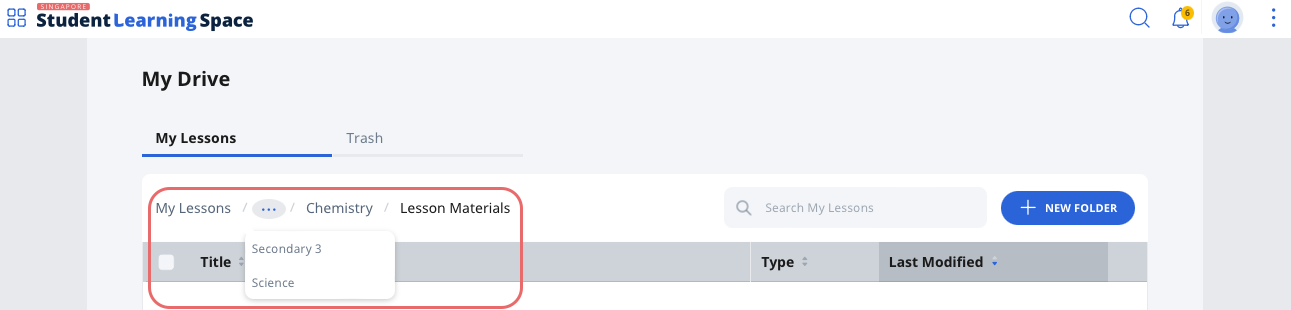
When browsing a folder under My Modules tab, you will see the names of the folders by levels in the horizontal line of text in the table header (breadcrumb). Clicking the folder's title in the breadcrumb will bring you directly to the folder.
If there are too many folder levels, clicking "..." will bring up a dropdown list of all the levels in between.
Did You Know:
By default, the resources in My Drive are sorted by folders, followed by files, based on the latest modified date.