
(B3) Comment on Notes
Learn how to add, edit, and delete comments on Notes within a Module, and manage commenting permissions as a note creator.
(B3) Comment on Notes
Leave Comments on Notes
You can access Notes from within a Module. Expand the Annotation Drawer by clicking the Notepad icon .
To leave or view a comment, click the Comment icon on a Notes Card.
If commenting has been turned on, click Add and type your desired text.
You can choose to insert mathematical or chemical equations by clicking the relevant symbols.
You can also mention your teachers by typing '@' and selecting their name(s). Your teacher(s) will be notified when you added a comment.
Once done, click Post.
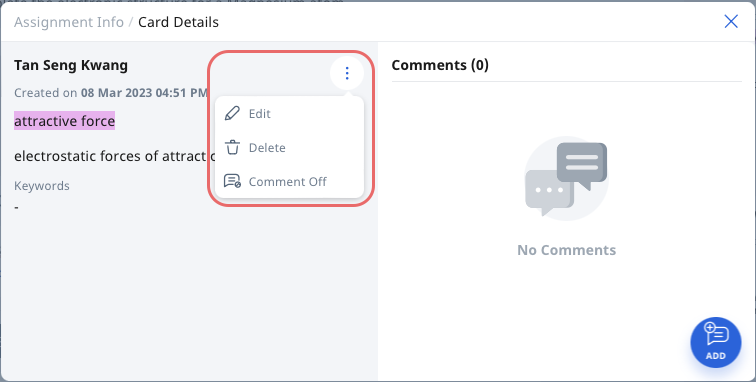
Click the Overflow (3-dot icon) to Edit, Delete or turn Comment On/Off (if you are the creator of the note).
The number of comments will be indicated in parenthesis ( ) on the Card Details subpage, and on the Notes card.
Change Commenting Permissions
If you are the creator of the note, you can turn Commenting On/Off.
Click the Overflow (3-dot icon) on a Note card and select Comment On or Comment Off.
You can also change the permissions from the Card Details subpage.
Edit Comments on Notes
You may edit comments that you have left on your own Annotation Notes or a teacher's Annotation Notes (if commenting permission has been granted).
On the Note card, click the Overflow (3-dot icon) and select Edit.
To edit a comment you have left in your Teacher's Annotation Notes, click the Comment icon . Click the Overflow (3-dot icon) next to your comment and select Edit.
Delete Comments on Notes
You may delete a comment created by you on your Annotation Note card.
On the Note card, click the Overflow (3-dot icon) and select Delete.
To delete a comment created by you in your teacher's Annotation Notes, click the Comment icon . Click the Overflow (3-dot icon) next to your Comment and select Delete.
Click OK on the confirmation box to proceed. Click Cancel to keep the comment.