(B2) View Notes
View and manage highlighted, underlined and freeform notes in your modules.
View Notes
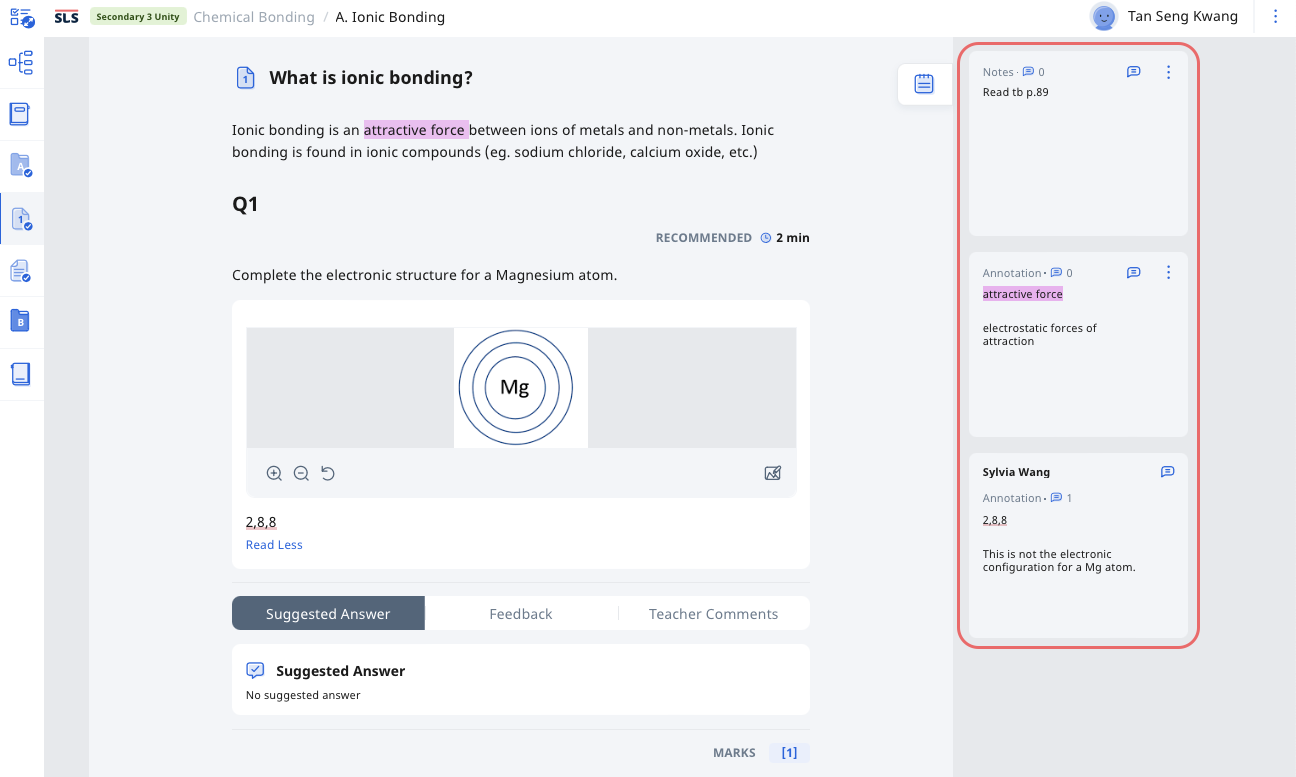
There are 3 types of Notes:
Highlighted Annotation: These are found within an Activity of an Assignment, or Self-Study Resource. They can be created by both your teacher and yourself.
Note: If you have shared the module with a classmate (if Share Assignment is enabled), you will also be able to see each other’s notes.
Underlined Annotation: These are only found in Assignments. These are created by your teachers to provide feedback or to highlight key concepts.
Notes: These are found within an Activity of an Assignment, or Self-Study Resource. They can be created by both your teacher and yourself. These Notes are not anchored to anywhere in the Assignment or Resource.
You can access Notes from within a Module. Expand the Annotation Drawer by clicking the Notepad icon to find your Annotation cards. The cards will indicate the name of the person who posted it, the number of comments (if Commenting has been turned on), and a preview of the text in the notes.