
(A2,9) Add Audio Response Questions
Learn how to add and edit Audio-Response Questions in the Module Editor, including setting marks, rubrics, and recommended time for students.
(A2,9) Add Audio-Response Questions
Add Audio-Response Question (ARQ)
In the Module Editor page, hover over Question in the Component Bar.
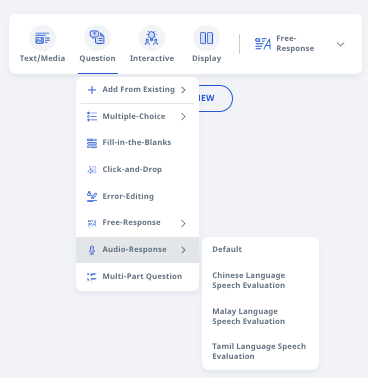
Select Audio-Response. Below are the types of ARQ options you can choose from:
Default: You will evaluate students’ submission and provide Marks and/or Feedback.
Speech Evaluation: The system will provide Marks and/or Feedback.
In the Question Body field, enter the question.
Click outside the Component to Save.
Edit Audio-Response Question (Enhanced)
Fill in the optional details of the Audio-response question:
Recommended Time - You can set the recommended time for the student to complete the question.
Add Rubrics - This allows students to view the rubrics while they attempt the question.
Note: Show and use rubric marks checkbox - If checked, marks will be defined by the Rubrics.
Suggested Answer - The suggested answer to the question. This is shown to students after they have submitted their answers.
Marks - You can set the number of marks. The default is one mark.
Click here for editing the Question Component Details card.
Click here for adding questions in a Quiz.
You can continue to edit Audio-Response questions even after they have been assigned or attempted by students. This allows you to correct any errors found in the question. The last edited date and time will be displayed if the assignment or resource has been modified after a student’s attempt.
Note:
From R4 (June 2026), the auto-save indicator will reflect 1 of the 3 statuses when the audio recording is being processed in student account: (1) Autosaving as draft, (2) Saved as draft, or (3) Autosaving failed. Students may also manually click on Save as Draft.
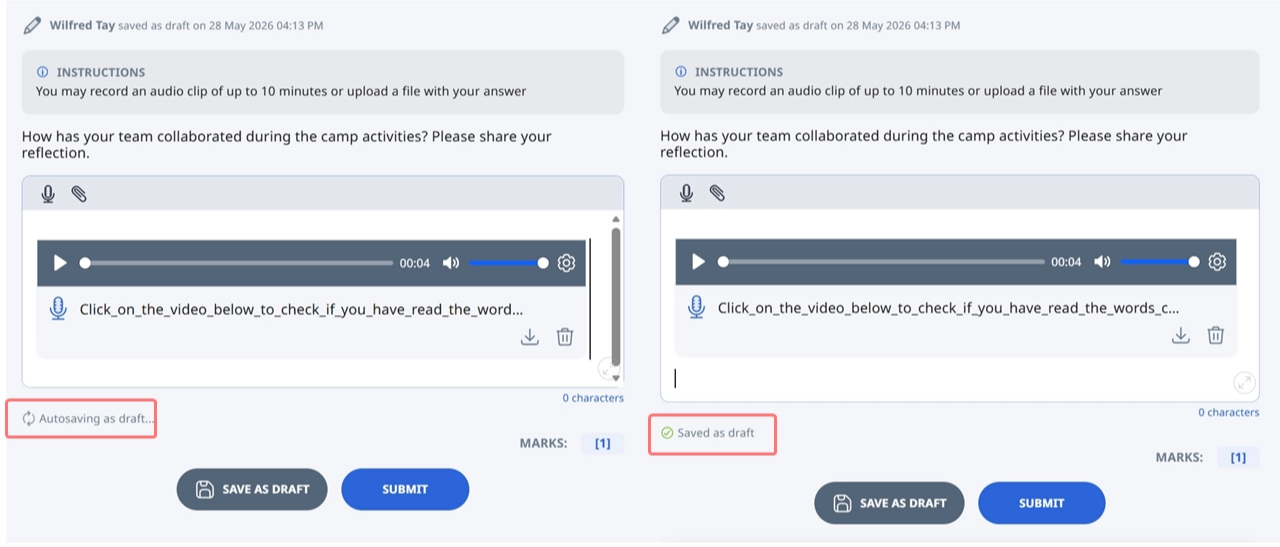
If internet connection is unstable, please inform students not to close the browser page. Their last saved response in SLS will be restored when connectivity resumes, even if the page is refreshed.