
(A2,1) Add Components
Add, edit and arrange text, media, questions and interactive components.
(A2,1) Add Components
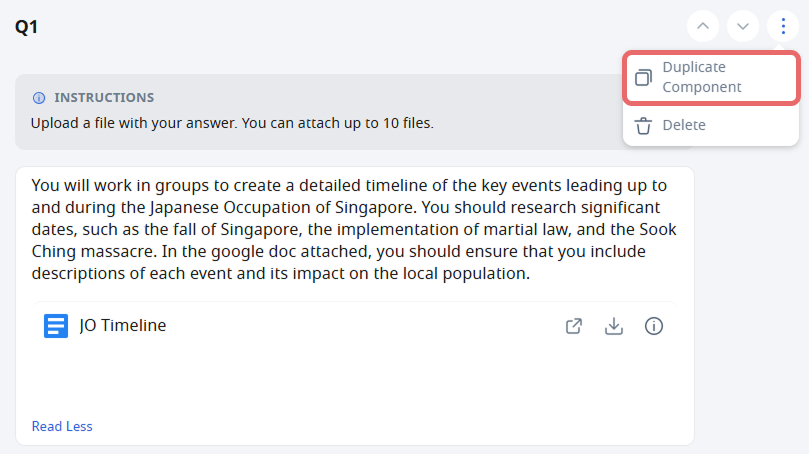
You can duplicate components in a page by clicking the Overflow (3-dot icon) next to the component and selecting Duplicate Component.
Add a Text/Media Component
Hover over Text/Media on the Component Bar to expand the list.
Click Split-page Media to split the uploaded PowerPoint, video or audio file across pages.
Click Text to open Click Rich Text Editor.
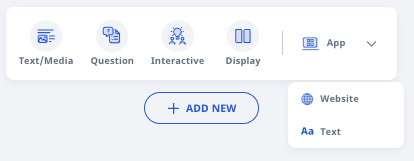
You can also directly attach File From Device, embed Google File, YouTube Video, App or Website from the dropdown menu.
Add a Question Component
Hover over Question on the Component Bar to expand the list.
Click Add From Existing to add questions from your Library, Starred Resources or QTI file. You can do a global search for Questions found in your Library and filter the results by Subject and Level. Click Filter for a more refined search or here to find out more about Search for Resources.
You can add the following types of Questions:
Add an Interactive Component
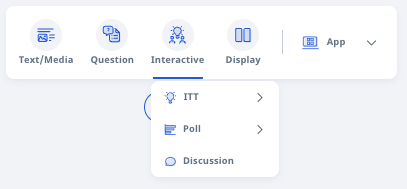
Hover over Interactive on the Component Bar to expand the list.
You can add the following types of Interactive Components:
Add Display
You can add multiple Columns and Accordions display to contain different Components in an Activity.
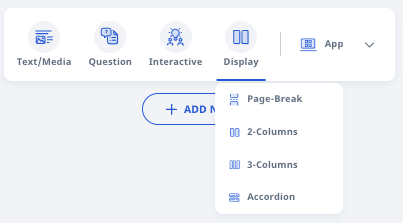
Hover over Display on the Component Bar to expand the list.
You can add the following types of Displays:
Page-Break
2-Columns
3-Columns
Accordion
Note: You can only add Text/Media, Multiple-Choice Questions, and Free-Response Questions components in multiple columns and accordions.
Did You Know:
Three of the Last Used Components will be featured at the back of the Component Bar for easy access.
Edit Components
You can add a new Component by clicking the + button in between Components.
You can delete a Component by clicking the Trash icon.
If there is more than 1 component, you can re-arrange the Component by clicking the up and down arrows.