
(C1,ii) Add a Poll
Learn how to add a Poll to your module activity, choose a poll type, and view student responses.
(C1,ii) Add a Poll
Create a Poll from Module Editor page
In the Module Editor page, select an Activity and hover your mouse over Interactive in the Component Bar, followed by Poll.
Select from either Single-selection, Multi-selection, or Slider.
Complete the Question Body field.
If you have selected Single-selection or Multi-selection, fill in the Rich-Text-enabled options. You can add up to 26 options.
If you have selected Slider, you may create up to 7 plain text options.
After the details are entered, click outside the Poll box to save your work.
To hide the results of the Poll, click the Settings icon on the Poll card, select the checkbox “Hide results”. Then click Save followed by X.
Note: By default, the results of what each student selected will be visible only to teachers.
When the results are hidden, only the number of total number of responses for each option will be shown on the Interaction Board. Students will be able to see their responses, indicated with a tick beside the bar graph.
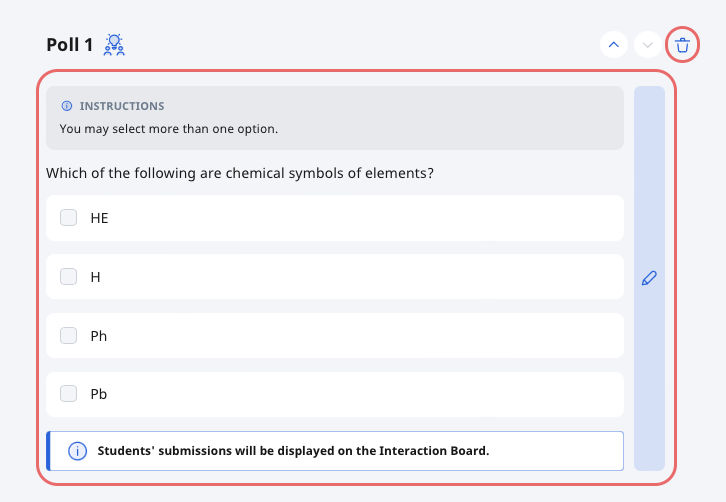
To edit a Poll, hover your mouse over the Poll and click the component, or the Pencil icon .
To delete your Poll, click the Delete icon .
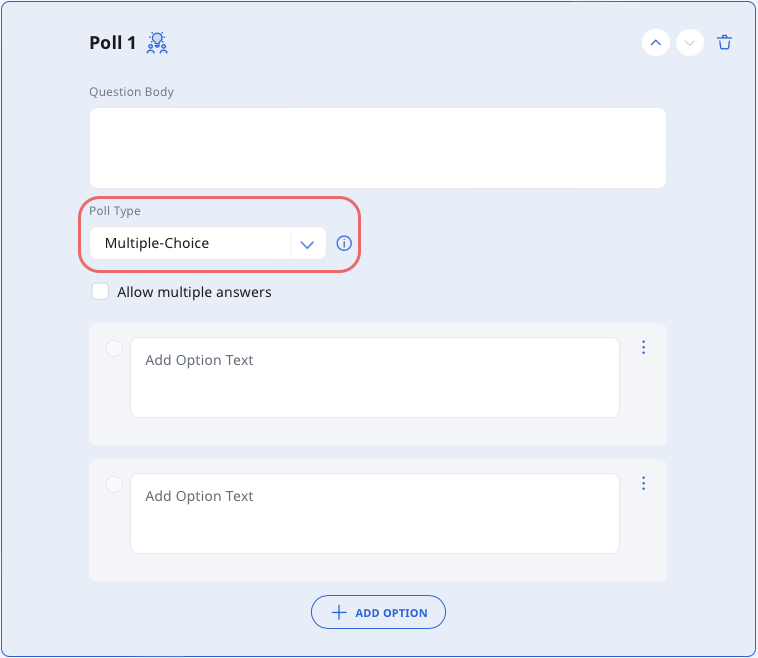
Note: You can change your Poll Type from within the Poll component by selecting the appropriate Poll Type under the dropdown list.
Preview as Student
When you Preview as Student or assign a Poll to students, students will be able to submit their votes by selecting a radio button or multiple checkboxes (if multiple answers are allowed).
View Poll Results
There are two ways you can view students’ responses in a Poll:
Click View Class Submission in the activity.
From the Monitor Assignment page, click View Responses.