
(A2) Change Forum Settings
Learn how to manage forum settings, including who can create posts, polls, and comments within topics.
(A2) Change Forum Settings
Topics Settings
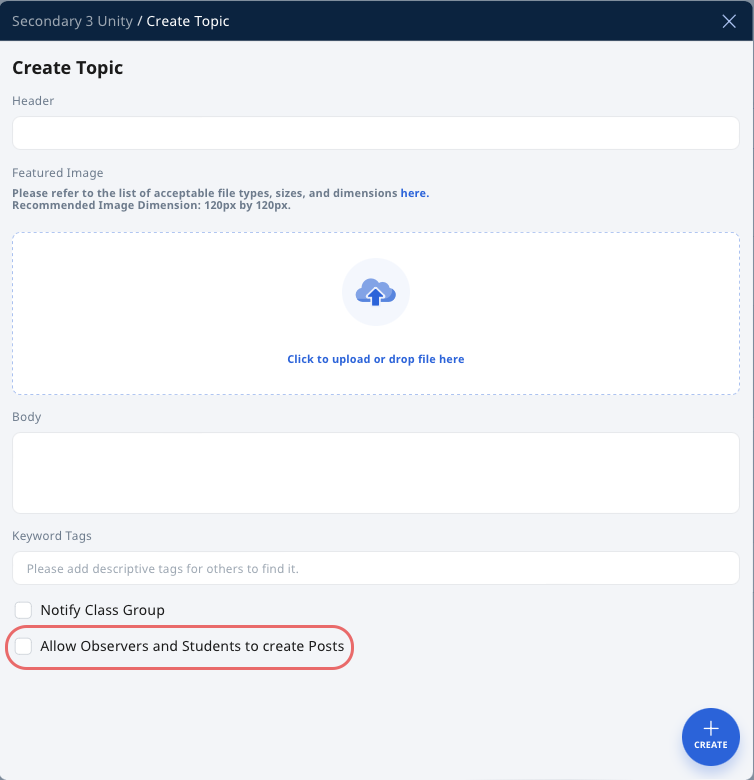
Teachers are able to change the permission settings to allow or disallow Observers and Students to create posts within a topic.
When creating a new topic, select the checkbox “Allow Observers and Students to Create Posts” should you wish to grant them permission to do so.
Complete the fields within the Create Topic subpage and click Create to proceed.
You can also change the permission settings for an existing topic but clicking the Overflow (3-dot icon) and selecting Edit. Alternatively, click a topic card, followed by clicking the Overflow (3-dot icon) and selecting Edit.
Select or deselect the checkbox “Allow Observers and Students to create Posts”.
Poll Settings
Teachers are able to change the permission settings to allow or disallow Observers and students to create a poll.
Click Forum Settings, then select the checkbox “Allow Observers and Students to create Poll”.
Click Save to confirm.
Comment Settings
The owners of posts and teachers who are Owners/Co-teachers are able to change commenting permission by turning it off or on.
Enter a topic by clicking the topic card.
For newly-created posts, select or deselect the checkbox “Commenting is enabled” to allow or disallow others to add comments.
Click Create to proceed.
For existing posts, click the Overflow (3-dot icon) and select Comment On or Comment Off to allow or disallow others to add comments.
Note: Teachers can delete all comments.