(A2,12) Add Display
Learn how to add Page-Break, multi-column, and Accordion displays to an Activity in the Module Editor.
(A2,12) Add Display (Enhanced)
Add Display
You can add multiple Columns and Accordions display to contain different Components in an Activity.
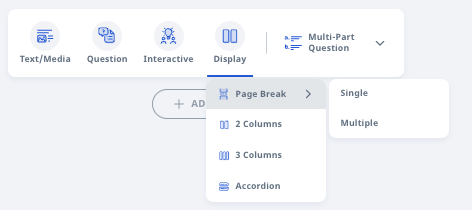
In the Module Editor page, hover over Display in the Component Bar.
You can add the following types of Display:
Page-Break
2-Columns
3-Columns
Accordion
Note: You can only add Text/Media, Multiple-Choice Questions, and Free-Response Questions components in multiple columns and accordions.
Add Page-Break
Page-Break will create a page layout and you can add different Components from the Component Bar on each page.
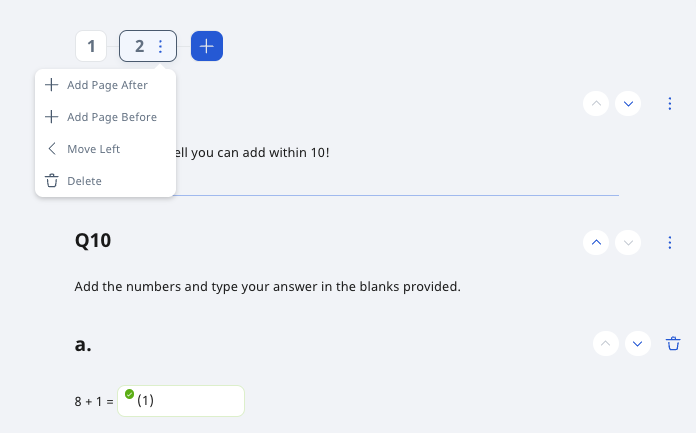
Open the Overflow (3-dot icon) beside the Page Number to Add Page After/Before, Move Left/Right, or Delete.
Note: The question numbering will continue from the previous page.
Click the Up/Down Arrows to move your Components up/down within a page.
Open the Overflow (3-dot icon) beside the Component to Move it to the Previous/Next Page or Delete.
Note:
When you move a Component to the Next Page, it will appear on the top of that page.
When you move a Component to the Previous Page, it will appear at the bottom of that page.
Click outside of the Component to Save.

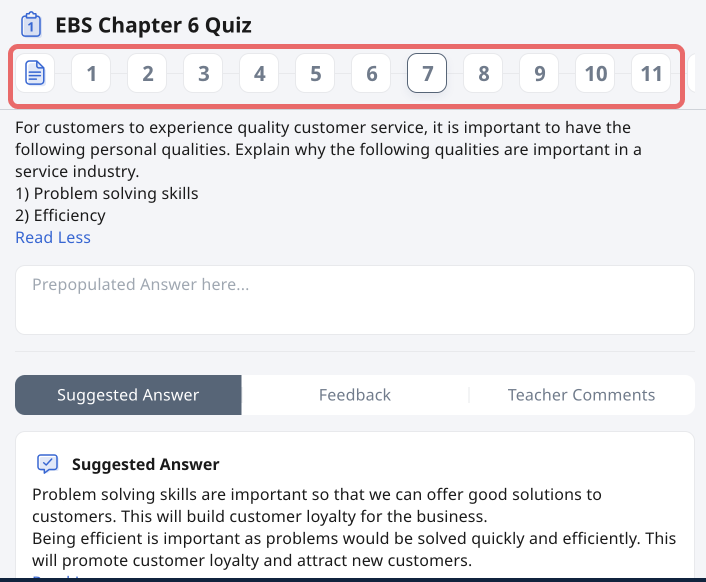
Did You Know: The page numbers for quizzes and activities that have multiple pages will remain visible at the top of the page.
Add Components to Multiple Columns
In the Multiple Columns view, hover over Text/Media, Question or Last Used to add a Component.
Click here to find out more about the different Components.
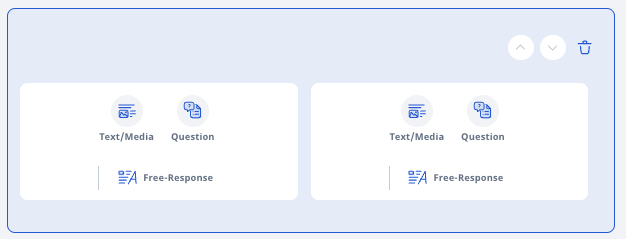
You can click on the Component to Edit, Move Up/Down or Delete a Multiple Column Component by clicking on respective icons.
If long content is inserted in a column, an independent scroll bar will appear after saving the component. This will allow students to scroll through the content side-by-side (e.g. Passage and Question).
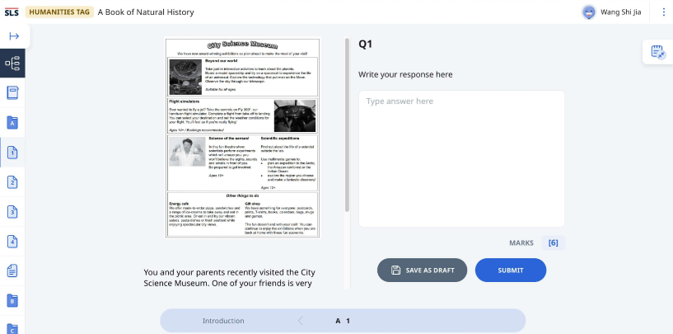
When done with editing, click outside of the Component to Save.
Add Components to Accordions
In the Accordion view, hover over Text/Media, Question or Last Used to add a Component.
Click here to find out more about the different Components.
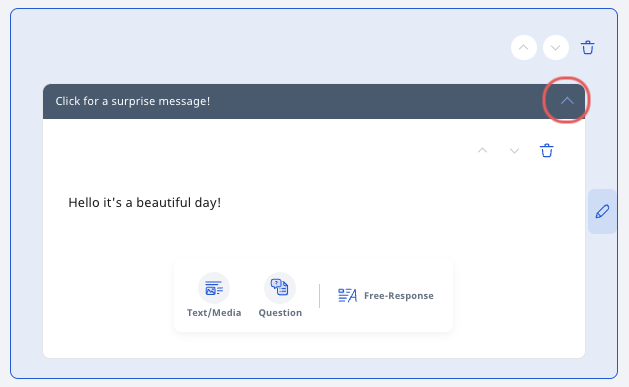
Click on Accordion which is the default title to rename. Click on the Up/Down arrow to hide or unhide the Accordion.
You can click on the Component to Edit, Move Up/Down or Delete a Accordion Component by clicking on respective icons.
You can add multiple Components by selecting from the Component Bar at the bottom.
Click outside of the Component to Save.