(B1,ii) Edit Modules
Learn how to edit your Modules using the Module Editor or homepage. You can rename titles, adjust settings, and credit collaborators.
(B1,ii) Edit Modules
Module Editor Page
You can edit Modules that you have created or copied, as well as Modules that were shared with you with editing permissions.
Open the left menu. Expand the Resources dropdown list and select My Drive. By default, you will be in the My Modules tab. You may also access Modules under Shared With Me.
Click Open to open a Module for viewing.
On the Module View Page, click the Pencil icon found at the top right of the header to edit the Module.
You can rename the Module Title by clicking on the Title on the top menu bar and save by clicking outside of it.
Click the Overflow (3-dots icon) found at the top right of the header to:
Manage Appearance Settings - You can view the module in standard or wide mode
Manage Gamification Settings
Manage Access Code Settings
Make the necessary changes to your Module. Click the Done icon found at the top right of the header to save your changes.
Note: If the Module was shared with you as view-only, you will have to make a copy of the Module before you can make changes.
Edit Module from homepage
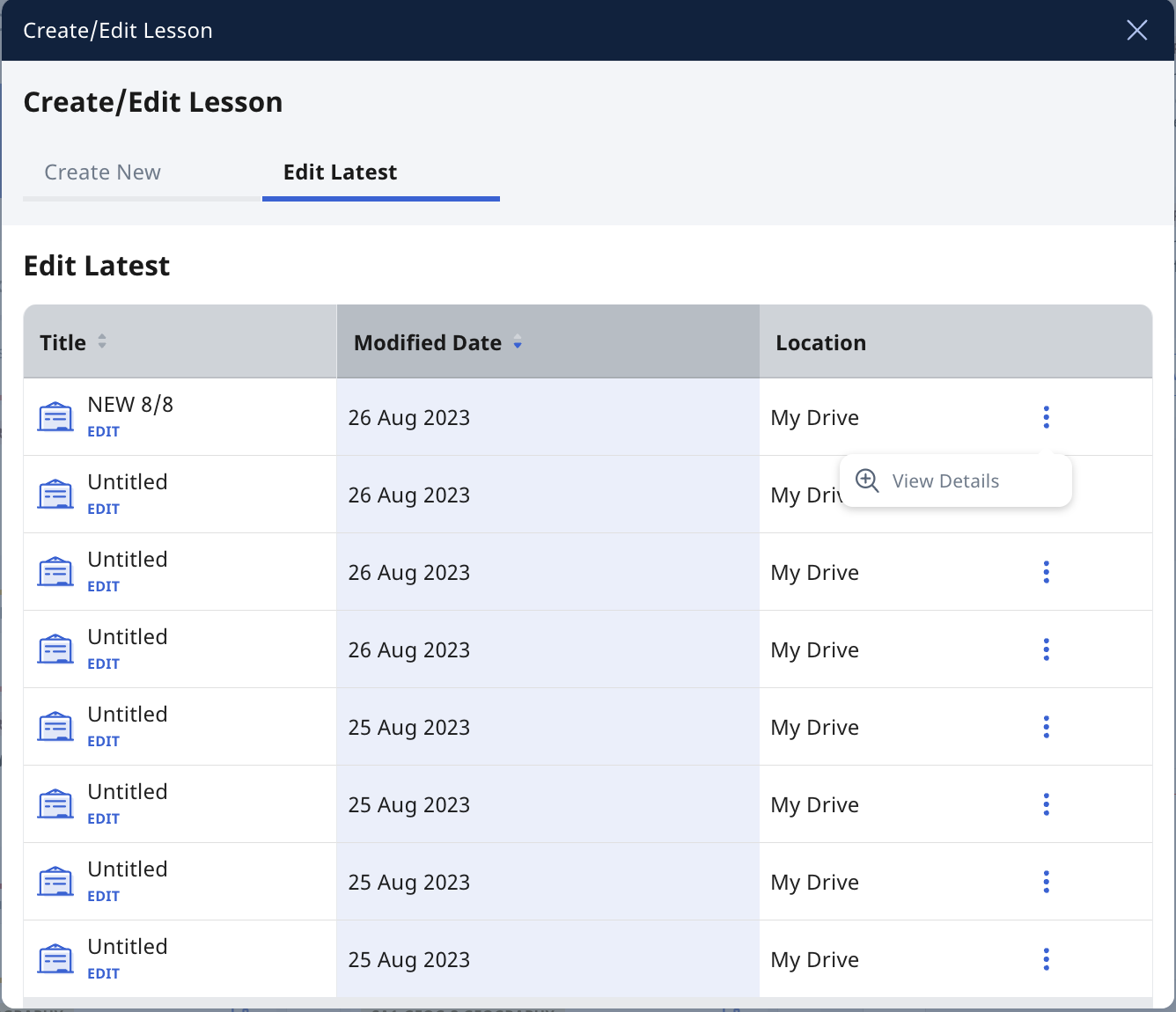
On the homepage, select Create/Edit Module. Then under the Edit Latest tab, you will see a list of Modules you have been working on.
By default, they will be sorted according to the modified date. You can also sort them according to title.
Click View Details to view the following on the Module Details subpage:
Module title, cover and description (if any)
View Teacher Notes toggle - You can toggle on/off to view Teacher Notes (if any)
All Activities/Sections in the Module - Click Show Activities to see all Activities in a Section. The number of Activities in a Section is shown in parenthesis ( ).
View in new tab - Click the Expand icon to view a Module/Activity/Section in a new tab.
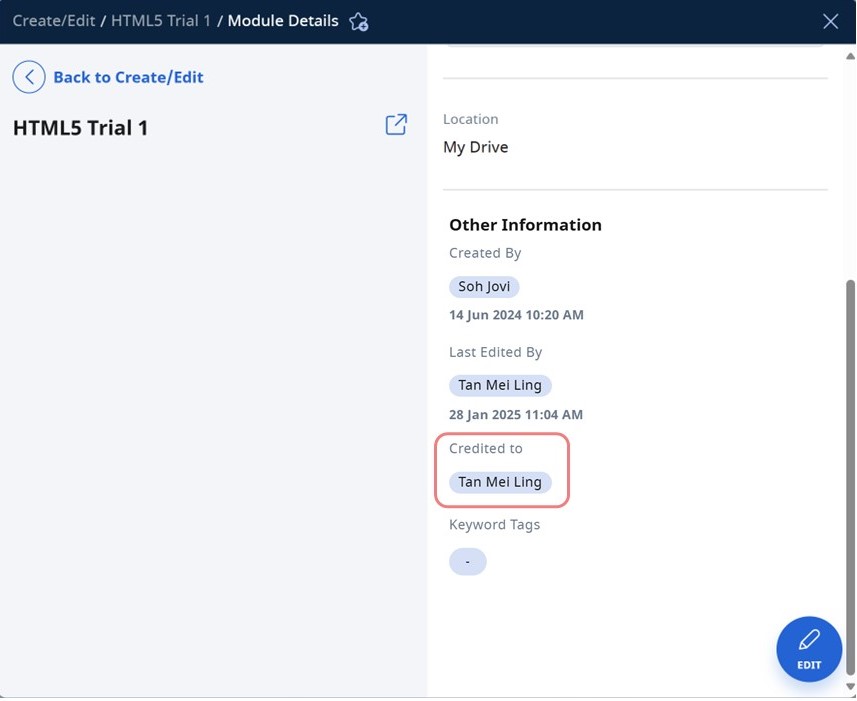
Other Information - Location, Created by, Last Edited by and Keyword Tags
Click Edit to enter the Module Editor page.
Module Credited to Collaborators
From March 2025 update, collaborators who have edited the module will be automatically credited and their names can be viewed under Module Details.
Note: When collaborators edit assignments, they will also be automatically credited.
To manually add the names of collaborators, click Edit to enter the Module Editor page.
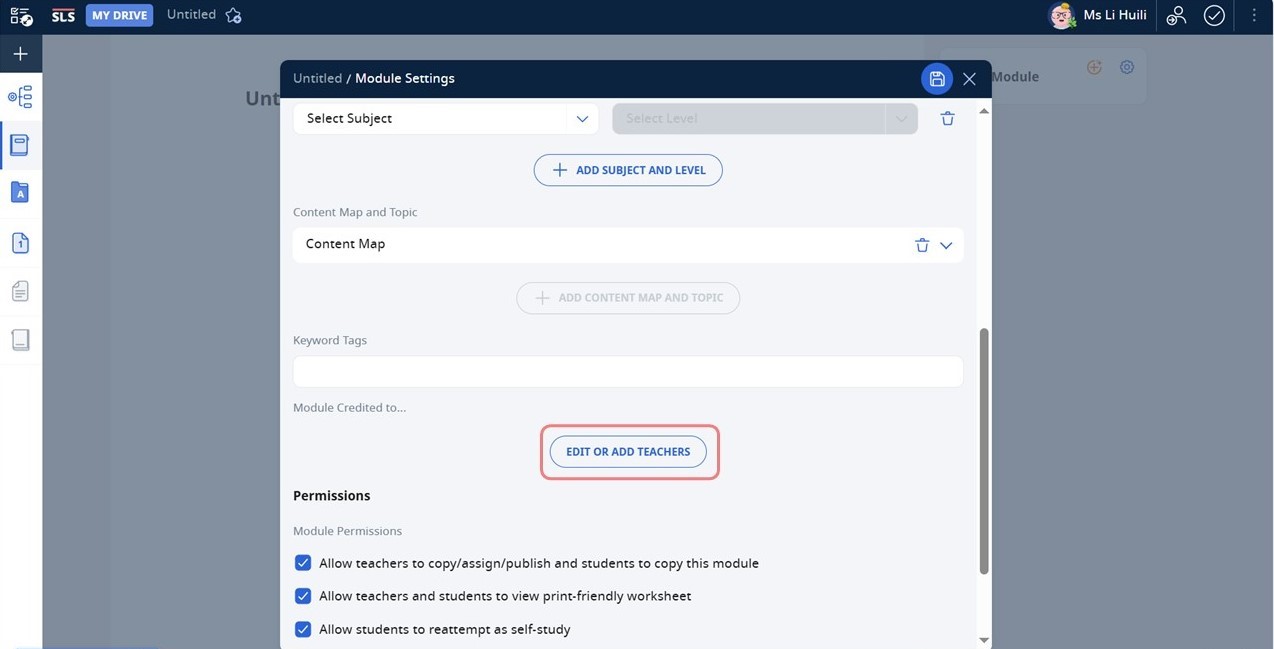
Click the Settings icon , followed by Edit or Add Teachers to credit teachers who have contributed to the module.