
(A3,11) HTML5 Content Development (Enhanced)
Create and upload interactive, xAPI-compliant HTML5 content to SLS.
Considerations when creating HTML5 Content
When creating HTML5 interactive content for SLS, the maximum file size limit is 500 MB.
For more samples, templates, and community-contributed interactive resources, visit the SLS Prompt Generator - I Want 2 Study AI Prompt Library: https://iwant2study.moe.edu.sg/lookangejss/promptLibrary/ai-prompt-library.html (opens in new tab)Acceptable languages: Client-side only technologies: HTML5, CSS, and JavaScript. No server-side code or external APIs are permitted.
Responsive requirements:
Vector graphics should be used, using SVG or other suitable formats,
The media object should be scaled proportionally in response to changing browser size - for HTML tags, ensure that the dimensions are defined using relative sizes (%, em) instead of absolute sizing (px).
Output:
Self-contained HTML5 (does not require an internet connection to work),
Scales proportionally and works within an <iframe> regardless of the dimension of the <iframe>,
Scales proportionately and works within its own browser window regardless of size,
Self-contained HTML5 packages should contain the necessary WebGL libraries (if required) in their root folder. Note that if WebGL is used, all .js and shader assets must be bundled locally.
Others:
There should not be any external libraries, including font libraries, when creating the HTML5 interactive content.
Uploading a HTML5 ZIP file in SLS
Ensure your Media Object folder contains the "index.html" file.
Note: Your ZIP folder must contain index.html in the root - not nested and must be named index.html. Otherwise, SLS will not recognise the folder.
Select all the files within the folder and zip/compress them.
In SLS, select File from Device under Text/Media on the Component Bar. Alternatively, click the Add Media icon and Upload File in the Rich Text Editor.
Upload the ZIP file by either dragging and dropping it into the box, or clicking the box to select a file through the file manager. A sample file is provided here (opens in new tab).
Click Upload when done.
If the file is valid, it will be uploaded and scanned for viruses.
Note: The virus scan will take longer if the file size is large.
When the file is successfully uploaded, the Media Object will be added to the Module.

Text / Media - Upload from Device
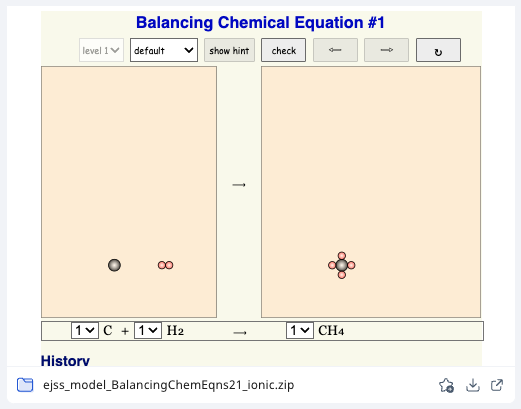
Creating HTML5 Content for Interactive Response
Ensure that the XAPI Wrapper JavaScript file (xapiwrapper.min.js) (opens in new tab) is included in your project. This file provides the necessary functions and utilities for communicating with an Experience API (XAPI) endpoint.
Before using the XAPI Wrapper functions, it's crucial to load the API wrapper script. This script provides methods for interacting with an XAPI-conformant Learning Record Store (LRS).
<script src="xapiwrapper.min.js"></script>
The version used is v1.11.0 (opens in new tab)
Place the following script, it will do the initialization (getParameters) on document ready (DOMContentLoaded), which retrieves parameters (endpoint, auth, agent, stateId, activityId) from the URL query string and configures the xAPI Wrapper (ADL.XAPIWrapper) using the retrieved endpoint and auth credentials.
<script> // Using a namespace to prevent global variable clashes const XAPIUtils = { parameters: null, // Parameters store getParameters: function () { if (!this.parameters) { // Ensure fetch once var urlParams = new URLSearchParams(window.location.search); var endpoint = urlParams.get('endpoint'); var auth = urlParams.get('auth'); var agent = JSON.parse(urlParams.get('agent')); var stateId = urlParams.get('stateId'); var activityId = urlParams.get('activityId'); ADL.XAPIWrapper.changeConfig({"endpoint": endpoint + "/", "auth": `Basic ${auth}`}); this.parameters = { agent, stateId, activityId }; } return this.parameters; } }; // Immediately invoke getParameters on page load document.addEventListener("DOMContentLoaded", function() { XAPIUtils.getParameters(); }); </script>
Currently SLS supports a single method, sendScore(score). Following is the sample to send the state via ADL.XAPIWrapper.sendState method.
<script> function sendScore(score) { try { const parameters = XAPIUtils.getParameters(); // Retrieve parameters from store const activityid = parameters.activityId; const stateId = parameters.stateId; const agent = parameters.agent; const registration = null; const stateValue = { score: score }; ADL.XAPIWrapper.sendState(activityid, agent, stateId, registration, stateValue); } catch (err) { console.error("An error has occurred!", err); } } </script>
Download sample package here (opens in new tab)
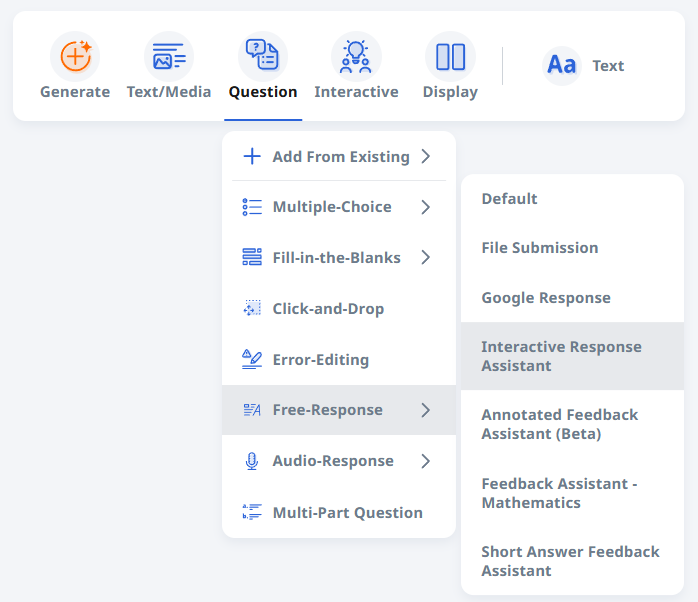
In the Module Editor page, hover over Question in the Component Bar, select Free-Response followed by Interactive Response.
Upload the HTM5 ZIP file into SLS and select Upload to proceed.
Supported Scenarios for Creating Interactive Response
Teachers can now set Interactive Response Questions (IRQs) to automatically return scores and teacher feedback.
IRQs will be able to return final score-marks and teacher feedback after March 2025 Update.
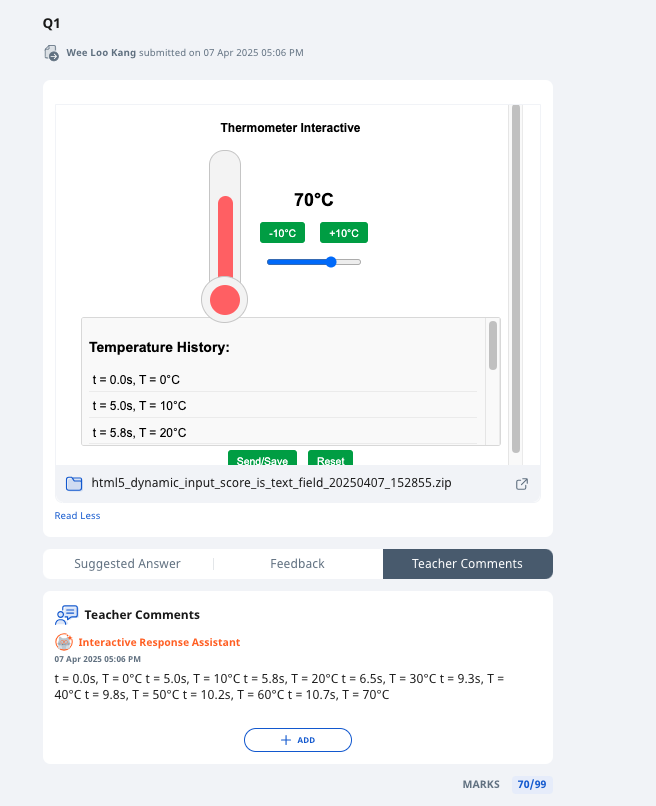
To do this, upload an xAPI-compliant HTML5 file to the Free-Response Question – Interactive Response Assistant and set up maximum marks possible and optionally the rubrics if desired.
You may download the HTML5 ZIP files based on the scenarios to create FRQ with Interactive Response.
HTML5 sample code downloads by interactive response scenario
Scenario | Use Case | Sample Code |
Send score only | Involves only the score | |
Send score, feedback and criteria score and feedback | Involves score, feedback, criteria score and feedback | |
Send score via Radio and Checkbox | Involves score | |
Send score, feedback and criteria score and feedback | Involves rubrics and “Show and use rubric marks“ is not selected | 03 html5-dynamic-input-score-is-text-field.zip (opens in new tab) |
Send score and feedback only working on a sample 🌡thermometer interactive | Involves score, feedback, implemented on an interactive of thermometer |
FAQs
Why does the HTML5 Media Object close after an Assignment is opened in a new tab?
The following line of code in the HTML5 Media Object may have caused this issue:
top.close();
//window.opener.top.close();
As a workaround, students can access the assignment via the Assignment URL.
Why does the HTML5 Media Object appear as a file, instead of being loaded in the frame?
This happens when there is no "index.html" file found directly inside the ZIP file, e.g. it is found inside another folder, or it has been renamed as "index.html.html". Please follow steps 1 and 2 as stated in the User Guide above when uploading a HTML5 Zip file in SLS. You may want to use this tool: https://sg.iwant2study.org/ospsg/index.php/1253 (opens in new tab) to automatically correct the ZIP file into a SLS compatible format.
How to create HTML5 Media Object with xAPI with score and teacher feedback compliance?
Create a fully interactive, realistic-looking simulation of [plant growth] using only HTML, CSS, and JavaScript, all within a single self-contained HTML file. This file must be immediately usable in LMS platforms like the Student Learning Space (SLS) without requiring any external resources or internet access.
Hide the page title, margins, and unnecessary UI to maximize vertical space.
To optimise the file for SLS iframe view: Should fit width = 100% and height = 450 px.
Fully responsive design for both desktop and mobile screens.
Visit https://iwant2study.moe.edu.sg/lookangejss/appXapiIntegratorAgent/ (opens in new tab)and upload your zip interactive in SLS interactive generator or equivalent.
The integrator automatically inserts all essential xAPI starter code, files and file structure, and launch parameters, ensuring:
scoring placeholder ready
generic teacher feedback ready
SLS compatibility
Layer the new customised score and feedback on top of xAPI working interactive.
Use ChatGPT with the Interactive xAPI Designer Plugin (opens in new tab), or an AI-powered IDE like Trae.ai (opens in new tab) / Visual Studio Code to assist in generating interactive HTML5 code.
Prompt the IDE to add specific scoring and feedback based on your interactive.
For example, score increment by 1 when certain actions are performed or hook up the current marks to the score to send via xAPI.
for example, feedback can be strings of actions that student to support development and assess of 21st century skills, such as critical, adaptive and inventive thinking .
t = 0: Q1 asked, student answered "[response]" – marked ✅ correct.
t = 1: Q2 asked, student answered "[response]" – marked ❌incorrect.
Once the interactive behaves as expected, ask the AI to hide debugging panels if desired.
The project should now be ready to export as an xAPI-compliant zip file compatible with SLS through the Free-Response Question – Interactive Response Assistant
Use a free AI-powered IDE like Trae.ai (opens in new tab) or Visual Code Studio with Cline bot Extension
Open a folder with a working xAPI example, such as the unzipped 03-html5-dynamic-input-score-is-text-field folder.
Prompt the IDE to add new interactivity on top of the existing xAPI file.
Include score-marks and teacher feedback after each action. For example:
t = 0: Q1 asked, student answered "[response]" – marked ✅ correct.
t = 1: Q2 asked, student answered "[response]" – marked ❌incorrect.
Once the interactive behaves as expected, ask the AI to hide debugging panels if desired.
The project should now be ready to export as an xAPI-compliant zip file compatible with SLS.
How to create xAPI-compliant HTML5 content for Interactive Response Questions (IRQ) in SLS?
To ensure your custom HTML5 interactive content functions properly as an Interactive Response Question (IRQ) within the Student Learning Space (SLS), the package must comply with specific Experience API (xAPI) standards. The package must be a self-contained ZIP file containing an index.html file at its root directory, with all assets—including CSS, JavaScript, fonts, and any WebGL shaders or libraries—bundled locally without relying on external APIs or internet access. The layout must be fully responsive, designed to scale dynamically within an iframe (recommended dimensions: 100% width, 450px height) and across varying window sizes.
To integrate xAPI tracking, your project must include the XAPI Wrapper JavaScript file (xapiwrapper.min.js v1.11.0) (opens in new tab). On document ready (DOMContentLoaded), run the initialization function getParameters to extract essential query parameters—such as the endpoint, auth credentials, agent, stateId, and activityId—from the URL query string to configure ADL.XAPIWrapper. To transmit interaction details, use ADL.XAPIWrapper.sendState or call sendScore(score) to pass student score-marks, feedback, or rubric criteria directly back to SLS. Developers can utilize the SLS xAPI Integrator (opens in new tab) or reference existing sample packages (opens in new tab) or ChatGPT Interactive xAPI Designer Plugin (opens in new tab) to automatically bootstrap the launcher files, state parameters, and scoring placeholders before layering custom interactive logic or
[From vendors] Why does my Storyline 360 or SCORM HTML5 package show a blank screen in SLS?
A package may work locally but appear blank in SLS because SLS runs HTML5 content inside a restricted iframe and does not provide the SCORM LMS API expected by some Storyline launch files. To troubleshoot:
Open the SLS activity, press F12, select Console, and reload the page. Look for errors mentioning Content Security Policy, blocked fonts or media, external websites, pop-ups, or a missing LMS API.
Ensure that index.html is located directly at the root of the ZIP—not inside another folder.
Use the appropriate web launch file. A SCORM-only launch file may wait indefinitely for an LMS API that is unavailable in an SLS Media Object.
Bundle all JavaScript, fonts, audio, video, images and other assets locally. Do not depend on CDNs, external APIs, embedded websites or base64/data-URL fonts and media.
Remove or replace unsupported calls such as confirm(), pop-up windows and top.close().
Recompress the contents of the package folder, upload the new ZIP, and check the browser console again.
For Storyline 360 packages, use the Storyline-to-SLS converter (opens in new tab) and test the result locally with the SLS preview tool (opens in new tab). For detailed explanations and troubleshooting steps, see Why Is My HTML5 Package Blank in SLS? (opens in new tab).