(A3,7) Insert Drawings
Learn how to insert and edit drawings in the Rich Text Editor, using tools like pen, highlighter, text, and images.
(A3,7) Insert Drawings
In the Rich Text Editor, click the Drawing icon (Palette).
By default, after clicking the Drawing icon, you will start with a blank canvas.
You can click on the Image button to upload an image as background from your computer.
You can resize the images you have uploaded by dragging the points on the corners of the image.
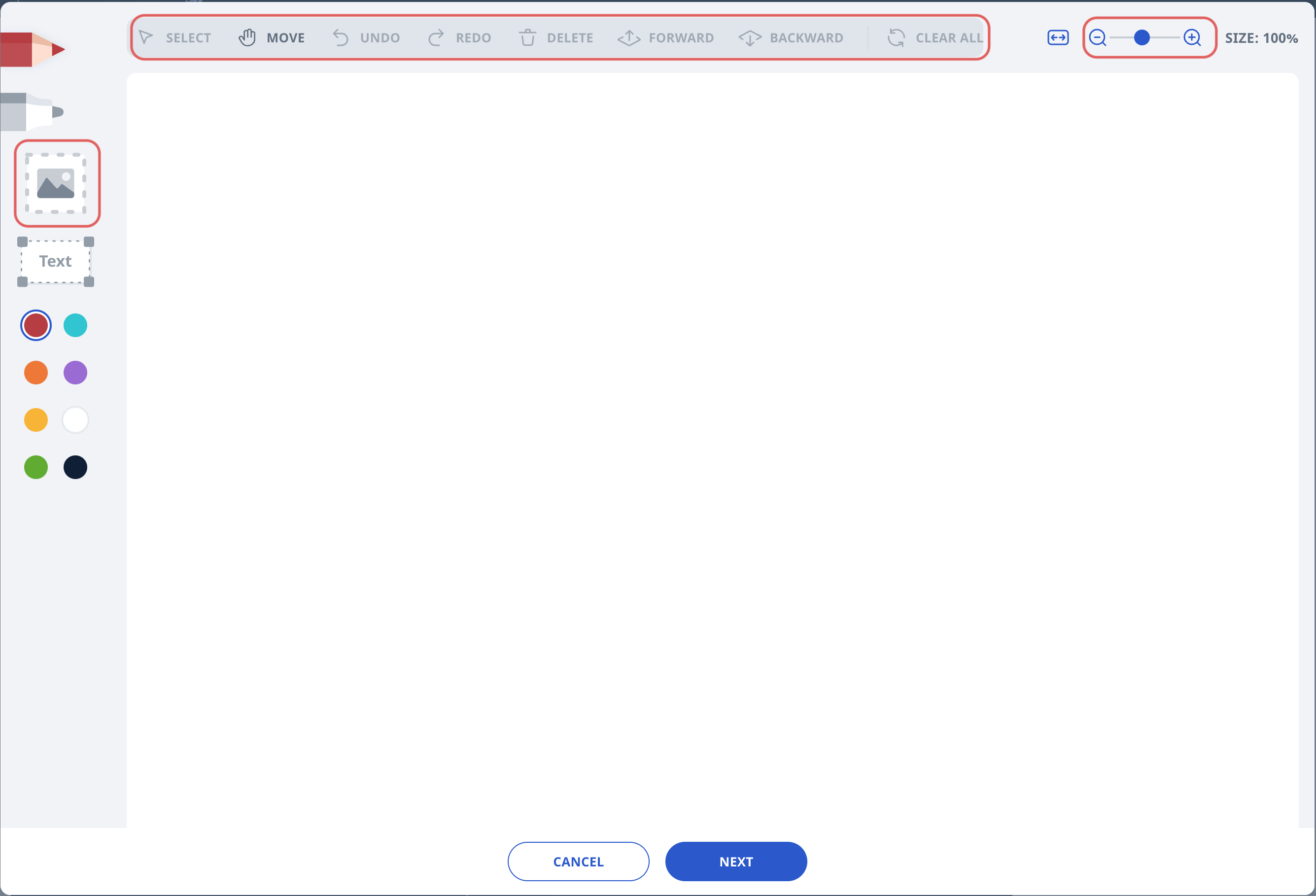
In the top bar, select objects on the canvas, such as drawings, images or text, to Move, Delete, Undo or Redo actions, or arrange them in layers by bringing them Forward or sending them Backward.
By default, the image will be fit to height within the canvas. Click on Fit to Width or use Zoom to adjust how the image fills the screen.
You can use the eraser to erase any part of the drawing. You can also adjust the thickness of the pen, highlighter and eraser.
When you click Clear All, all drawings and images will be deleted.
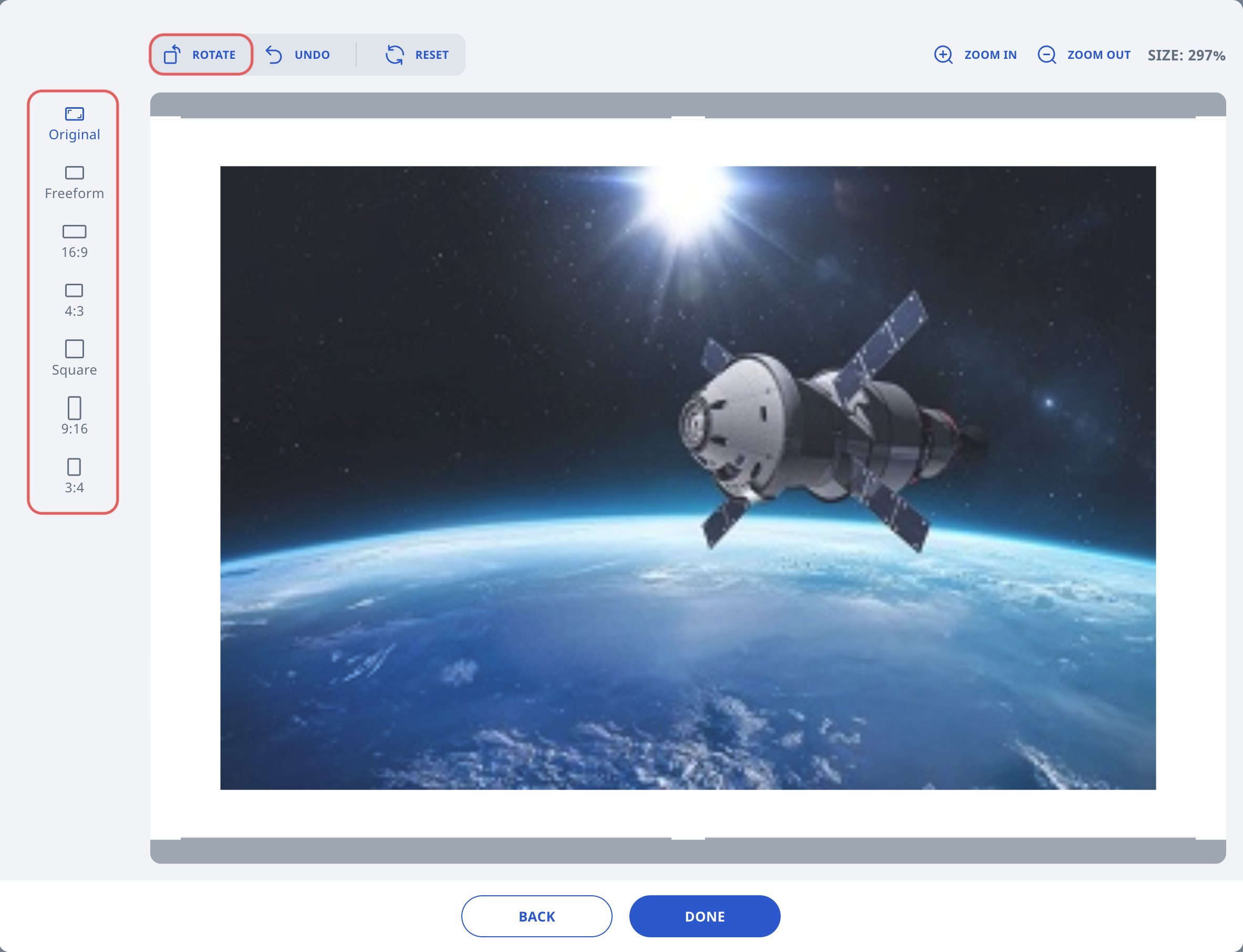
You can resize/rotate the final drawings/images before inserting them into the textbox.
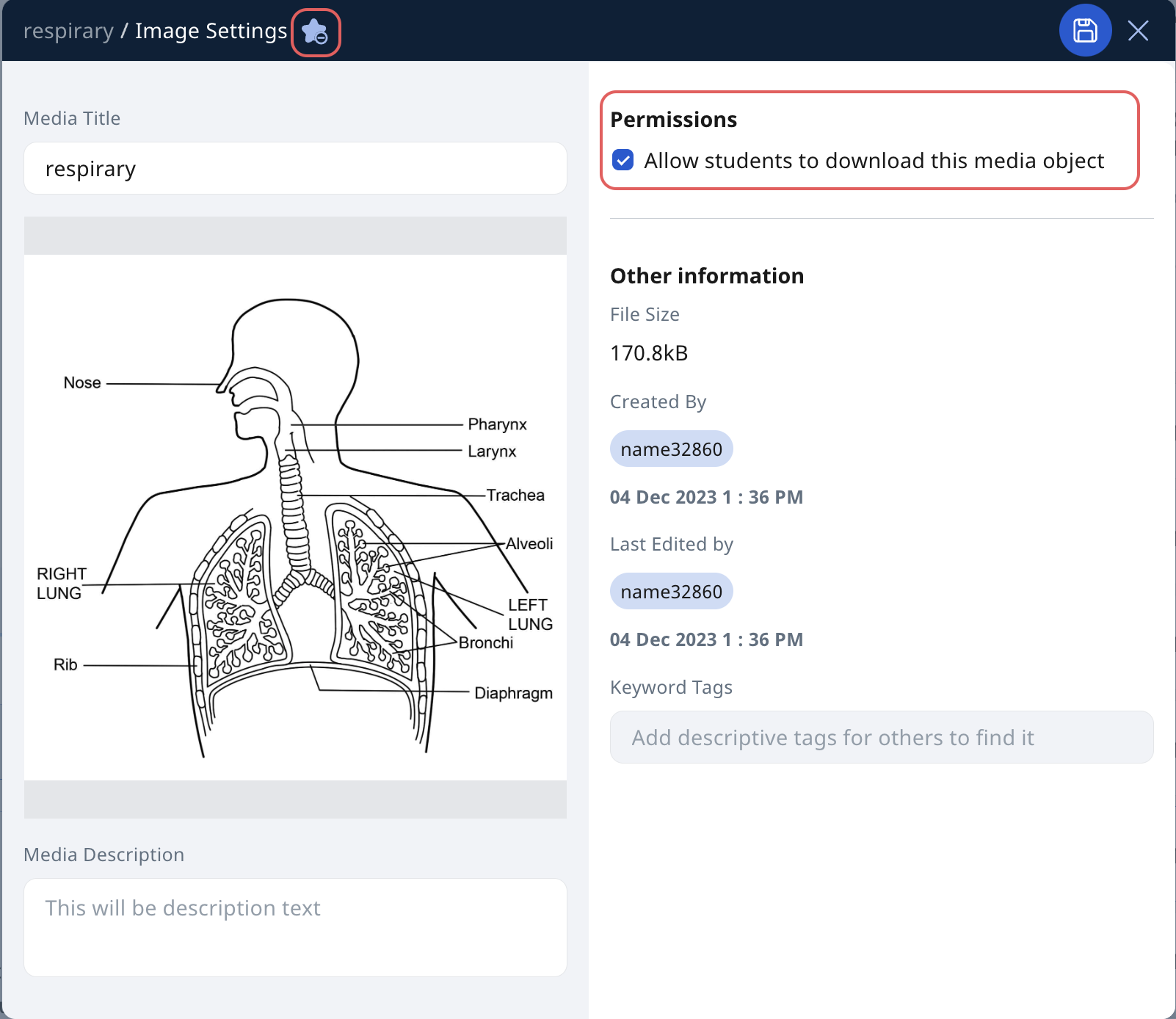
You can Star the final drawing as a Resource or Download it onto your computer.
Drawing Tools
Pen, highlighter and eraser: Choose from 5 tip sizes.
Colours: Choose from 8 colours by clicking on the colour palette.
To draw with a mouse, click and drag the cursor using your mouse.
To draw with your finger or stylus on a tablet, apply pressure on the screen while moving your finger or stylus.
Text: To insert text, click on the text box button and begin typing.
Image: To insert a background image, click on the image button and upload an image from your computer.
Draw/write on the background image using the pencil tool or by inserting a text box.
Insert a text over the background image using the text box.
Delete: To erase any part of your drawing or text, click the Select icon, select the part and click Delete. You can also use the eraser to erase your drawing or text.
Move: To move your drawing or text, click the Select icon, select the object or text and move it.
Undo/Redo: Undo/redo the most recent stroke by clicking Undo/Redo.
(NEW)Clear All: Click Clear All to remove all drawings and images, including the original background image. If this was done in error, click Undo to restore your work.
Click on Fit to Width or use Zoom to adjust how the drawing fills the screen.
Scroll: Use two fingers on your trackpad or tablet to scroll up and down image.
Resizing/Rotating the Final Drawing
Click Next after you are done drawing/editing.
Rotate or crop the image to your preferred dimensions before clicking Done.
Edit uploaded drawing
To edit the drawing, click the Edit Image icon to open up the drawing tool again.
To delete the entire drawing, click the Delete icon.
To download the entire drawing, click the Download icon.
Click the Settings icon to:
Edit Title
Edit Description
Star it as a Resource
Set Permission for Students to download or print the media object
Edit Keyword Tags
Once done, click the Save icon.