
(A3,9) Insert Links to Sections
Learn how to insert, edit, or remove links to sections, activities, or pages within a module.
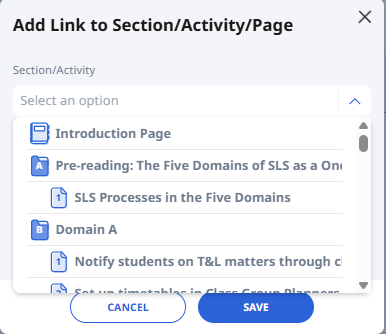
Add Link to Section/Activity/Page
Click the dropdown arrow beside the Hyperlink icon and select Add Link to Section/Activity/Page.
Select the Section/Activity/Page you would like the text to link to.
You may choose to add the Text to display.
The default target is Current window which means that the linked website will open in the current tab. You may also select New window which will open the linked website in a new browser tab.
Click Save when done.
The linked text will be displayed in blue.
Note:
The link will be automatically updated if you move the linked Section/Activity/Page to another position.
The links will not break when the Module is Duplicated or Assigned.
Edit/Remove Link
You can edit or remove a link by clicking on the linked text in blue and choosing either the Pencil icon or the Remove Hyperlink icon.