(A3,4) Insert Mathematical or Chemical Equations
Learn how to add math and chemical equations using MathType, LaTeX, or ChemType in the Content Editor.
(A3,4) Insert Mathematical or Chemical Equations
Insert Math Equation using MathType
When editing a Rich Text-enabled component, choose the math equation button .
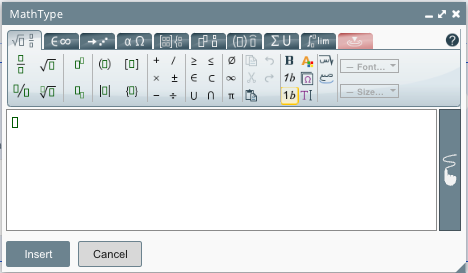
Use the toolbars found within the MathType editor or handwrite (opens in new tab) to create or edit the math equation. For more information on the toolbars, click here (opens in new tab).
Click Insert in the MathType editor when done.
You will be able to see the equation rendered as an image in the Richtext.
To edit an equation, double-click the image to open the MathType editor.
Note: You can copy and paste your mathematical equations in the Rich Text Editor.
Insert Math Equation using LaTeX commands
You can also type LaTeX equations between double dollar signs – $$ – in the Content Editor. For more information on the LaTeX commands supported, click here (opens in new tab).
The equation will be rendered as an image in the Module preview.
Insert Chemical Equation using ChemType
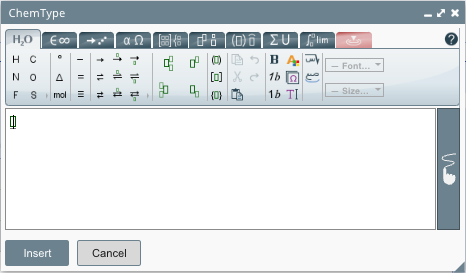
When editing a Rich Text-enabled component, choose the Chemical equation icon .
Use the toolbars found within the ChemType editor to create or edit the chemical equation. For more information on the toolbars, click here (opens in new tab).
Click Insert in the ChemType editor when done.
You will be able to see the equation rendered as an image in the Content Editor.
To edit an equation, double-click the image to open the ChemType editor.
Note: You can copy and paste your chemical equations in the Rich Text Editor.