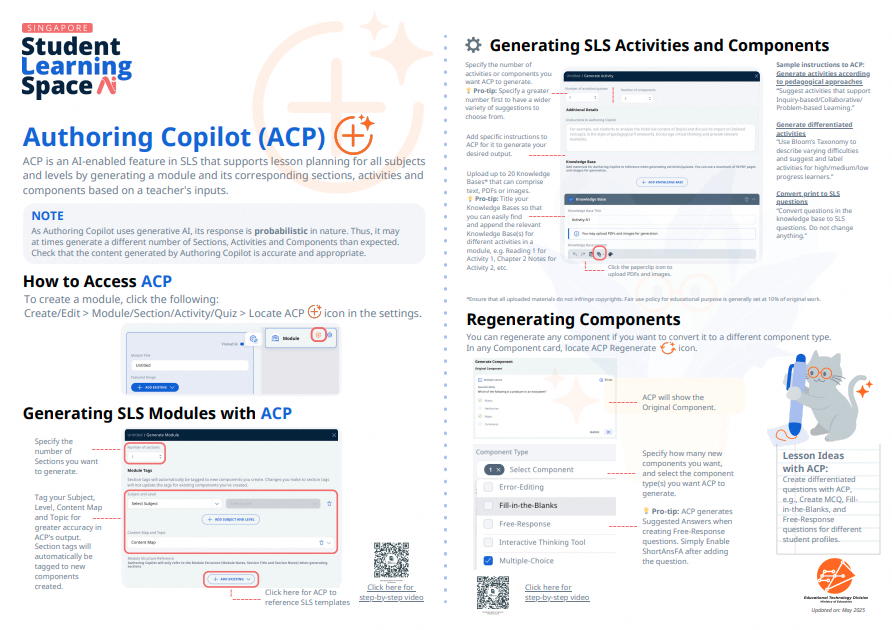
Plan and Generate Modules with Authoring Copilot
Follow the steps to use Authoring Copilot to generate lesson sections and activities in SLS, then review and refine the content to suit your module's needs.
Plan and Generate Modules with Authoring Copilot
Important:
As Authoring Copilot uses generative AI, its responses are probabilistic in nature. It may occasionally generate a different number of Sections, Activities, or Components than expected.
Always review and refine AI-generated content to ensure it is accurate, appropriate, and aligned to your students’ learning needs.
Authoring Copilot is a teacher-facing tool for lesson planning, including generating module plans, sections, activities, and components.
You can use predefined recipes or add your own custom instructions, select relevant subjects, levels, and Key Applications of Technology (KAT), add Knowledge Bases where needed, generate and review lesson components.
View the video below for a step-by-step guide on planning and generating modules with Authoring Copilot.
How to generate modules using Authoring Copilot
1. On the homepage, click Create New/Edit. Click on the Authoring Copilot icon on the Module card to open Authoring Copilot.
.png)
2. Choose from the predefined recipes (e.g. Active Learning Framework, Inquiry-based Learning) or create a custom recipe by providing your own instructions. If selecting a predefined recipe, modify the instructions in the [placeholder values] to suit your class’s needs.
.png)
Note that the appropriate learning experience is pre-filled with the selected recipe (e.g. Elicit prior knowledge and misconceptions). To further customise your lesson, include success criteria or Emerging 21st Century Competencies (e.g. CAIT 1 – Students should explain his/her reasoning and decision). You may further refer to subject-specific Teaching and Learning Guides (opens in new tab) (requires OPAL login), to include curricular considerations.
3. Click the dropdown arrow located to the right of the Module Tag field to select the subject, level and content map. Select the checkboxes next to topics and subtopics and learning outcomes relevant to the Module.
Note:
Module Tags help to refine the lesson content generated by Authoring Copilot to the appropriate subject, level, topics, subtopics and learning outcomes.
These tags improve searchability in MOE Library, Community Gallery and My Drive.
Click the dropdown arrow located on the right of the content map and topic to select content map and relevant topics.
.png)
4. Click the dropdown arrow located to the right of the Module Tag field to select two Key Applications of Technology (KAT).
Note:
Selected KAT refine the lesson content generated by Authoring Copilot to ensure that technology-mediated learning experiences are well-designed in line with e-Pedagogy guidelines. For more information, read the Guide to e-Pedagogy here (opens in new tab).
.png)
5. To provide context and scope the Authoring Copilot’s responses more accurately, click Add Knowledge Base to upload reference materials. You can upload up to 20 Knowledge Bases that can comprise text (up to 100,000 characters) and files. To add PDFs or images from your personal device, click From File Upload. To add a Google File, click From Google Drive. To add resources already in SLS, select either From Library or From Starred Resources.
Note:
Users can send a maximum of 20 Knowledge Bases (KBs), which includes both text and file KBs. A maximum of 20 files of no more than 20 MB in total can be sent.
Adding a Knowledge Base will anchor the generation of content to information added, e.g. a syllabus document, a comprehension passage or an excerpt from MOE’s interactive digital textbooks. Use specific PDF segments to enhance results of generated content.
Please ensure all uploaded materials comply with copyright comply with data security classification (up to Official (Closed), Non-Sensitive) and copyright laws, using only legally permitted content, properly licensed resources, or materials with explicit permissions. You may refer to https://www.learning.moe.edu.sg/terms-of-use/ (opens in new tab) for further details
.png)
6. Under Advanced Settings, Teachers can choose to add a Module Title (e.g. taking reference from Scheme of Work for a topic) and select the desired number of sections and activities for the module. If not populated, Authoring Copilot will suggest accordingly in the generated output based on earlier fields.
.png)
7. Click Create to generate the content. Authoring Copilot will create a Suggested Module Plan with sections and activities generated. Click the checkboxes next to the generated content you wish to include in the module.
.png)
You can edit the Module generated in the Module Editor page, as you would for a typical lesson.
Click on Generate Components next, to create the rest of the module. Review the content generated to ensure that it is designed in line with learning objectives, meets your class profile and use of technology is fit-for-purpose.
.png)
Click here (opens in new tab) for a Quick Guide to Authoring Copilot.
For more ideas, use the Lesson Collaborator Chatbot (link (opens in new tab)), an AI-powered tool to guide teachers in designing tech-enabled lessons with e-Pedagogy considerations through an iterative dialogue.