
(A1) Change Access to Activities
Learn how to control which students can access assignment activities using three methods: managing assigned students, controlling activity access, and setting prerequisites.
(A1) Change Access to Activities
There are 3 ways to give students access to an Assignment:
Manage Students Assigned
Control Activity Access
Manage Students Assigned
For new Assignments, from the Assignment Summary page, click the Pencil icon on the card to open the Assignment Settings subpage.
For existing Assignments, from the Assignments page, click the Overflow (3-dot icon) on the Assignment card and click Manage to view the Assignment Settings subpage. Alternatively, enter the Assignment, click the Overflow (3-dot icon) on the header and click Manage Assignment Settings.
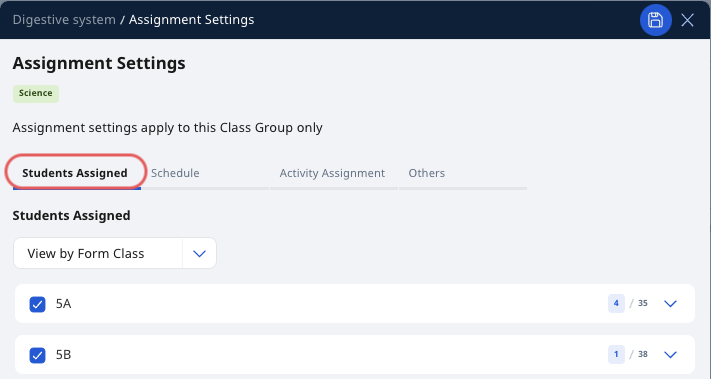
Click the Students Assigned tab. By default, all students will be selected. To de-select the Form Class or student, uncheck the boxes next to their names.
The default view of the listing shows the Form Classes. You may also view the students by subgroup (if any) from the dropdown View by Form Class/Subgroup.
Click Save and X to confirm.
Note: Students who appear in more than one assigned subgroup will only be given one assignment with the Class Group name associated with the assignment. A student who is in more than one assigned Class Group will receive multiple copies of the same Assignment as each Assignment is associated with each Class Group.
Control Activity Access
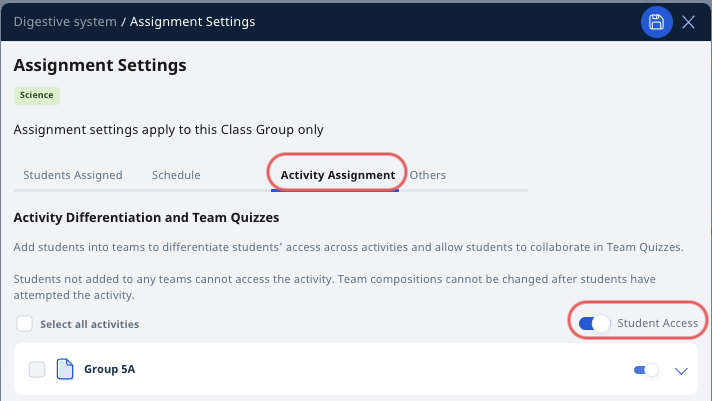
On the Assignment Settings subpage, select the Activity Assignment tab to control access to the activity for the different Teams. This function allows activities to be attempted by different groups of students. Click here to find out more about Teams.
In an Assignment, you can switch the Student Access toggle off and students will not be able to access all the activities in the Assignment.
You can also toggle off selected activities in the Assignment.
Note: You can also toggle on/off the Activities access on the Module Plan.