Accept a Share Request
Find out how to accept a peer's share request for a shared assignment, including where to find the request and what happens once you accept it.
Last updated on 17 July 2026
(A1,2) Accept a Share Request
Enter an assignment with Assignment Sharing enabled.
To accept a Share Request:
Click the User Avatar on the header followed by +.
Click the Overflow (3-dot icon) to open the right menu. Click Share.
Note: There will be a red dot beside the "+" to indicate a new share request.
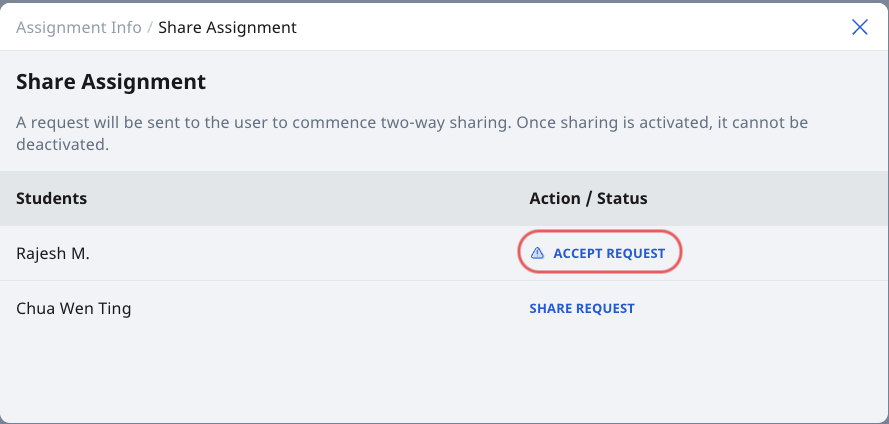
Click Accept Request, from the requestor, if you wish to accept the request.
Ignore the request if you do not wish to share your assignment with your peer.
Note:
You are unable to cancel a share request.
Once you accept a request, it is permanent.
Once accepted, the status will change from ”Accept Request” to ”Shared”.