(B3,1) View and Respond in the Forum
Learn how to view, sort, and reply to forum posts, and engage with classmates by adding comments, mentioning teachers, or upvoting posts.
(B3,1) View and Respond in the Forum
View Posts
You may choose to sort posts by clicking on the dropdown arrow next to Sort By.
Respond to a Post
Click on a Post card to open the View Post subpage.
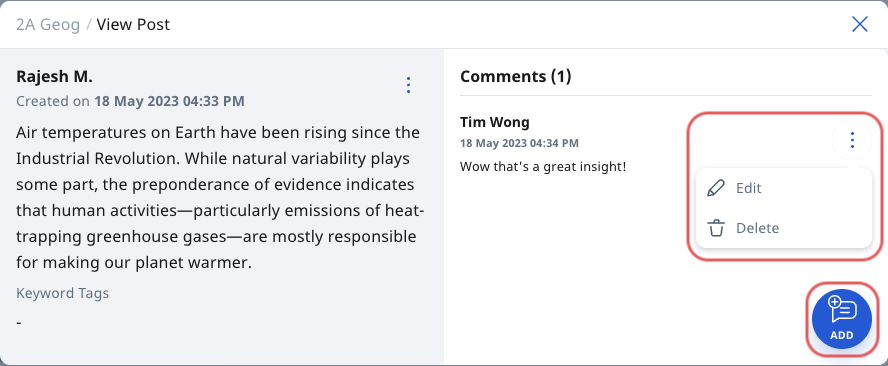
Click the Add icon

at the bottom right of the View Post card. Type your comments and click Post to publish them.
Note: If comments have been disabled, you will not see the Add icon.
You may add comments in the form of text, mathematical/chemical equations, emojis, images, drawings, file attachments and audio recordings. You can also mention your teachers by typing '@' and selecting their name(s). Your teacher(s) will be notified when you added a post or comment.
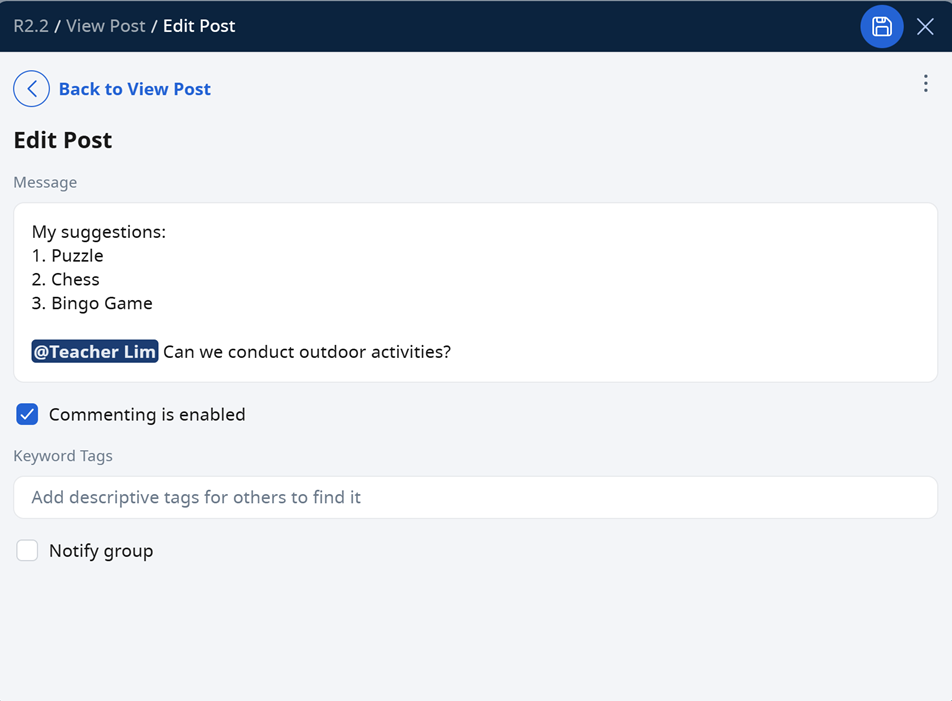
The number of comments for a particular post is indicated in parenthesis.
Note: Teachers are able to delete comments on any post.
You may Edit or Delete your comment by selecting the options in the Overflow (3-dot icon).
You may also upvote posts in the forum by clicking on the Upvote icon

on the Post card.