(A2) Interact in a Shared Assignment
View and comment on your study buddy's notes in a shared assignment. Use the User Avatar icon to switch between assignments and toggle commenting on or off.
(A2) Interact in a Shared Assignment
In a shared assignment, you can view and share Notes with your study buddies and learn from one another. Assignment Sharing will work for both you and your peers and cannot be cancelled.
To view a Shared Assignment, click the User Avatar icon followed by the name of your peer.
When you are viewing your peer's assignment, your User Avatar will show the Viewer Avatar icon.
If commenting is turned on, you will be able to comment on any Notes or Annotations cards in your peer's Assignment and vice versa. You can also @-mention your study buddy and they will receive notifications.
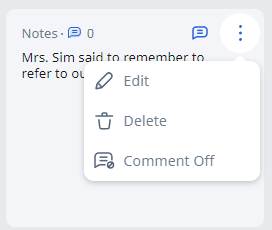
As the owner of your Assignment, you are able to turn commenting on or off (by default, commenting is turned off).
Note:
Teachers have the authority to turn commenting on or off.
Teachers are able to delete any comments.
To turn commenting on or off, open Overflow (3-dot icon) found on the top right of the Annotation card and click Comment On / Off.