
(A1) Create MOE Library Resources
Learn how to build, tag, and submit MOE Library modules for approval as a Content Officer or Approver.
(A1) Create MOE Library Resources
You can refer to the following User Guide pages to find out how you can:
Submit a Lesson for Approval
Content Officers (COs) and Content Approvers (CAs) can create and edit MOE Library modules directly in “Manage Modules”
Go to Manage Modules under ‘Admin’.
Select your owner group to create your MOE Library module.
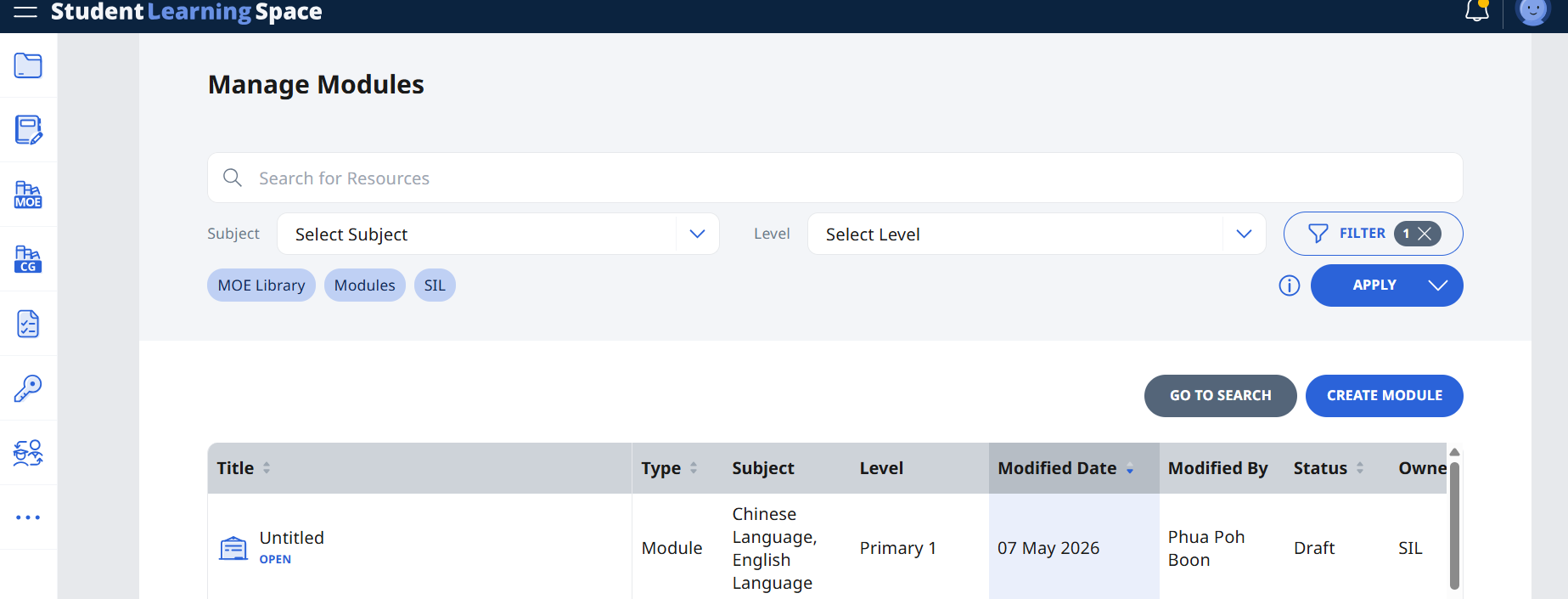
In the module view, Content Officers (COs) can submit the module for approval. Content Approvers (CAs), can approve the module by clicking on the Approve icon.
When approving MOE Library modules, an error message will appear for failure to include:
Description
Keyword Tags
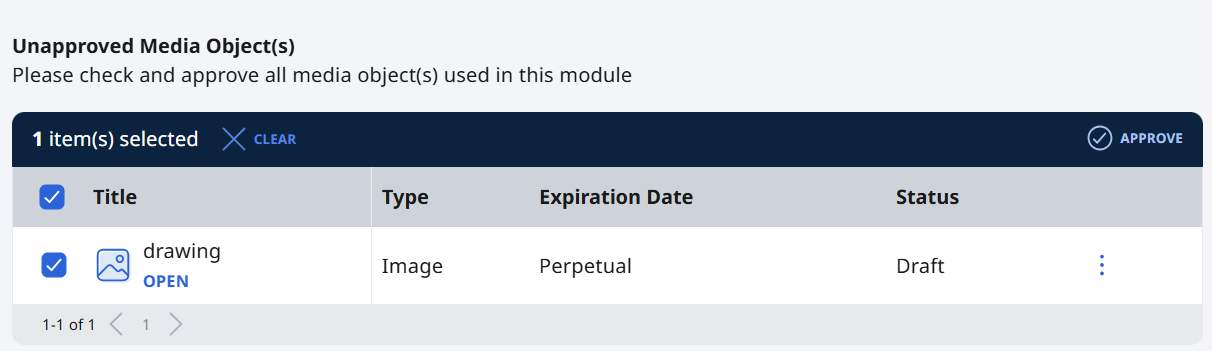
Media Objects that require approval will also appear in the Error Page.
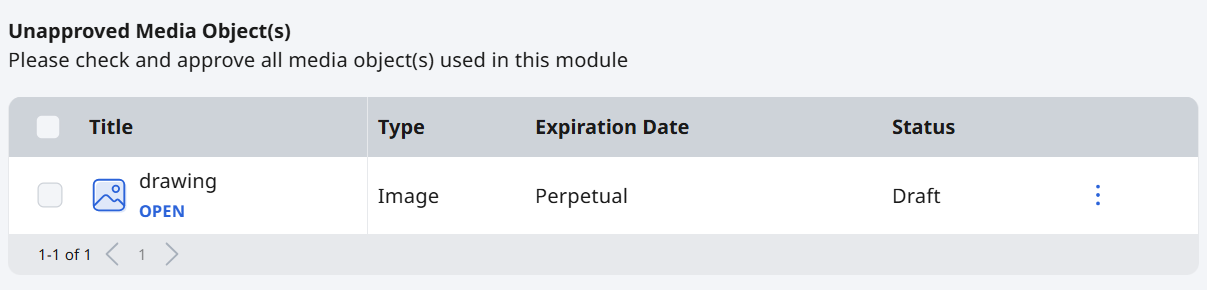
To approve the media object click on the checkbox next to it and click “Approve”.
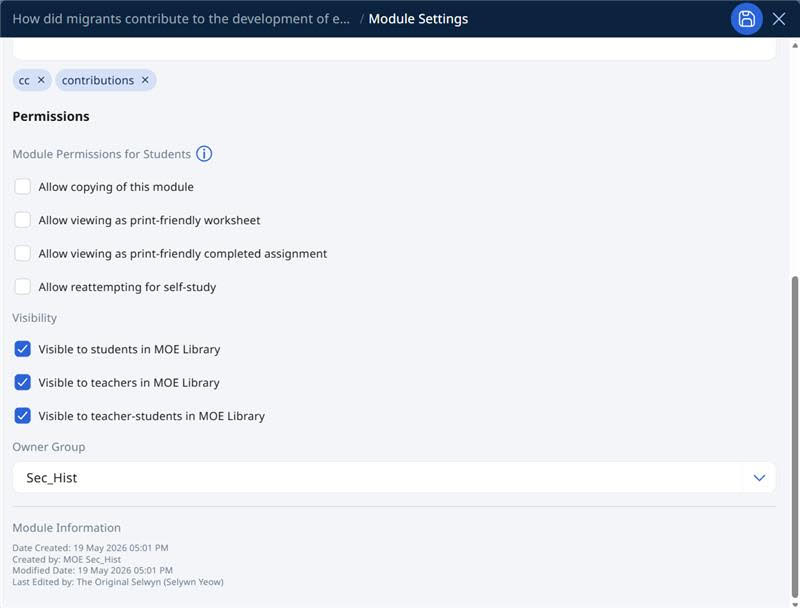
To adjust the module visibility, click the gear icon on the module card and adjust the module settings.
Preview MOE Library Modules
Open the Module.
Preview the Module as a student under the overflowing menu (3 Dots).
You can preview across all statuses:
Draft
Pending approval
Approved
Rejected
Unpublished
Edit questions after previewing when needed.
You can make changes immediately after previewing.