(D1,ii) Access a Shared Module
Find and use modules shared with you via My Drive, or remove yourself from a shared module when needed.
(D1,ii) Access a Shared Module
Access a Shared Module
When a Module is shared with you, you will receive a notification. The Notification Alert icon indicates new notifications.
Clicking the Notification Alert displays the details of the notification.
The shared Module is automatically added to My Drive, under Shared with Me.
To view the shared Module, open the left menu. Expand the Resources dropdown list and select My Drive.
In My Drive, click Shared with Me.
The Modules shared with you will be listed along with the names of the Owners of the Modules.
To view the Module Details card, click the Overflow (3-dot icon) and select View Details. You will be able to view the activities and sections in the particular Module.
You may also Make a Copy of the resource to My Modules tab in My Drive .
Note: You can only make a copy of the Module if the Owner has checked the Module Permission for Allow teachers to copy/assign/publish and students to copy this Module under Module Settings.
These resources can only be deleted by the Owner, whose name is indicated in the listing.
Remove Shared Module
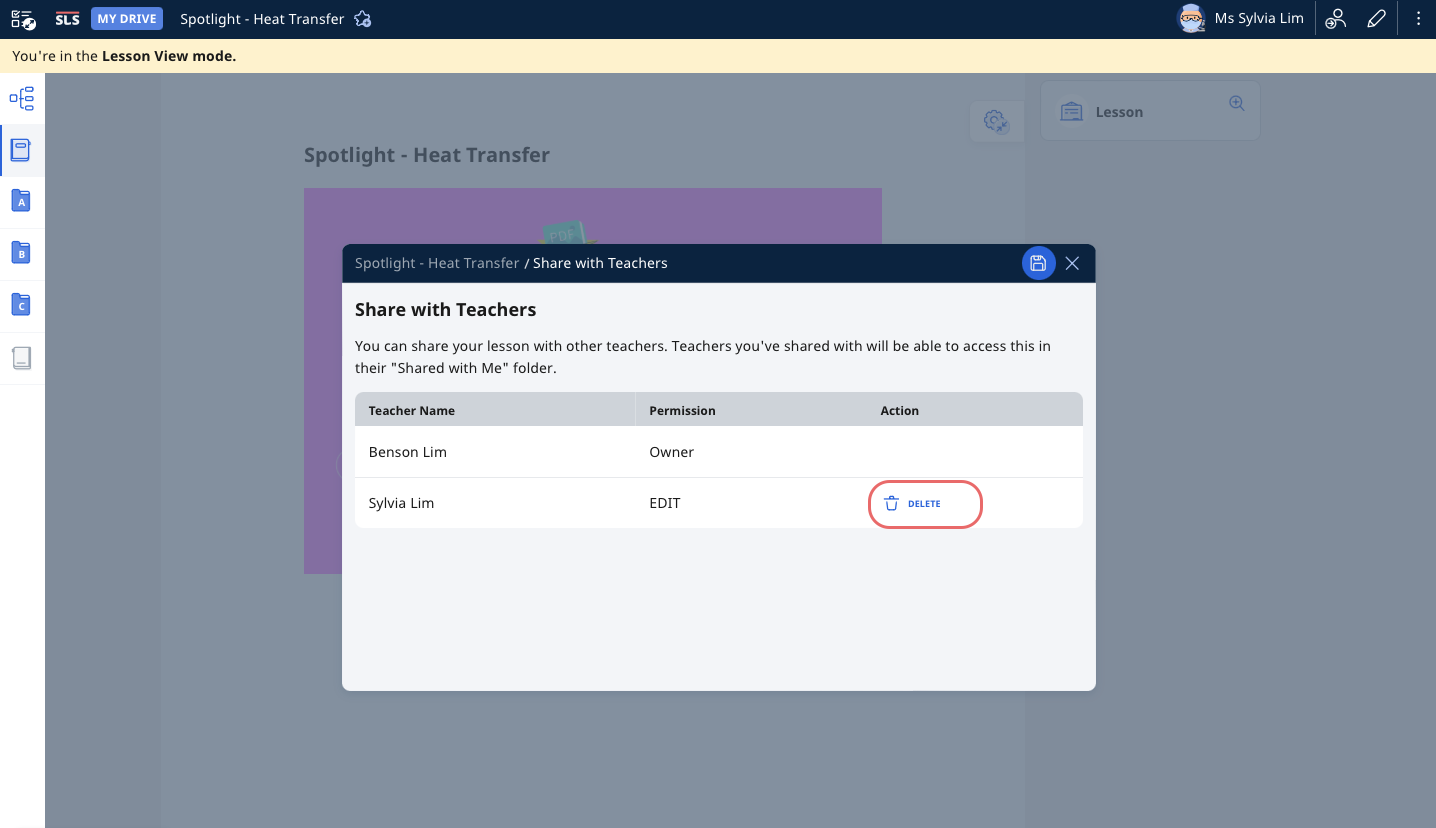
You can also remove yourself from a shared Module.
Open the Module and open the right menu.
Select Share with Teachers and click Delete to remove yourself from the shared Module. Click Save to confirm.