
(A3,2) Annotate (Underline) Students' Responses
Underline and annotate student responses to give personalised feedback.
(A3,2) Annotate (Underline) Students' Responses
As a teacher, you are able to create annotations (underline) in the Student's view to provide individualised feedback.
Note:
You can annotate (underline) question texts and images in the Student's view of the Assignment.
You can also annotate (underline) student's Free-Response Question responses.
Annotations (Underline) in Student's View
Enter the Monitor Assignment Page by clicking the Monitor icon on an Assignment Card.
Click a student’s name to navigate within the student's Assignment to begin marking.
Alternatively, click the Question number in the Heatmap to View All Responses. You can also click on a student’s name to navigate to the particular Activity for the entire Class Group, starting with the student you clicked.
Use your cursor to highlight any text and select the colour. It is also possible to create multiple overlapping underlines.
To leave an Annotation on an image, click Add Note to Image icon and click anywhere on the image.
Key in your Notes in the text box.
You may insert mathematical or chemical equations, include emoticons, a drawing or upload a file or audio recording. You can also mention students and/or teachers in your post by typing '@' and selecting their names from the dropdown list. The selected students and/or teachers will be notified.
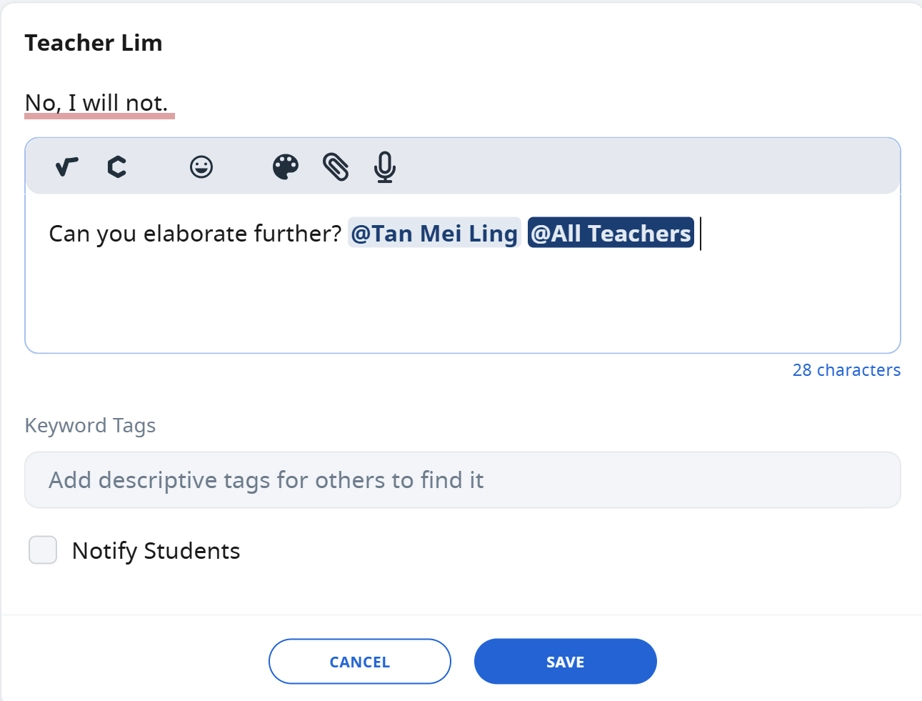
You can include Keyword Tags to improve the search results.
Select the checkbox beside Notify student(s) if you wish to notify you students about the Annotation you have made.
Once you are done, click Save.
Annotation Notes will be visible in the Annotation Drawer. Click the Notepad icon to Expand/Hide the drawer.
Both teachers and students can leave Comments on your Annotations.
Annotate (Underline) Students' Responses with Keyword Tags
When you make annotations (underline) in the Student's view to provide individualised feedback, you can also select Keyword Tags from the dropdown list.
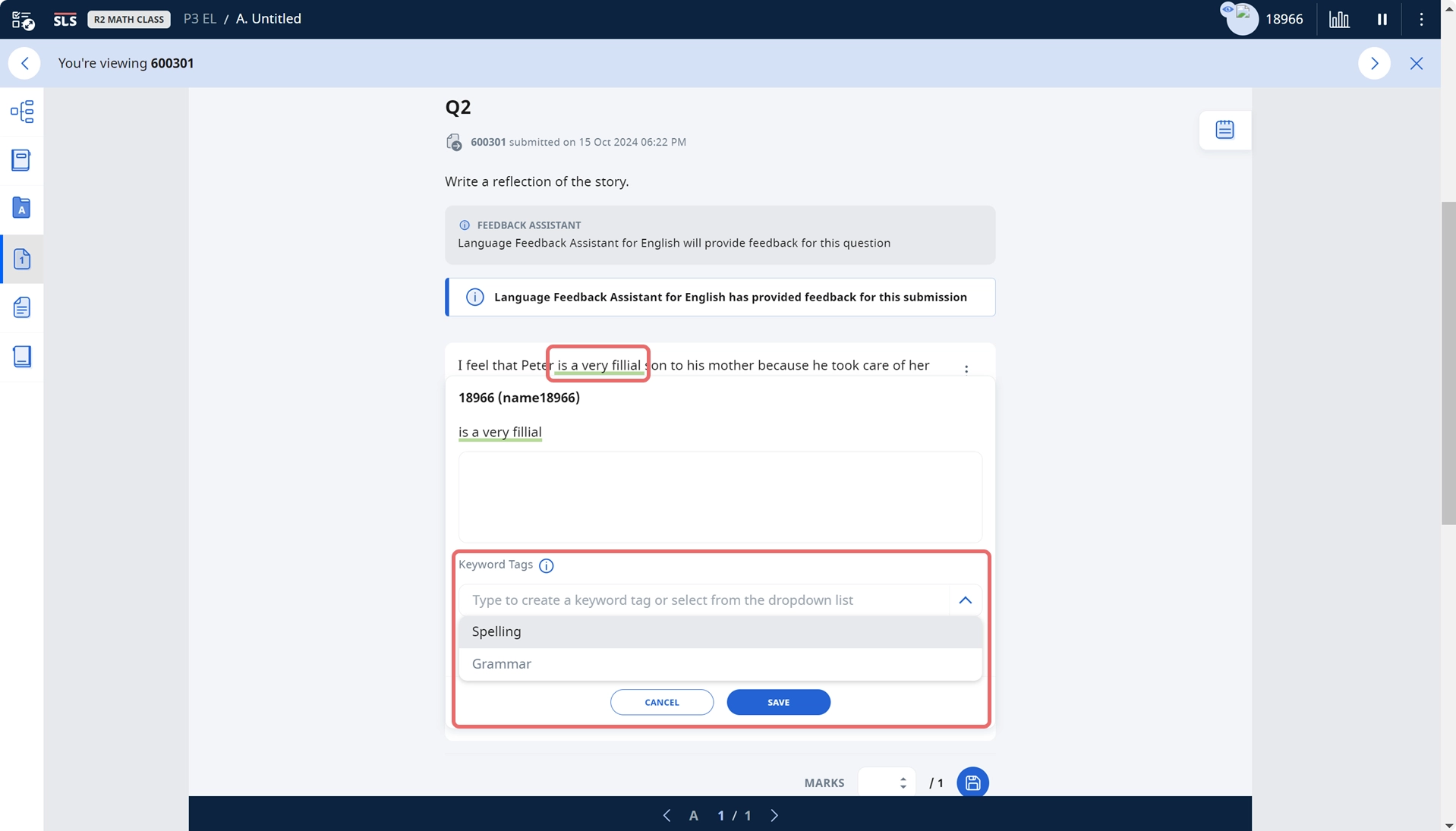
The Keyword tags will be tabulated and displayed under the Error Tracker tab in Learning Progress.
Note:
The questions must be tagged to a Content Map which contains Error Tags (only Content Approvers can add error tags to their Content Map). The questions that the annotations are anchored to must also be included in Learning Progress (enabled in component settings).
Error Tags by Language Feedback Assistant for English and Feedback Assistant - Mathematics will also be automatically tracked if the questions that they are marking have the same conditions as above.
Video Tutorial
