(A1,vi) View Assignments
View and manage your class assignments easily using filters, status tags, and direct student access links.
(A1,v) View Assignments
Assignment Cards
Assignments that have been recently assigned (up to 3 days) will have a New label on the Assignment card.
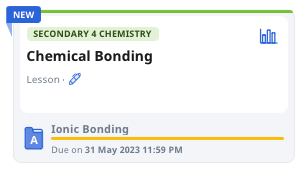
The progress bar in the Assignment cards shows the completion status of students in the Class Group.
Yellow portion represents the proportion of students who have not started the assignment.
Blue portion represents the proportion of students who have completed the assignment.
Red portion represents the proportion of students whose assignments are overdue.
Modules with Sections will show the next available Section or Section where the action is pending.
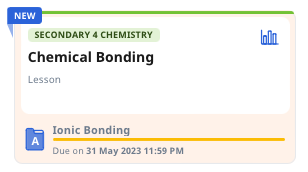
When an Assignment is set as an Assessment, the card will be reflected in beige.
View All Assignments
To view all Assignments, you can enter the Assignment page by either:
clicking Assignments on the homepage under the Assignments tab, or
clicking Assignments from the left menu.
You may search for Assignments on the Assignments page by entering the title in the Search Bar. You may apply the Assignment Status and Class Group filters. Click Apply to perform your selection.
For a more refined search, click Filter to filter the Assignments by Assignment Status, Class Group, and Marking Status (for Assignments with Teacher-Marked Quizzes only). Click Apply to perform your selection.
Your assignments will appear in List view

by default. You can choose to view your Assignments in Card view by clicking on the

icon.
Assignments in the List view are sorted according to the latest Start Date. You may also sort the Assignments according to the Assignment Title, and Due Date. Assessments in List View will be indicated by an orange tag beside the Title.
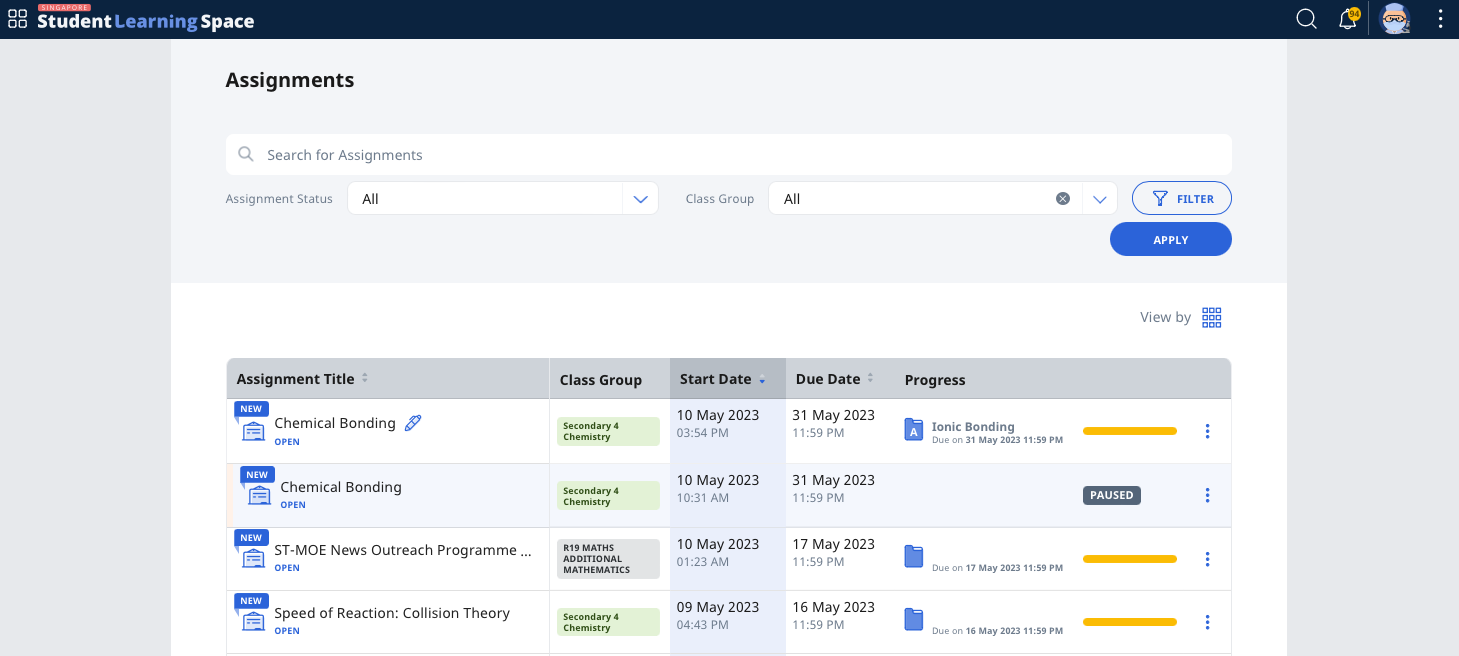
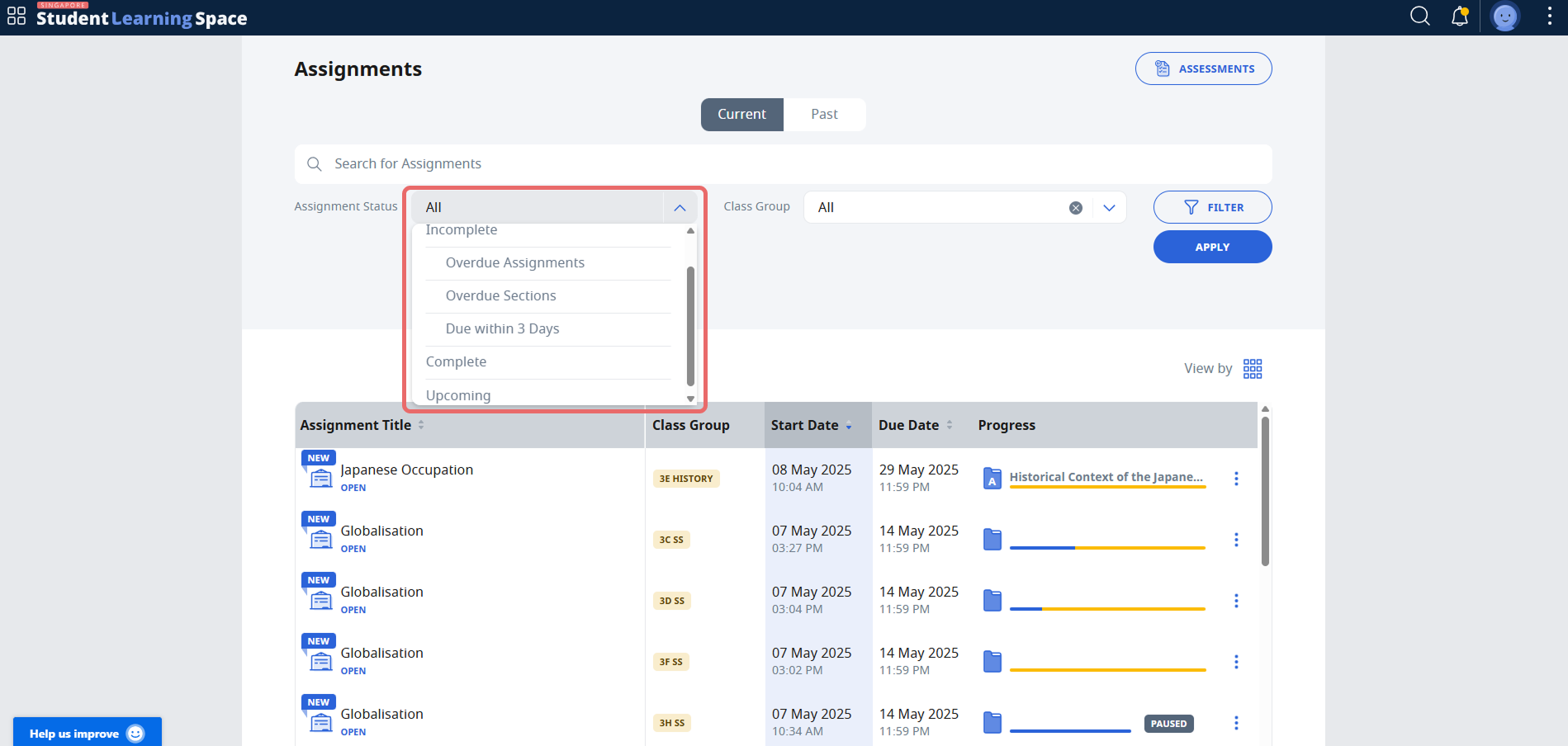
You may also filter the assignment list according to Incomplete, Overdue assignment, Overdue Sections, Due in 3 Days, Complete and Upcoming status.
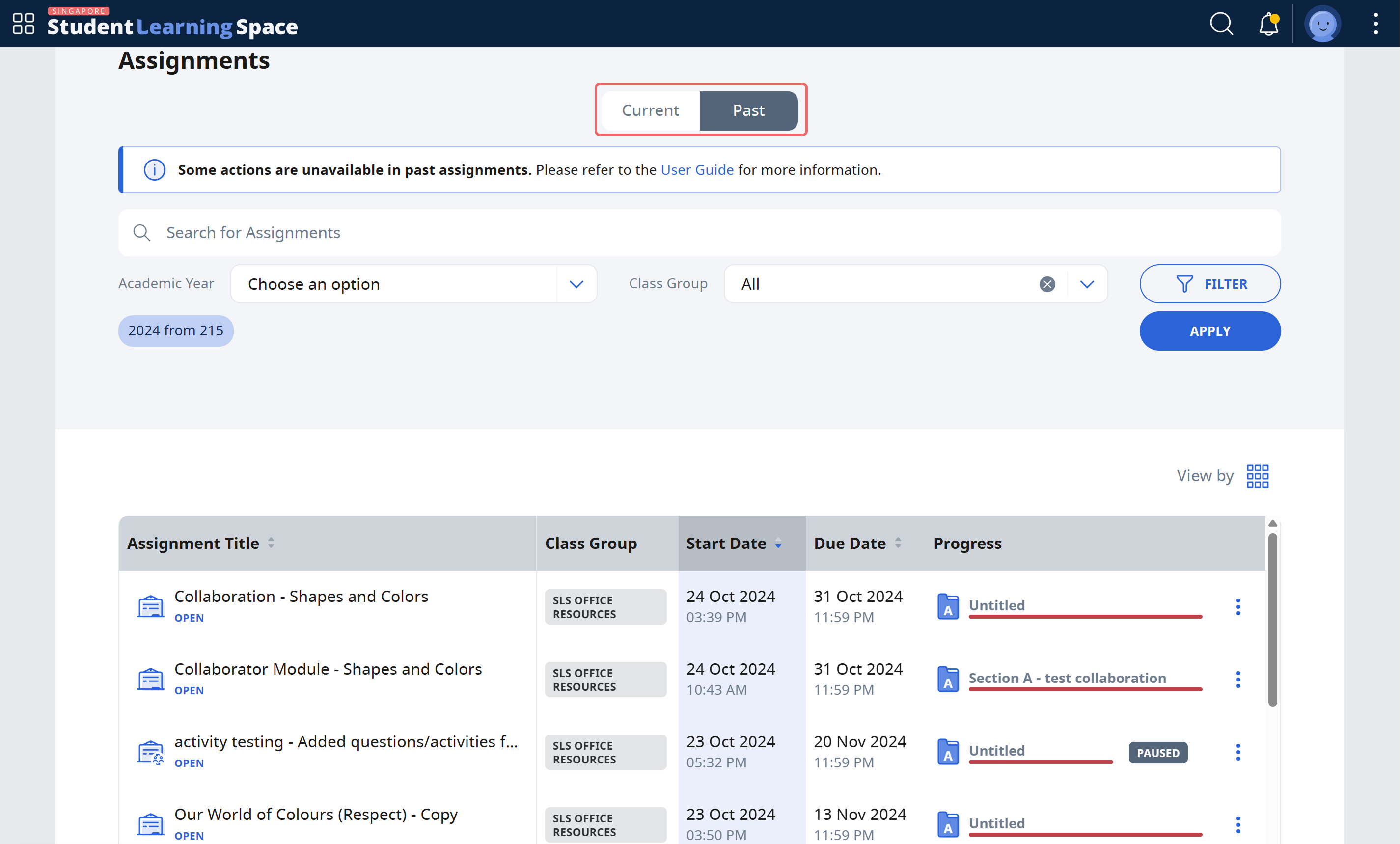
You may view Past assignments by clicking on the Past Tab.
Note: Students will see all their Assignments (except Assessments) on the Assignments tab on the homepage if they are incomplete/overdue. Overdue assignments remain accessible to students.

Did You Know:
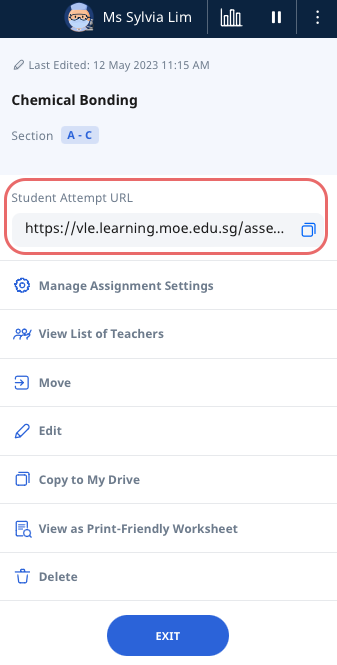
The Student Attempt URL can be shared with students so that they can access the assignment directly after logging in. You may use any URL shortener or QR code generator to make it easier for students to access the Assignment. You can find the Student Attempt URL by clicking the Overflow (3-dot icon) when inside an Assignment/Assessment.