
(A1,i) Create Assignments (Enhanced)
Learn how to create and assign modules to your class groups, set permissions, and link assignments across multiple groups.
(A1,i) Create Assignments (Enhanced)
You can create an assignment by assigning a module to students in your Class Groups.
You can turn your assignment into an assessment. An Assessment Card is differentiated with a beige background.
Note: For a better user experience, assignments with over 100 assignees will be split into multiple assignments with a maximum of 100 students.
Assign a Module
Important: If module permissions to allow teachers to copy/assign/publish and students to copy this module are not checked, it will not be possible to assign the module.
From the homepage, open the left menu and click Resources, followed by My Drive.
Click Open under the Module Title.
On the Module View page, click the Assign icon found on the top right of the header.

On the Assign Module subpage, you will see all the Class Groups that are assigned to you. Class Groups that you have created can be found here too. Select the Class Groups you would like to assign to, then click Assign.
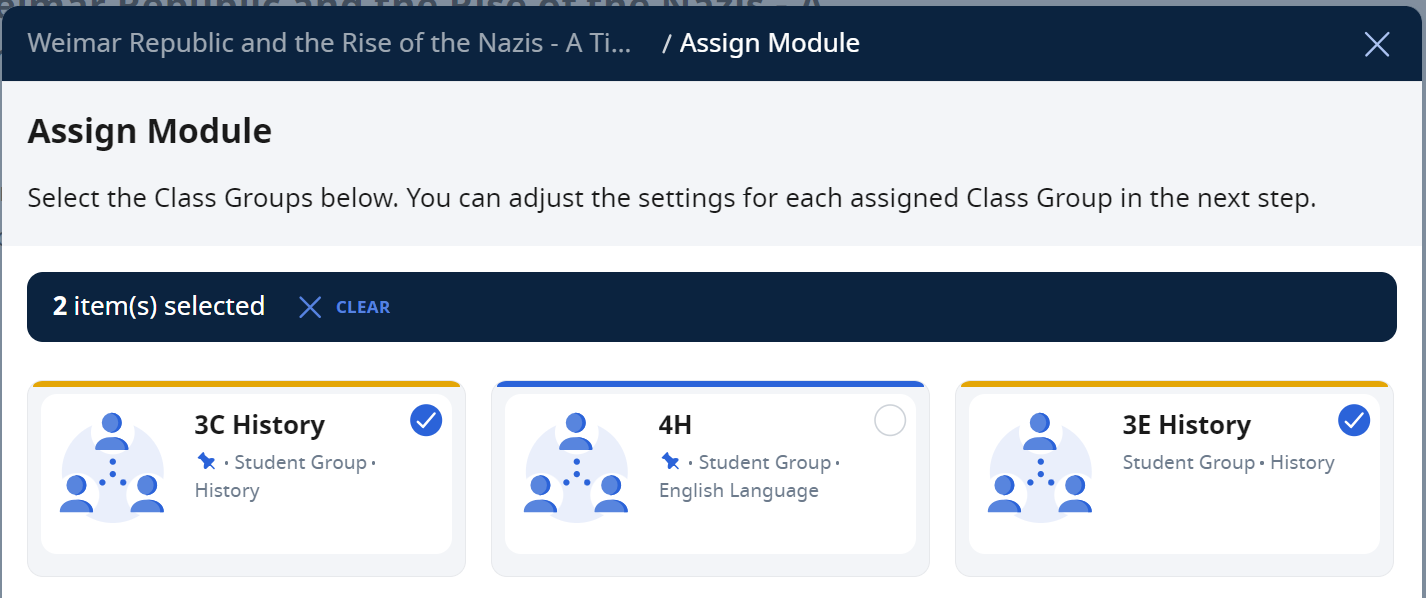
Alternatively, from a Class Group, under the Assignments tab, click Add Assignment to assign a module.
On the Assignment Title subpage, you may edit the Assignment Title and Permission Settings.
You may also pause the assignment upon assigning by checking the relevant checkbox.
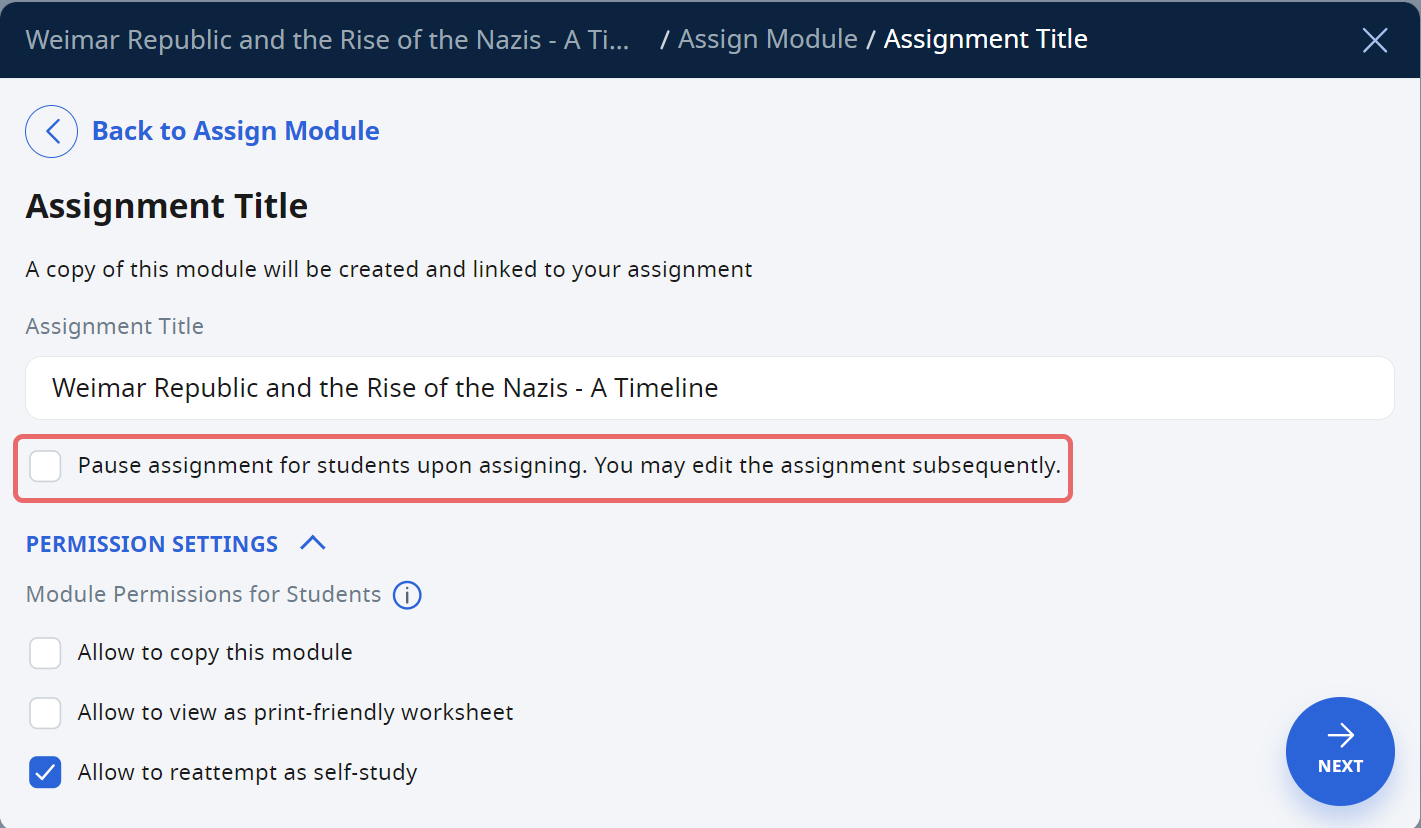
You may also adjust the permission settings. These permission settings will not affect your current module in My Drive, but subsequent copies of this assignment.
Click Next to proceed to the Assignment Summary Page.
Click Assign, found on the top right of the Assignment Summary page to assign the module.
Note: For modules with multiple sections, it may take some time for the assignment to appear on your assignment list.
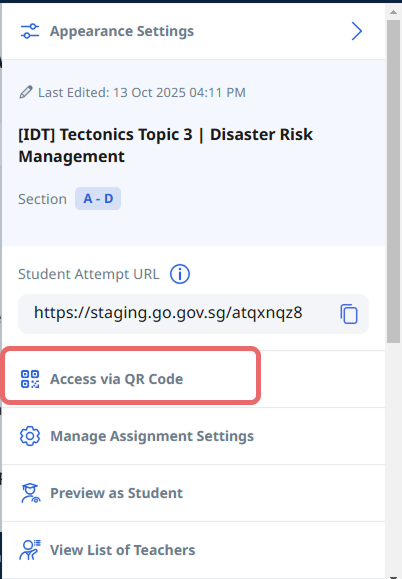
Click on the right menu and select Access via QR code to generate a shortened URL and QR Code with SLS branding for students to access the assignment. After this, the Student Attempt URL will automatically change to the shortened URL.
Video Tutorial

The "My Lessons" tab shown at 00:18 has been relabelled to "My Modules" tab.
How to Assign Linked Assignments
You can assign linked assignments within and across multiple Student Groups and Subgroups or Form Classes at the Assignment Summary Page, by selecting the Link multiple assignments checkbox.
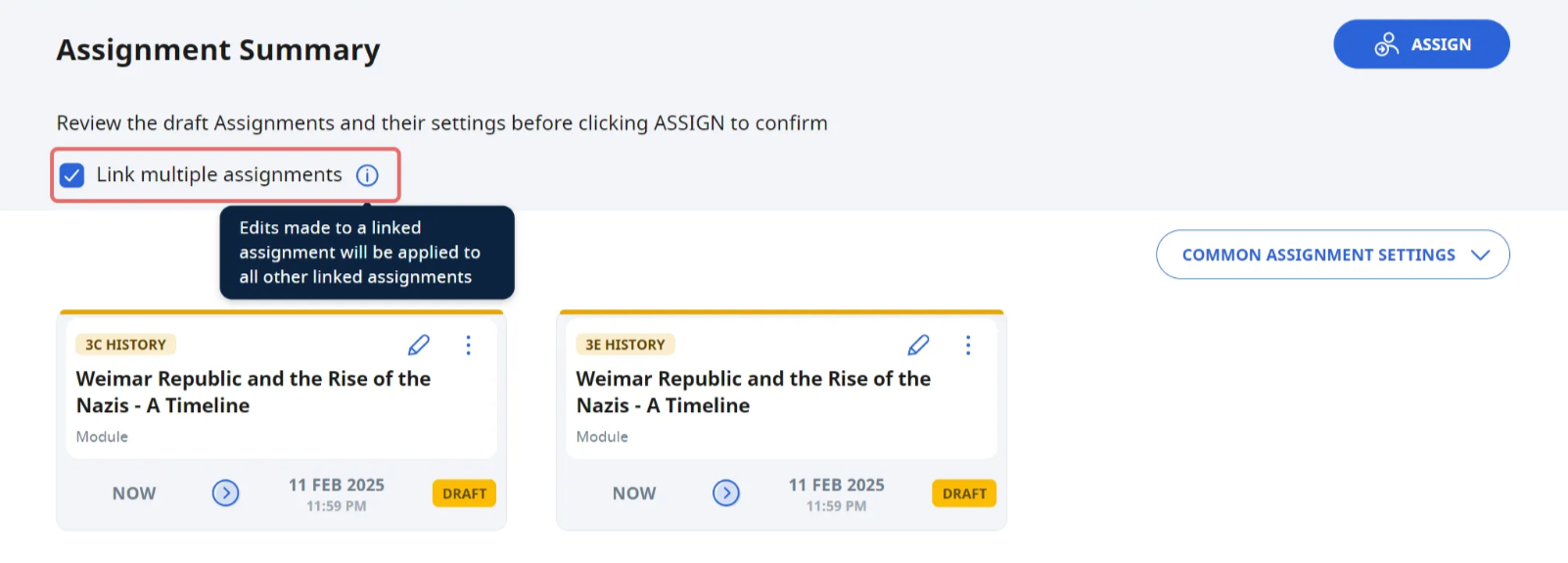
Note: When editing the assigned module, all linked assignments will be paused, and changes made will be applied to all linked assignments.
This video is a step-by-step guide on how to assign linked assignments:

Linked assignments support teaching and learning by enabling the management and monitoring of assignments at cohort-level. Watch Happenings@White Sands Primary School (opens in new tab) to find out how White Sands Primary School has transformed traditional assemblies into dynamic, interactive experiences using the Student Learning Space (SLS) through Linked Assignments.
Go to (A2,1) Monitor Students' Responses in an Assignment (opens in new tab) to learn how to monitor students’ responses for linked assignments.