(A1,v) Add or Sort Assignments in Group
Learn how to add, sort, and manage assignments within a Group, and grant new students access to Group resources and assignments.
(A1,iv) Add or Sort Assignments in Group
You can add assignments to the Group from the Group page.
Access Groups from the left menu or by selecting the Group (if pinned) on your homepage. On the Group page, click Add Assignment to add the assignment:
From New Module
From My Drive
From Library
From Starred Resources
You may also add a new Category to your Group assignment. This can be used to organise the Assignments for your Group.
Click the Overflow (3-dot icon) on the Assignment card to:
View details of the Assignment
Move the Assignment to another category
Uncategorise the Assignment
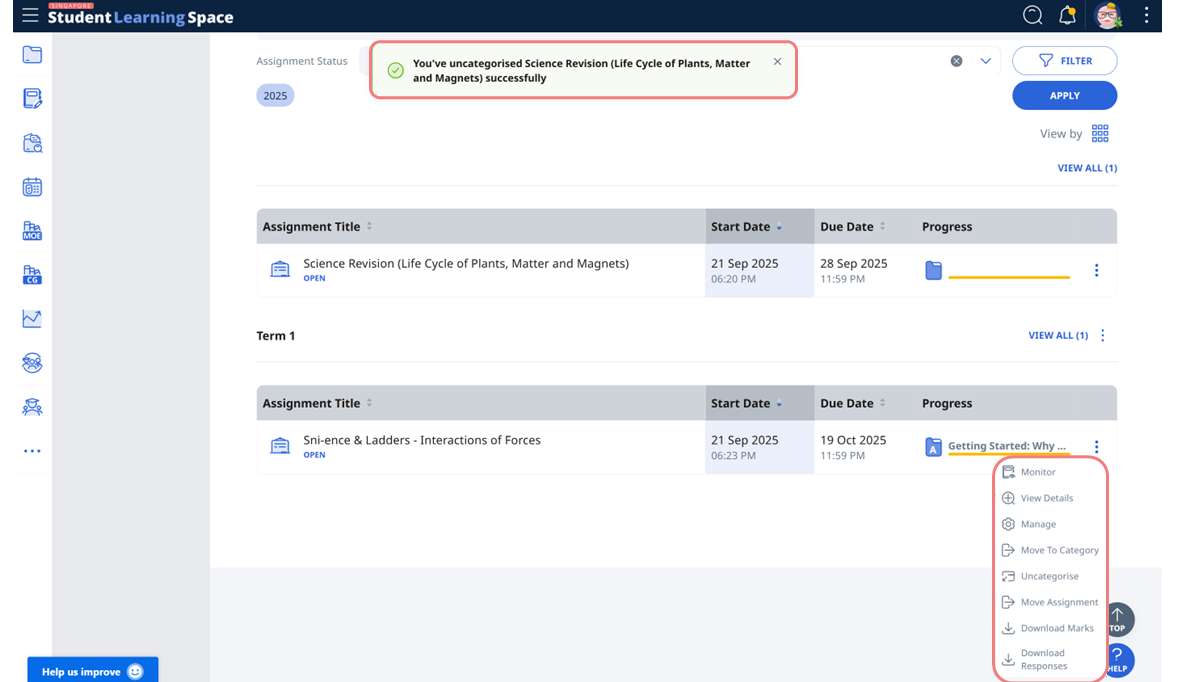
Note: A temporary message will appear when the Assignment has been successfully:
Moved to another category
Uncategorised
Moved to another Group
Sort Assignments in Group
You can sort Assignments in Groups to find them easily.
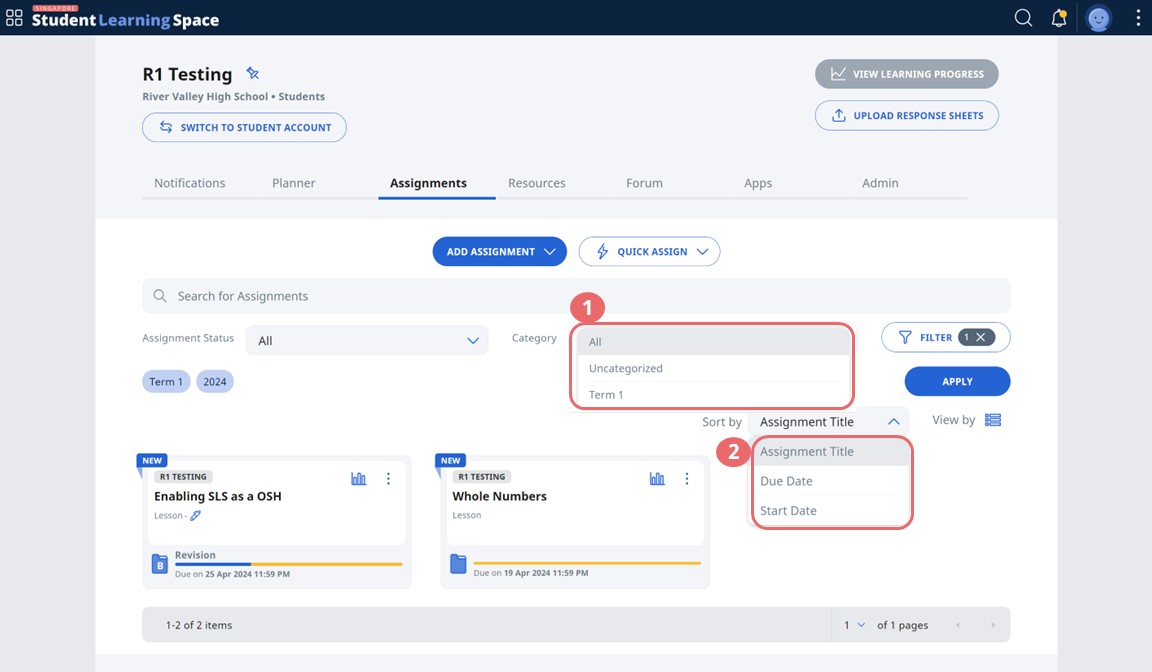
On the Assignment tab in the group, select a category from the dropdown menu. Click Apply.
Click Sort By and you can now sort the Assignments according to Assignment title, due or start date.
Sort Resources in Group
You can sort Resources in Groups to find them easily.
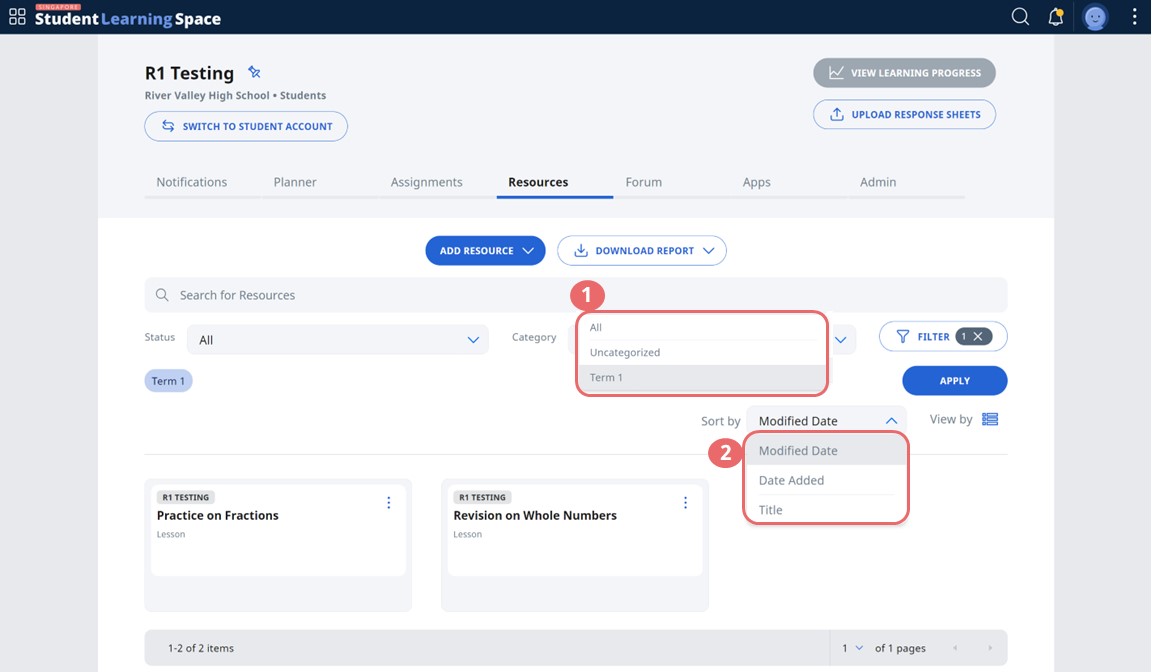
On the Resource tab in the Group, select a category from the dropdown menu. Click Apply.
Click Sort By and you can now sort the Resources according to modified date, date added or title.
Access Resources and Assignments for Newly Added Students
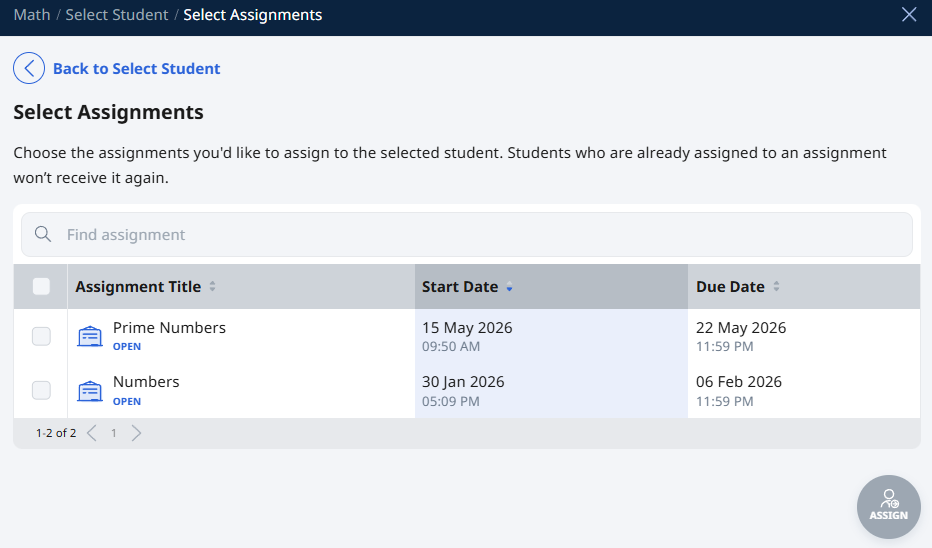
From June 2026 onwards, access to multiple Group assignments can be granted at the same time.
Students who are newly added to the Group will automatically have access to the Group Resources.
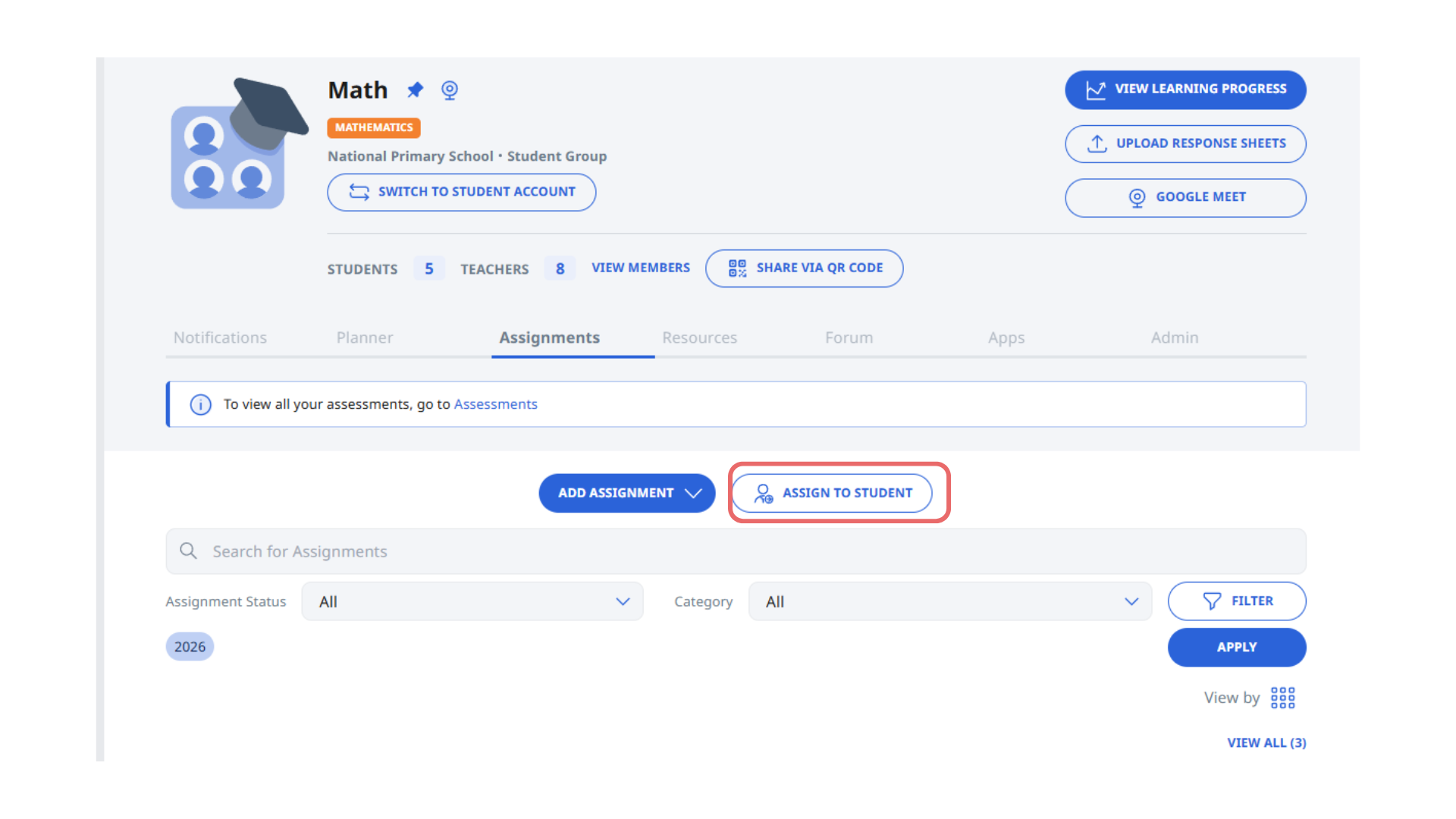
To grant access to assignments, Group Owners and Co-teachers can assign one or more assignments to the new student.
a. Click Assign to Student.
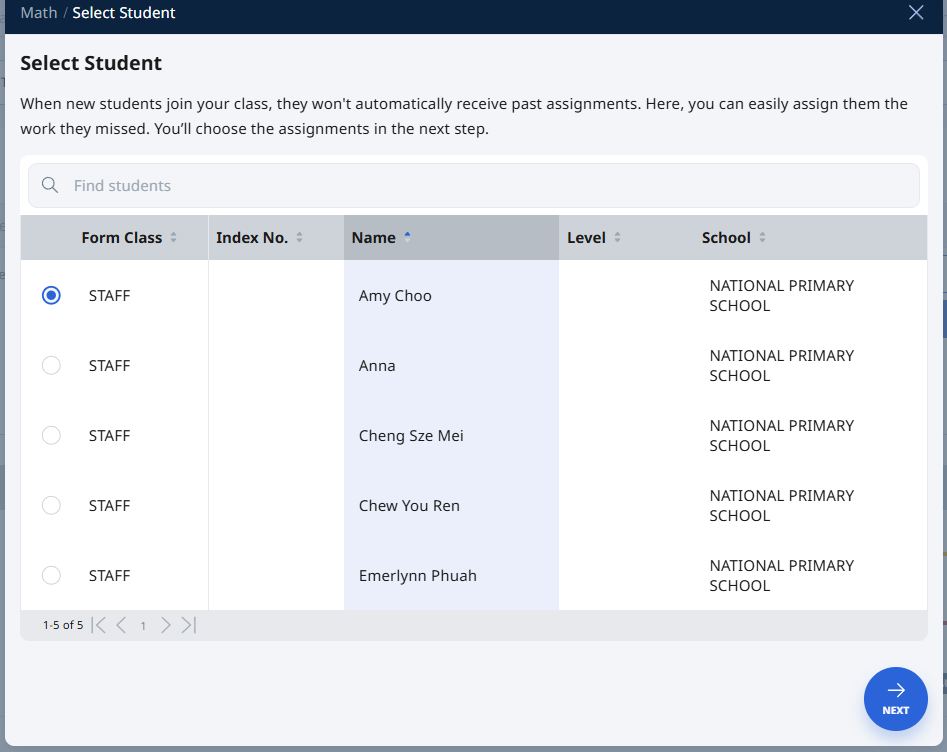
b. Select the new student and click Next.
c. Select the assignment(s) to assign to the student and complete the process