
(A1,iii) Assign MOE Library Modules (Enhanced)
Learn how to assign MOE Library modules as assignments or Class Group Resources, and configure permission settings for your students.
(A1,ii) Assign MOE Library Modules (Enhanced)
Assign MOE Module as Assignment
From the homepage, open the left menu and click Resources, followed by MOE Library.
Click the MOE Library Lesson card that you would like to view.
On the Lesson View page, click the Assign icon

on the header.
You may wish to rename the Assignment Title and edit the Permission Settings. The following Lesson Permissions are available:
Allow teachers to copy/assign/publish and students to copy this Lesson
Allow teachers and students to view Print-Friendly worksheet
Allow students to reattempt Lesson/Course as Self-Study
Click Next to continue. This will lead you to the Assignment Summary page where you can review the draft assignments and their settings before clicking Assign to confirm.
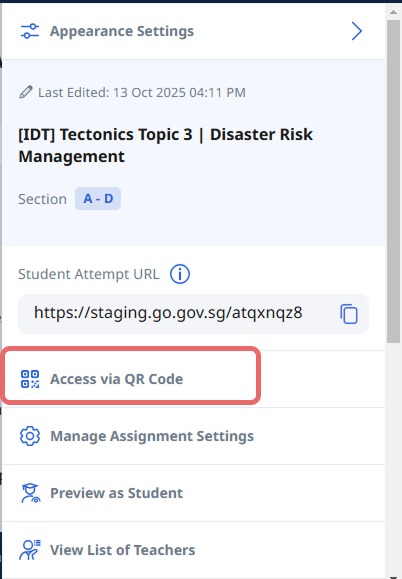
Click on the right menu and select Access via QR Code to generate a shortened URL and QR Code with SLS branding for your students to access this module. After this, the Student Attempt URL will automatically change to the shortened URL.
Add MOE Module as Class Group Resource
Important: If lesson permissions to allow teachers to copy/assign/publish and students to copy this lesson are not selected, it will not be possible to add the lesson as a Class Group Resource.
Click the MOE Library Lesson card that you would like to view.
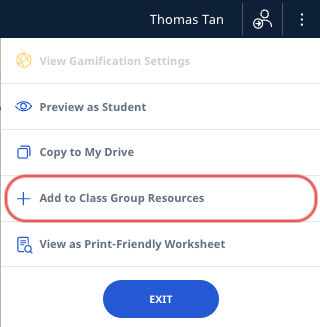
Click Overflow (3 dots icon) on the header to open the right menu and click Add to Class Group Resources.
Select the Class Group(s), followed by Add.
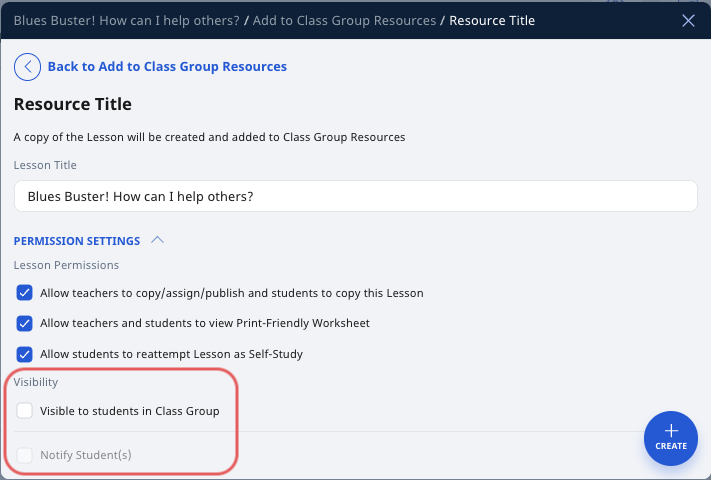
You may wish to rename the Resource Title, and edit the Permission Settings:
Lesson or Course Permissions:
Allow teachers to copy/assign/publish and students to copy this Lesson
Allow teachers and students to view Print-Friendly worksheet
Allow students to reattempt Lesson/Course as Self-Study
Visibility
Visible to students in Class Group
Notify Student(s) - this checkbox will be active if the resource is set as visible to students in Class Group.
Click Create to add the lesson as a Class Group Resource.
Note: As MOE Library modules may be updated periodically, some modules may be archived. Students can still access archived module versions which they have previously attempted or previously starred. Teachers can also access archived module versions they have previously starred. They will see a banner at the top of archived module versions that includes a link to the most updated version