Mark a Copy of a Drawing
Mark and give feedback on a student's submitted drawing in a Free-Response Question using the drawing tool.
(A3,4) Mark a Copy of a Drawing
After adding a Free-Response Question (opens in new tab), you can mark a student’s submitted drawing or image.
Mark a Copy of a Drawing in a Free-Response Question
From the Monitor Assignment page (opens in new tab), click on a student’s name to navigate within the student's Assignment to begin marking.
Alternatively, click the Question number in the Monitor Assignment page (opens in new tab) to view all responses. You can also click on a student’s name to navigate to the particular Activity for the entire Class Group, starting with the student you clicked.
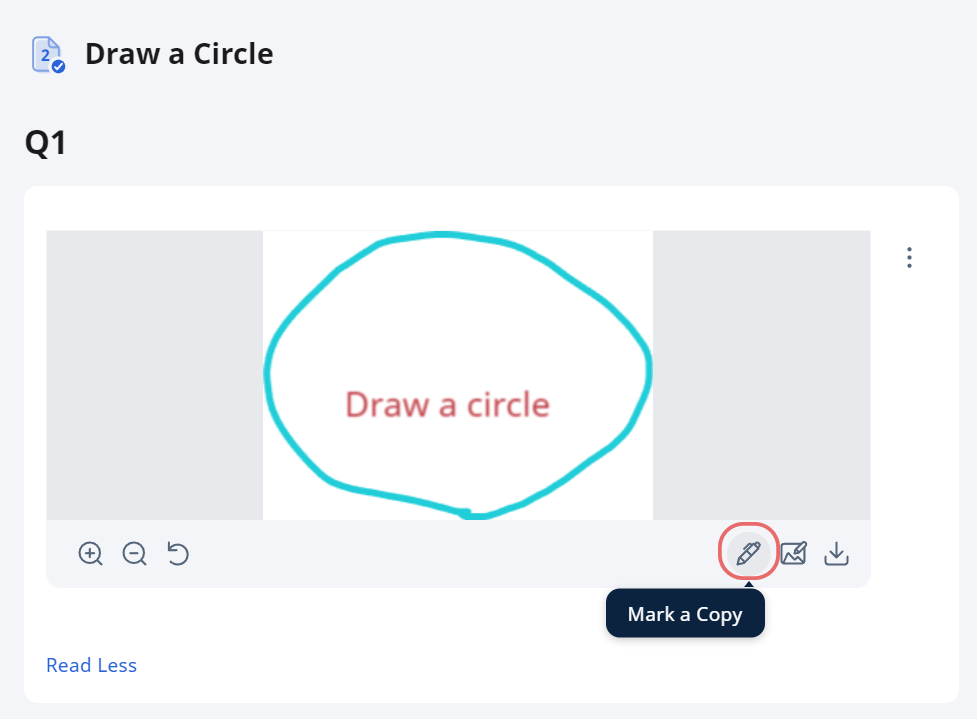
Click on the Pen icon to mark a copy of the drawing.
Use the drawing tool (opens in new tab) to provide feedback to your students.
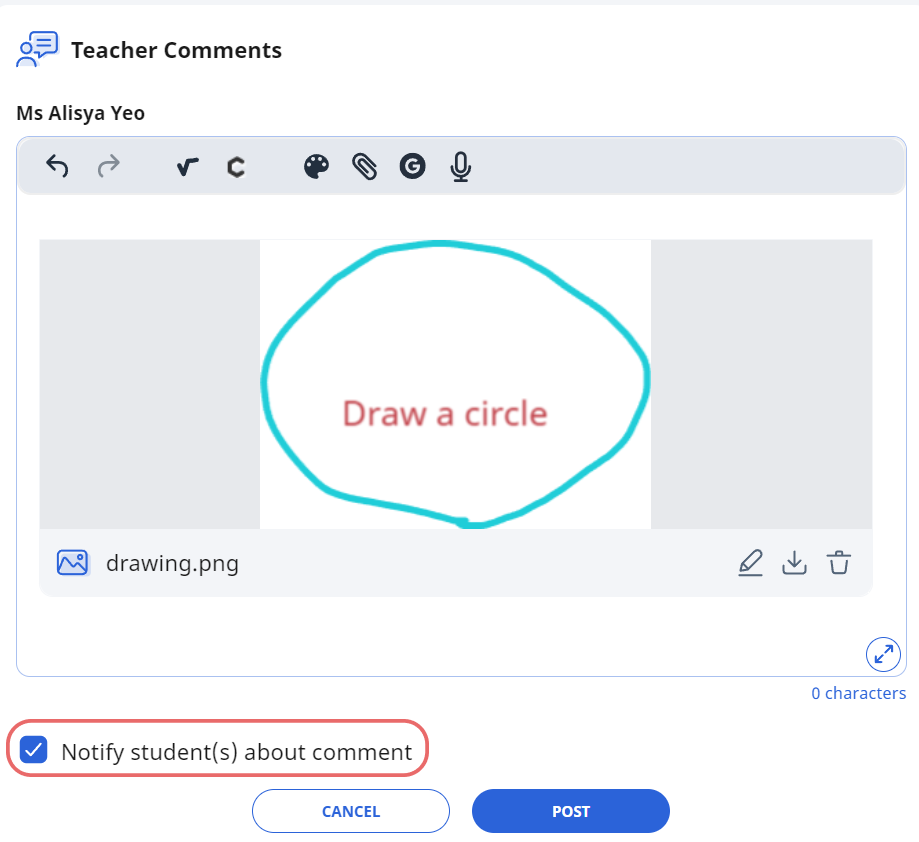
When done, click Next, followed by Post to save your feedback. You can also check the box beside Notify student(s) if you want to inform them about your feedback.
Click Cancel if you do not wish to post the feedback.
Teachers can edit or delete the feedback if necessary. Teachers can also download the feedback as an image (png).
Your student may reply to your marked image by clicking on the Reply icon.