(A1,iv) Add or Sort Assignments in Group
Explore SLS Functions
Administer
Administer
(A1,i) Onboard New Students
(A1,ii) Reset Student Passwords for Classes
(A1,iii) Generate Passcode for Students
Assess
Assess
(A1) Create Quizzes
(A2,1) Monitor Students' Responses in an Assignment
(A2,2) Analyse Students’ Responses with Data Assistant
(A3,1) Add Teacher Comments
(A3,2) Annotate (Underline) Students' Responses
(A3,3) Mark Free Response Questions
(A3,4) Mark a Copy of a Drawing
(A4) Print to Scan
(B1) Mark Teacher Marked Quizzes
(B2,1) Release Teacher Marked Quizzes
(B2,2) Unsubmit Teacher Marked Quizzes or Questions
(C1,i) Add Feedback Assistant Mathematics
(C1,ii) Add Annotated Feedback Assistant
(C1,iii) Add Short Answer Feedback Assistant (Enhanced)
(D1,i) Edit Quizzes
(D1,ii) View Students' Notes
(D1,iii) Manage Assignments, Sections, Activities (Enhanced)
(D1,iv) Submit Quizzes
(E1,i) Login for E–Assessments
(E1,ii) Set Assignments as Assessments
(E1,iii) Add and View Access Codes
Assign
Assign
(A1,i) Create Assignments (Enhanced)
(A1,ii) Assign MOE Library Modules
(A1,iii) Assign Community Gallery Modules
(A1,iv) Add or Sort Assignments in Group
(A1,v) View Assignments
(A1,vi) View Past Assignments
(B1,i) Manage Assignments
(B1,ii) Schedule Assignments
(B1,iii) Edit Assignments
(B1,iv) Pause & Resume Assignments (Enhanced)
(B1,v) Move Assignments
(B1,vi) Delete Assignments
(B1,vii) Copy Assignments
(B1,viii) Allow Students to Copy Assignments
(B1,ix) Allow Students to Share Assignments
(B1,x) Annotate in Teacher's Copy of Assignment (Enhanced)
Authenticate
Authentication
How to Log In (Teacher)
Reset SLS Password (Teacher)
Password Reset Email
Locked Account
Author
Author
Create New Modules
Activate Learning Assistant in Interactive Component (Enhanced)
Generate Images with Authoring Copilot (New)
Generate Interactives with Authoring Copilot (New)
Plan and Generate Modules with Authoring Copilot (New)
Use Authoring Copilot to create New Activities & Components (Enhanced)
Use Authoring Copilot to create New Quizzes (Enhanced)
(A1,1) Add New using Templates
(A1,2) Add New Activities & Sections
(A1,3) Add Existing From Library & Starred Resources (Enhanced)
(A1,4) Add Introduction
(A1,5) Add Section (Adaptive)
(A2,1) Add Components
(A2,2) Add Split Page Media
(A2,3) Upload Question and Test Interoperability (QTI) Files
(A2,4) Add Multiple Choice Questions
(A2,5) Add Fill in the Blanks Questions
(A2,6) Add Click and Drop Questions
(A2,7) Add Error Editing Questions
(A2,8) Add Free Response Questions
(A2,9) Add Audio Response Questions
(A2,10) Add Multi Part Questions
(A2,11) Add From Existing Questions (Enhanced)
(A2,12) Add Display
(A2,13) Add Rubrics to Audio and Free Response Questions (Enhanced)
(A2,14) Embed YouTube Videos
(A2,15) Insert Media Objects (Enhanced)
(A2,16) Insert Transcript for Video & Audio
(A3,1) About Rich Text Editor
(A3,2) Formatting & Paragraphing
(A3,3) Insert Chinese or Tamil Text
(A3,4) Insert Mathematical or Chemical Equations
(A3,5) Insert Tables
(A3,6) Insert Emoticons
(A3,7) Insert Drawings
(A3,8) Insert External Links
(A3,9) Insert Links to Sections
(A3,10) Insert Tooltips
(A3,11) HTML5 Content Development (Enhanced)
(A3,12) Text–to–Speech
(A3,13) Speech Evaluation Tool
(A3,14) Localisation and E–Dictionary
About Templates
(B1,i) Manage Modules
(B1,ii) Edit Modules
(B1,iii) Edit Activities & Sections
(B1,iv) View and Edit Module Plans
(B1,v) Make a Copy of Modules or Assignments
(B1,vi) Edit Detail cards
(B1,vii) Add Question Tags
(B1,viii) Add Module Tags
(B1,ix) Edit Media Objects
(B1,x) Move Modules to Trash
(B1,xi) File Size Limits
(C1,i) Copyright Resources
Collaborate
Collaborate
About the Forum
(A1,1) Add a Topic
(A1,2) Add a Poll
(A2) Change Forum Settings
(A3) Post and Comment in the Forum
(B1) Create Team Activities
(B2) Create Teams
(C1,i) Add an Interactive Thinking Tool
(C1,ii) Add a Poll
(C1,iii) Add a Discussion or Live Chat (Enhanced)
(C1,iv) Attach Google Files
(C1,v) Add Google Meet Link
(D1,i) Share a Module
(D1,ii) Access a Shared Module
Customise
Customise
(A1,i) Customise an Avatar
(A1,ii) View and Edit Profile
(A1,iii) Set an Alternate Email Address
(A1,iv) Set Email Notifications
(A1,v) Manage Linked Account
(A1,vi) Change SLS Password
(A1,vii) Switch to Student Account
Customise SLS Homepage (New)
Differentiate
Differentiate
(A1) Create Subgroups
(A2) View Subgroups
(A3) Edit & Delete a Subgroup
(B1,i) Add Activity, Quiz or Section Prerequisites
(B1,ii) Set Differentiated Access
Discover
Discover
About Resources
(A1,1) Add Existing Activities from Resources (Enhanced)
(A1,2) Add Existing Components from Resources
(A1,3) Add Existing Media Objects from Resources (Enhanced)
(A2) Search for Resources (Enhanced)
(A3) View Module Details
(B1,1) View External Resources
(B1,2) Previously Whitelisted & Non Whitelisted Websites
(B2) Embed Whitelisted Websites
(C1) Access App Library
(C2) Embed Integrated Apps
(D1) Access My Subjects
(D2) Follow & Unfollow Subjects
(E1,i) Make a Copy of a Module
(E1,ii) View Print Friendly Worksheet
(E1,iii) Upvote and Leave Reviews (Enhanced)
(E1,iv) About Adaptive Learning System (ALS)
(E1,v) Tag Resources to Adaptive Learning System
(E1,vi) Link Activities in ALS Content
Enact
Gamify
Gamify a Module with Authoring Copilot (New)
About Gamification and Leaderboard
(A1) Manage Gamification Settings
(A2) Game Stories and Collectibles
(A3) Add Conditions to Game Story or Collectibles
(A4) Create Game Teams
(B1) Display Leaderboard for Students
(B2) Quiz Leaderboard and Ranking
(C1) Award XP, Game Story and Achievements Manually
Notify
Notify
(A1) View and Create Announcements
(A2) Manage Announcements
About Notifications
(B1,i) View Notifications
Organise
Organise
About Groups
(A1) Create Groups and Communities
(A2) Add Teachers as Students to a Class Group
(B1) Manage Group Resources
(C1,i) Install and Launch Apps
(C1,ii) App FAQs
(D1,i) Pin Groups
(D1,ii) Archive Groups
(D1,iii) View and Restore Past Groups
(E1) Access My Drive
(E2) Search in My Drive
(E3,1) Create New Folders
(E3,2) View Modules Shared with Me
(E4) Delete Resources
(F1,i) Copy Modules within My Drive
(F1,ii) Manage Folders
(F1,iii) Restore Resources from Trash
(G1) Star Resources (Enhanced)
Personalise
Personalise
(A1) Set Optional Activities & Quizzes
(A2) Recommend Content to Students on Adaptive Learning System
Plan
Plan
(A1) Access Planner (Enhanced)
(A2) Create a New Task or Event (Enhanced)
(A3) Attach Assignments and Resources to Events
Publish
Track Progress
Track Progress
(A1,i) Access Learning Progress
(A1,ii) View ALS Learning Progress
(A2,i) View by Topic
(A2,ii) View by Month
(A2,iii) View by Student
(A2,iv) View Excluded Questions
(B1) Access Error Tracker
Other Useful Information
(A1,iv) Add or Sort Assignments in Group
-
You can add assignments to the Group from the Group page.
-
Access Groups from the left menu or by selecting the Group (if pinned) on your homepage. On the Group page, click Add Assignment to add the assignment:
-
From New Module
-
From My Drive
-
From Library
-
From Starred Resources
-
-
You may also add a new Category to your Group assignment. This can be used to organise the Assignments for your Group.
-
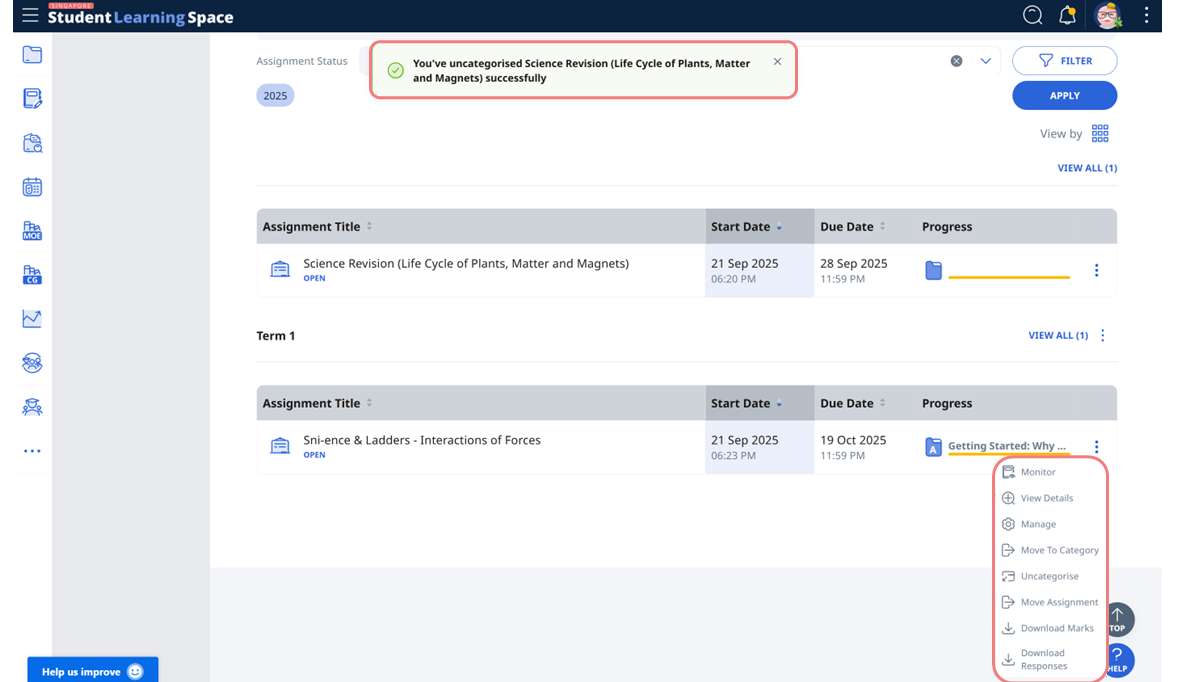
Click the Overflow (3-dot icon) on the Assignment card to:
-
View details of the Assignment
-
Move the Assignment to another category
-
Uncategorise the Assignment
Note: A temporary message will appear when the Assignment has been successfully:
-
Moved to another category
-
Uncategorised
-
Moved to another Group
Sort Assignments in Group
-
You can sort Assignments in Groups to find them easily.
-
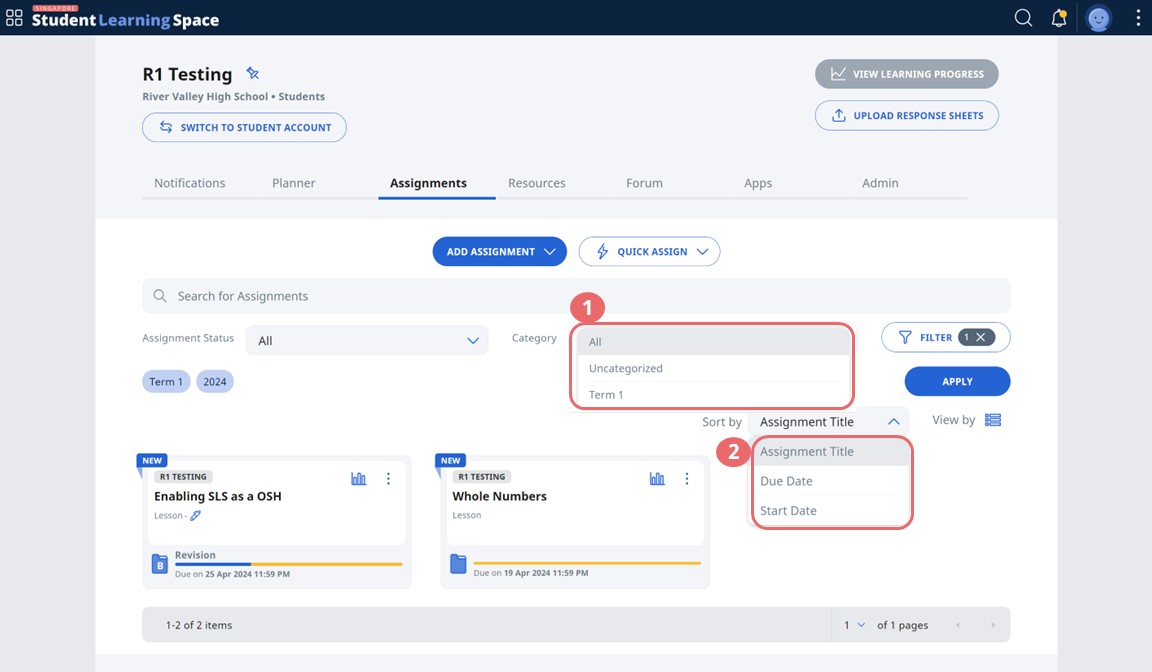
On the Assignment tab in the group, select a category from the dropdown menu. Click Apply.
-
Click Sort By and you can now sort the Assignments according to Assignment title, due or start date.
Sort Resources in Group
-
You can sort Resources in Groups to find them easily.
-
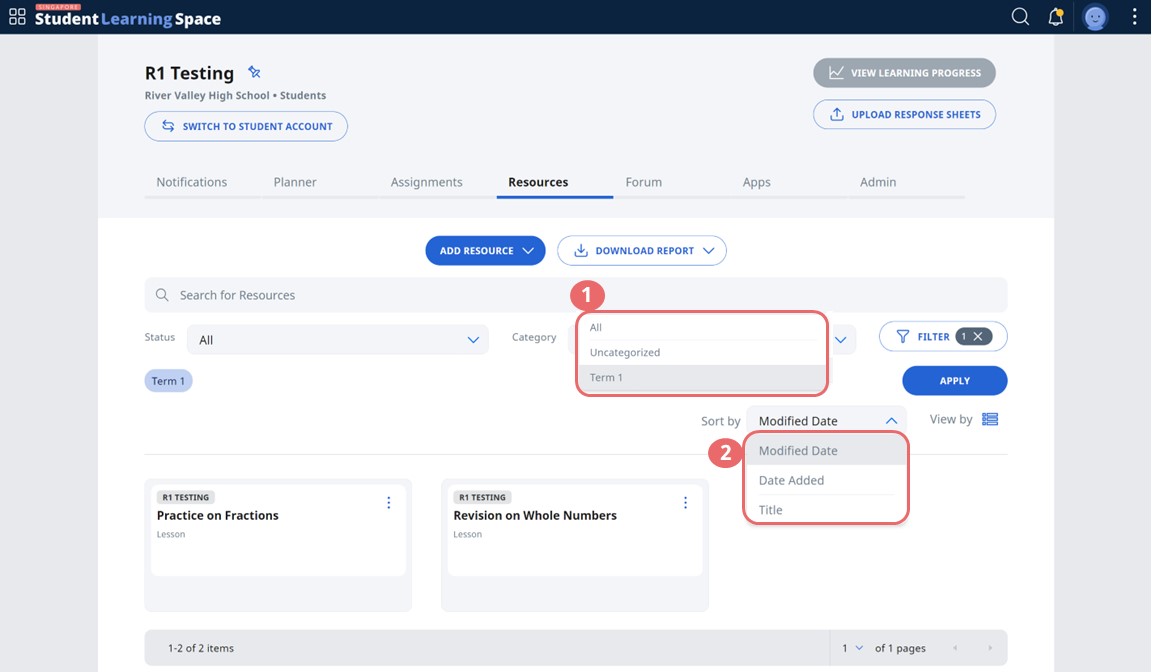
On the Resource tab in the Group, select a category from the dropdown menu. Click Apply.
-
Click Sort By and you can now sort the Resources according to modified date, date added or title.
Access Resources and Assignments for Newly Added Students
-
From June 2026 onwards, access to multiple Group assignments can be granted at the same time.
-
Students who are newly added to the Group will automatically have access to the Group Resources.
-
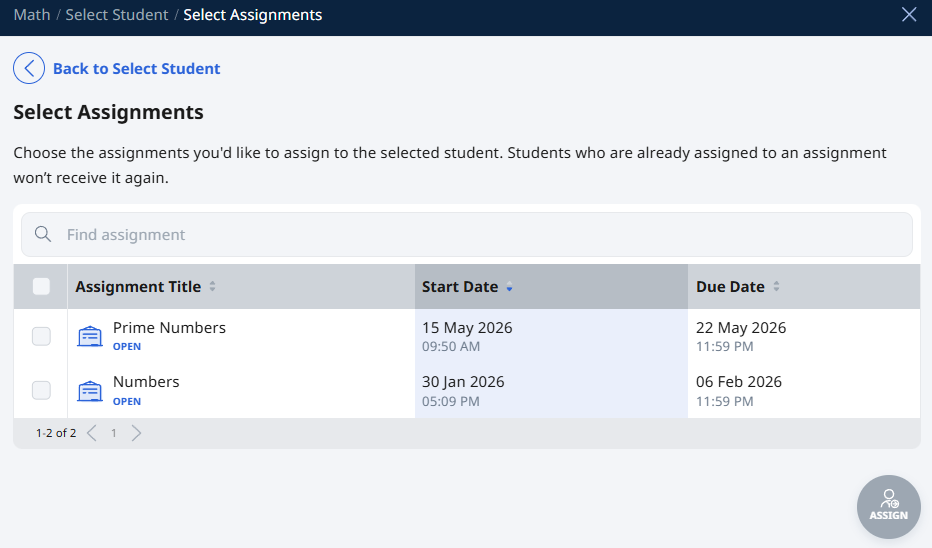
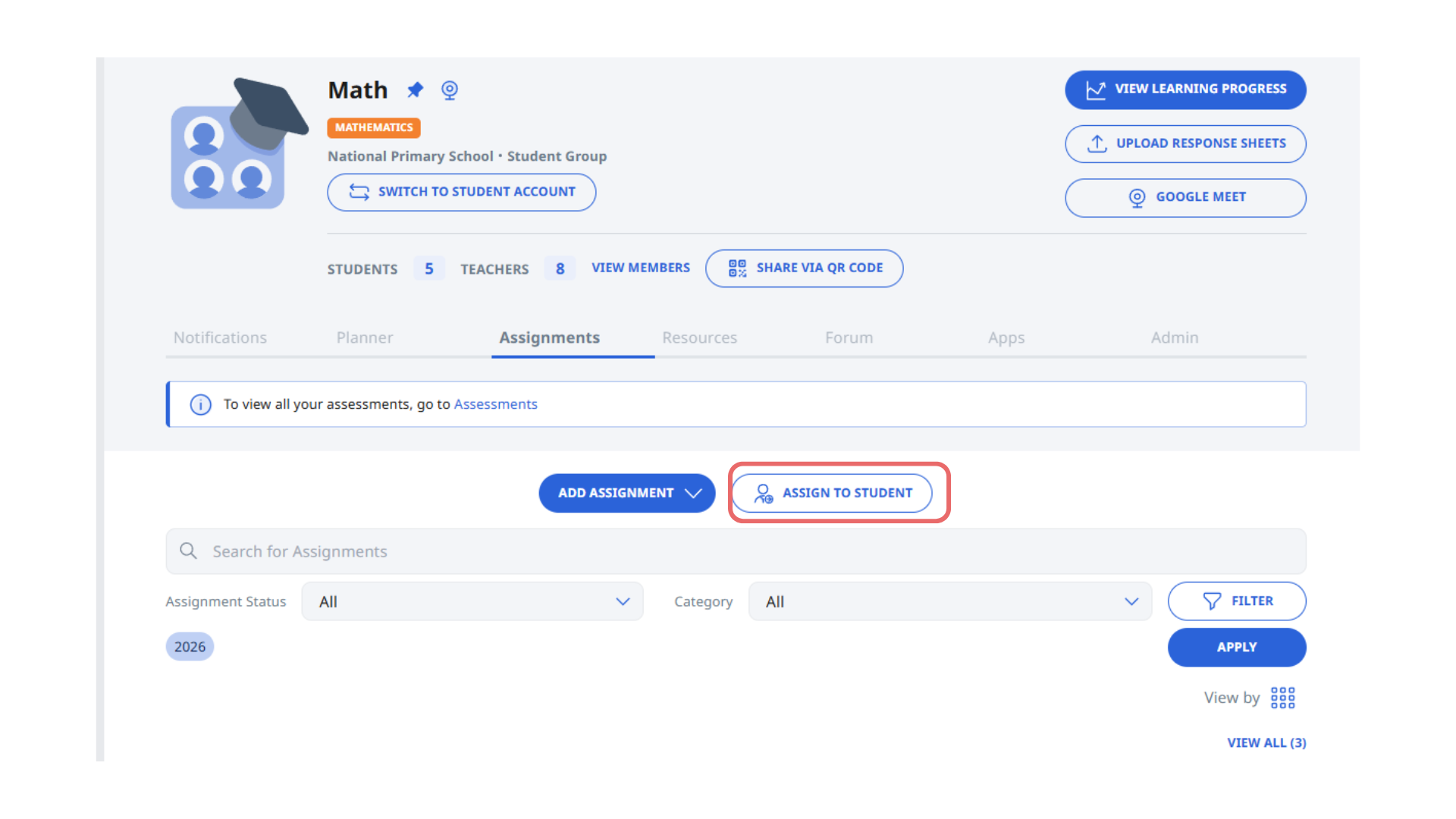
To grant access to assignments, Group Owners and Co-teachers can assign one or more assignments to the new student.
a. Click Assign to Student.
b. Select the new student and click Next.
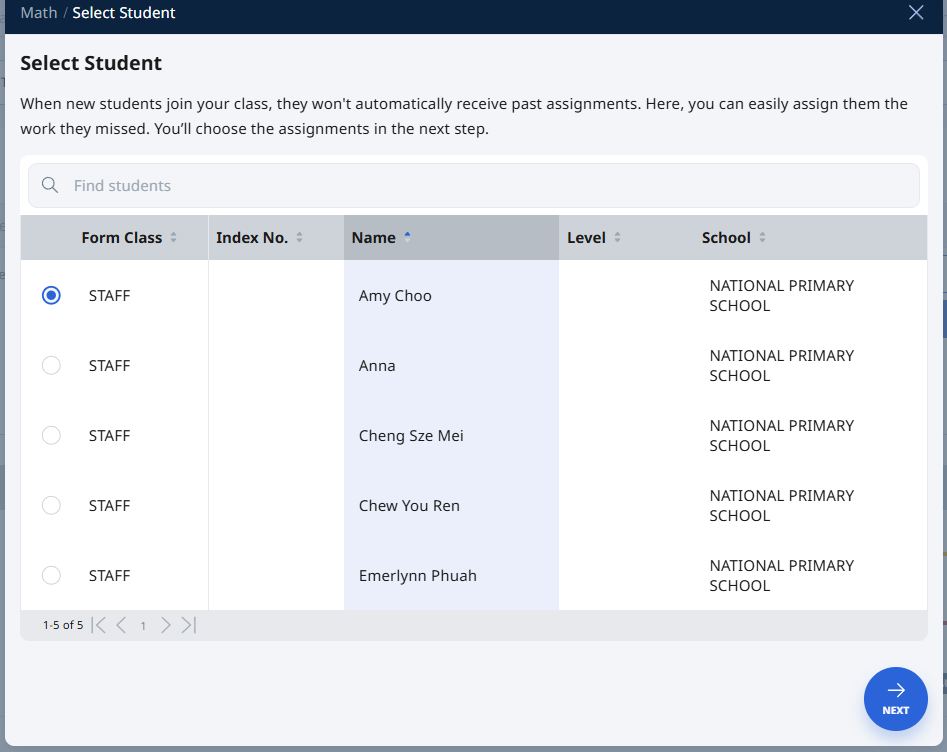
c. Select the assignment(s) to assign to the student and complete the process