
(D1,iv) Submit Quizzes
Learn how to submit quizzes on behalf of one or more students in SLS, and notify them with a custom message once done.
(D1,iv) Submit Quizzes
Important: You cannot unsubmit Progressive and Auto-Graded Quizzes. Only Teacher-Marked Quizzes can be unsubmitted.
Submit for a Student
When a student does not submit a Quiz, you can submit the Quiz on behalf of the student. This is useful in cases where students do work in an embedded app or website and you are using SLS to monitor and provide comments. This can also be coupled with the Rubrics (opens in new tab) feature.
On the Monitor Assignment page, click on the name of the student to open the quiz.
Proceed to the Quiz Completion page.
Click Submit for Student.
You may Notify Students that their Quiz has been submitted and include a custom message.
Submit for multiple Students
From the Monitor Assignment page, click the Filter icon in the Section header or the Filter icon in the table header to view the filtered Heatmap containing the selected Quiz.
On the Monitor Assignment page, select the students by checking the boxes to the left of their names. To clear the selected list of students, click Clear.
Click Submit found in the header of the Heatmap table.
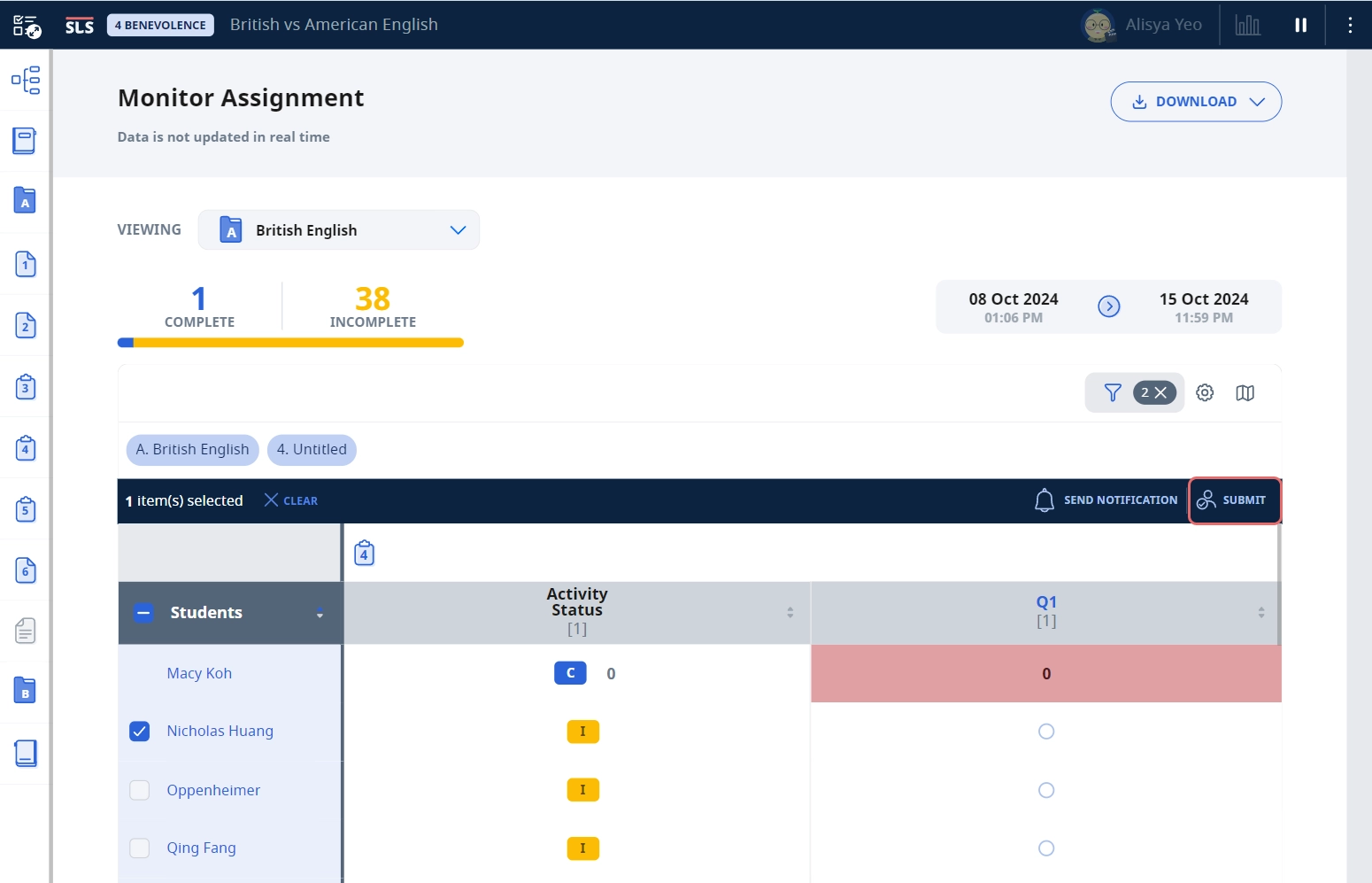
You may Notify student(s) that their Quiz has been submitted and include a custom message.
Click OK to proceed.