(D1,i) Edit Quizzes
Create and customise quizzes, questions, pages and components.
(D1,i) Edit Quizzes
Edit Quiz
Once you have added the Quiz, the Quiz title will be pre-filled for you as “Untitled”.
Click the Quiz Title to rename.
You can choose to set the Quiz as Optional by adjusting the Optional toggle button, or delete by clicking the Trash icon .
To edit the details on the cover page of the Quiz, click the Quiz cover page or the Pencil icon to edit the following details:
Quiz Mode: The default Quiz Mode is Progressive Quiz. You may choose from the following options:
Progressive Quiz (Students receive feedback automatically after submitting each question)
Auto-graded Quiz (Students receive feedback automatically after submitting the quiz)
Teacher-marked Quiz (Students receive feedback after teachers mark and release the quiz)
Description: You may include details about the quiz.
Instruction to Student: You may include information required for students to complete the quiz.
Click outside of the Component to Save.
To add a new empty page, click + on the top menu.
You can add the following Components into a Quiz:
Text/Media
Questions (Multiple-Choice, Fill-in-the-Blanks, Click-and-Drop, Error-Editing, Free-Response, Audio-Response, Multi-Part Question)
Display (Page Break, 2-columns, 3-columns, Accordion)
To hide question numbers from students, you can click on the Quiz Detail Card and select Hide Question Number. You will still be able to view the question numbers in the Module Editor and Monitoring Pages.
Click here to find out about how to Add/Edit Components.
Click here to find out about editing the Quiz Detail card.
Note: You can also edit certain fields, such as the Quiz Title and Description, after the module has been assigned and students have started attempting the questions in the Quiz.
Edit, Delete and Reorder pages in a Quiz
Ensure you are in Module Editor mode.
Click on the Page you wish to edit, delete, or reorder. You can open the Overflow (3-dot icon) beside the Question Number to Add Page After/Before, Move Left/Right, or Delete.
Did You Know:
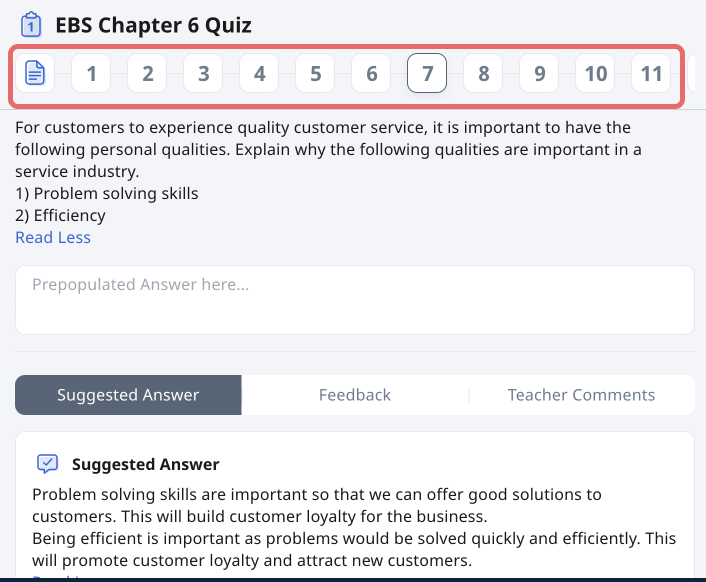
The page numbers for quizzes and activities that have multiple pages will remain visible at the top of the page as you scroll down.
Edit, Delete or Reorder a Component in a Quiz
Ensure you are in Module Editor mode.
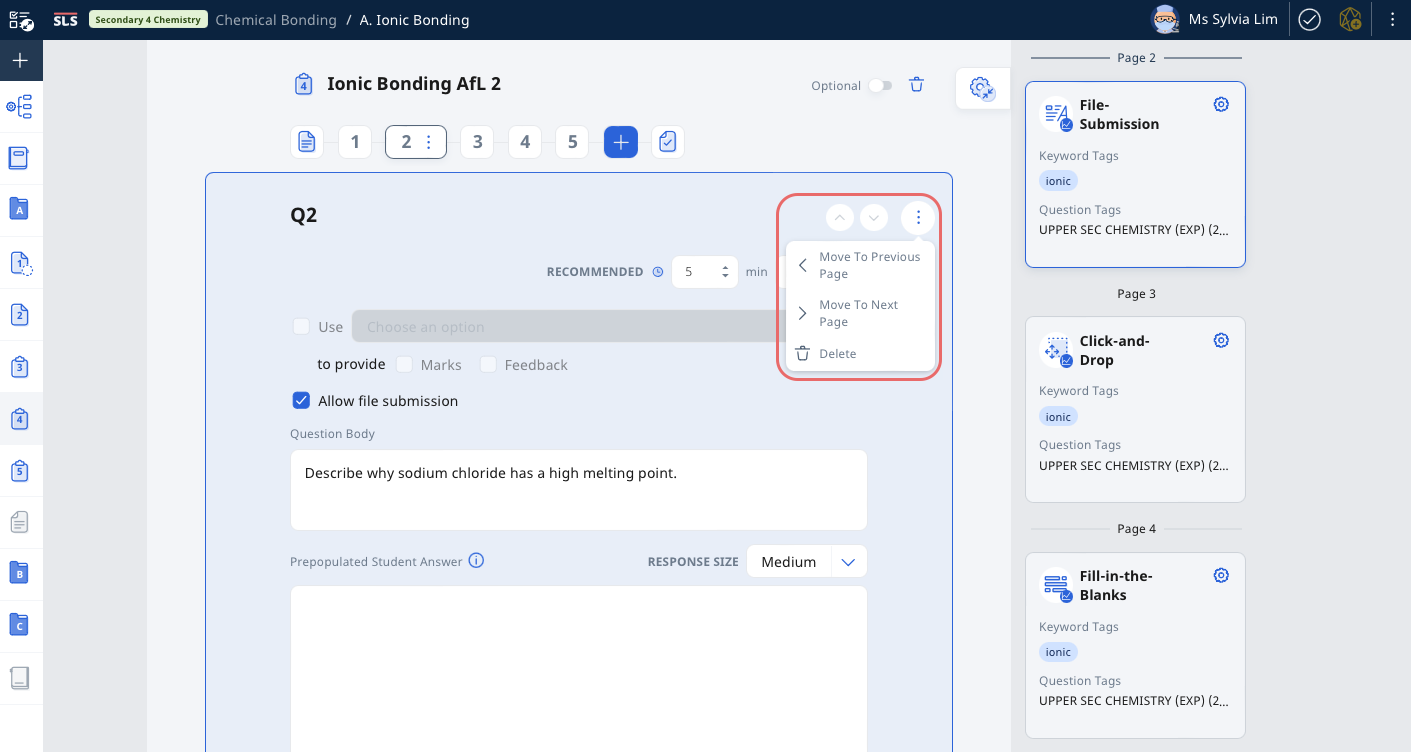
Click the Up/Down Arrows to move your Components Up/Down within a page.
Open the Overflow (3-dot icon) beside the Component to Move it to the Previous/Next Page or Delete.
Note:
When you move a Component to the Next Page, it will appear on the top of that page.
When you move a Component to the Previous Page, it will appear at the bottom of that page.