
(E1,ii) Set Assignments as Assessments
Set an SLS assignment as an assessment for students.
(E1,ii) Set Assignments as Assessments
There are multiple ways to set assignments as Assessments.
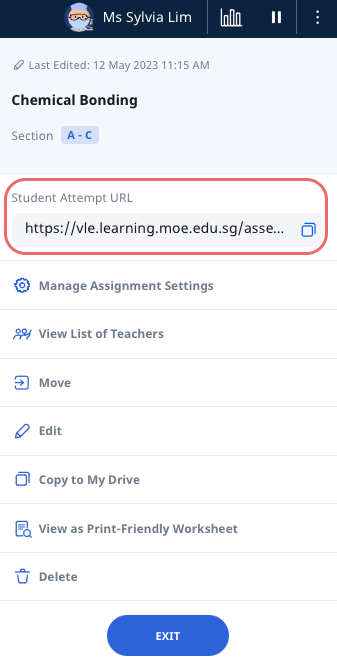
Click the Overflow (3-dot icon) on the Assignment card and click Manage. Alternatively, click on the Assignment card to open the Assignment, open the right menu and select Manage Assignment Settings.
On the Assignment Settings subpage, click the Others tab.
Select the checkbox beside Set as Assessment.
Note:
Assessment cards are differentiated with a beige background.
Students will not be able to access embedded links or apps in the Assignment unless they have been whitelisted for use in the Assessment's network.
Students should log in using SLS or MIMS and select Login for E-Assessment, where they will see a list of assessments assigned to them.
Did You Know:
If you do not wish to create an Assessment (which will require the whitelisting of embedded links or apps), you may wish to set a Access Code (formerly known as Passcode) to an Assignment. Students will require the Access Code before they can attempt the Assignment.
Teachers can edit all question types, included as part of a Multiple-Part Question (MPQ), even after students have attempted them. Teachers and students can also view the last edited date and time of the question.
Note: This is not applicable for students in assessments.