
(D1,i) Pin Class Groups
Learn how to pin Class Groups for faster access. Pinned groups appear at the top of lists across the homepage, Planner, and dropdowns.
(D1,i) Pin Class Groups
From the homepage, open the left menu and click Class Groups, followed by All Class Groups Alternatively, in the Class Groups tab from the homepage, click Class Groups. By default, you will be in the Current tab..
You can filter current Class Groups by Type and Role..
A Class Group can be pinned and unpinned by clicking the Pin icon on the top right of the Class Group card.
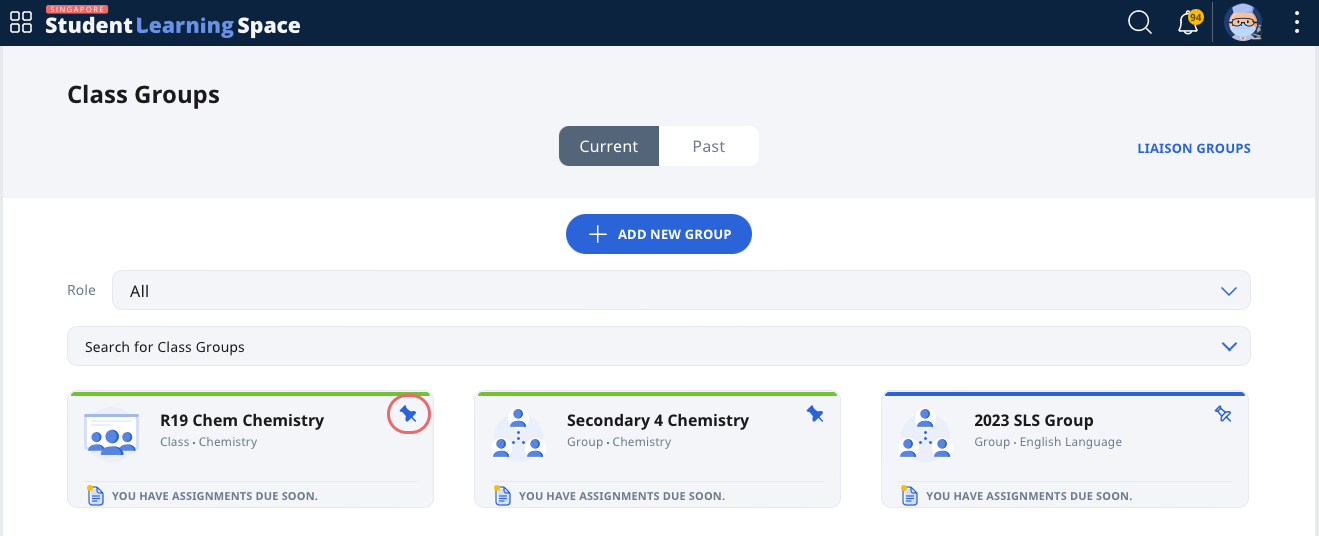
Alternatively, enter a Class Group by clicking the Class Group card from either the homepage (under the Class Groups tab) or Class Group page. Click the Pin icon found beside the Class Group name.
Pinning a Class Group allows quick access to the Class Group. Below is a list of interactions that take place when a Class Group is pinned.
Pinned Class Groups will:
appear first under the Class Groups tab on the homepage.
appear under Class Groups from the left menu.
appear at the top of the list of Class Groups on the Class Groups page.
appear at the top of the list of Class Groups when assigning a Module.
appear at the top of the list in dropdown fields involving Class Groups (e.g. when viewing Class Group Notifications).
appear by default in the Planner.