(B1,iii) Manage Content Maps (Enhanced)
(B1,iii) Manage Content Maps (Enhanced)
Content Approvers and Content Officers (CAs and COs) will be able to view all Content Maps from here and make edits to Content Maps tagged to their Owner Group.
Manage Content Maps
- Open the left menu and select Administration, followed by Manage Content Maps.
- The list of Modules will be reflected in the table, indicating the following:
- Title
- Type
- Subject
- Level
- Syllabus
- Start Date
- End Date
- Modified Date
- Modified By
- Owner Group
- Viewable by Teacher before Start Date
- To view a particular Content Map, click Open under the Title.
Search for a Content Map
- You can search for a Content Map by entering your search terms in the Search Bar.
- You may also wish to select the Subject and Level filter by selecting the relevant fields in the respective dropdown menu.
- Press "Enter" to return your search results.
- To add more search filters, click Filter.
- Under Resource, select Content Map.
- Under Owner Group, select from:
- All
- My Groups
- Other Groups
- Click Apply and select Apply Filters to perform your selection.
Add a New Content Map
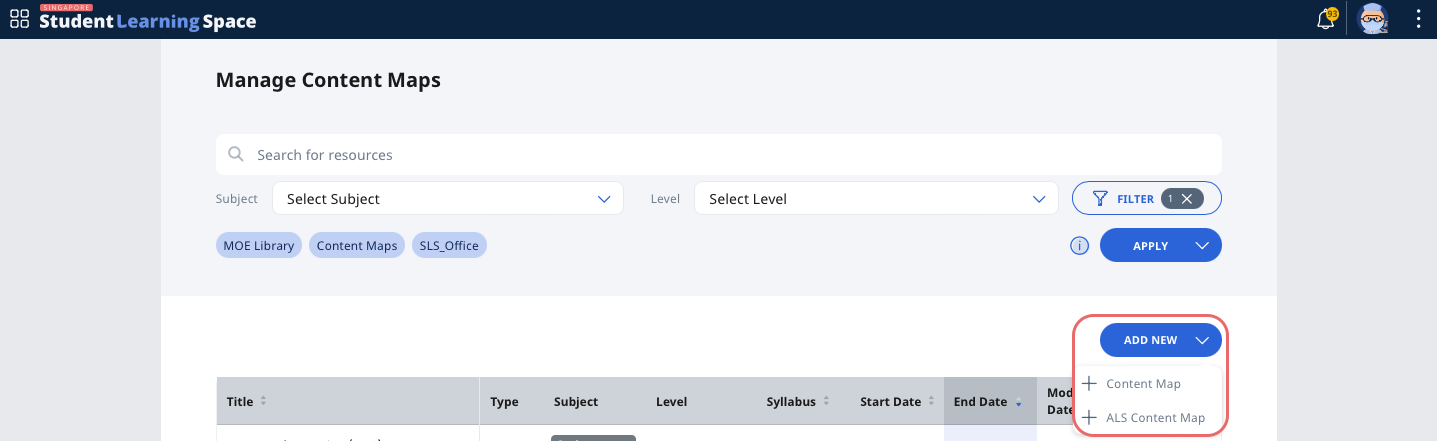
- Click Add New and select Content Map or ALS Content Map.
- Fill up the necessary fields and upload the CSV file.
- For CAs, click the Create and Publish icon
 when done.
 - For COs, click to seek approval from CA(s) to publish the content map, after creating the content map.
Edit a Content Map (For CAs)
You can only edit Content Maps that are tagged to your Owner Group.
- Click Open under the Title of your Content Map. By default, you will be on the Details tab.
- To edit, click the Pencil icon
 in the header. You can edit the fields in the Details, Learning Outcomes and Assessment tabs.
 - Click the Done icon
 to update the Content Map.
 - To publish ALS Content Maps, click the Publish to ALS icon .
- To Delete or Make a Copy of the Content Map, open Overflow (3 dots icon) in the header and select the respective buttons.
Add Prerequisites to multiple learning outcomes (For ALS Content Map)
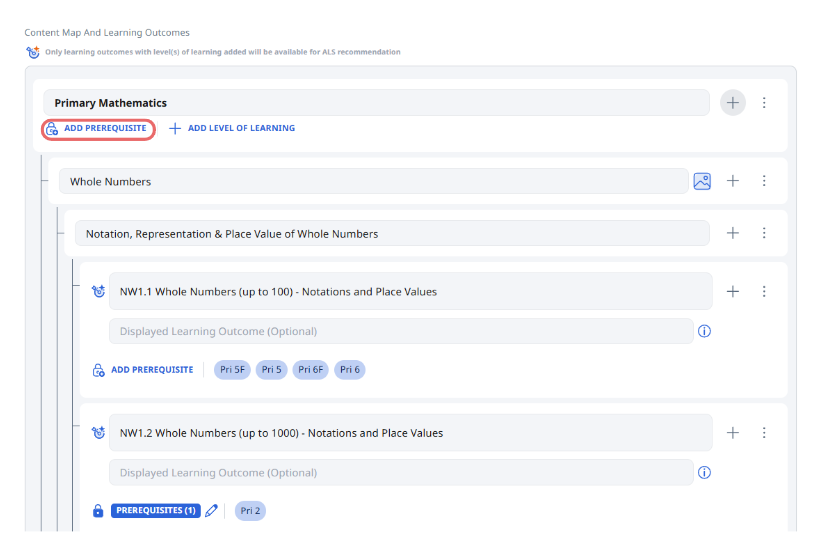
- When editing an ALS content map, you can now add prerequisites to multiple learning outcomes.
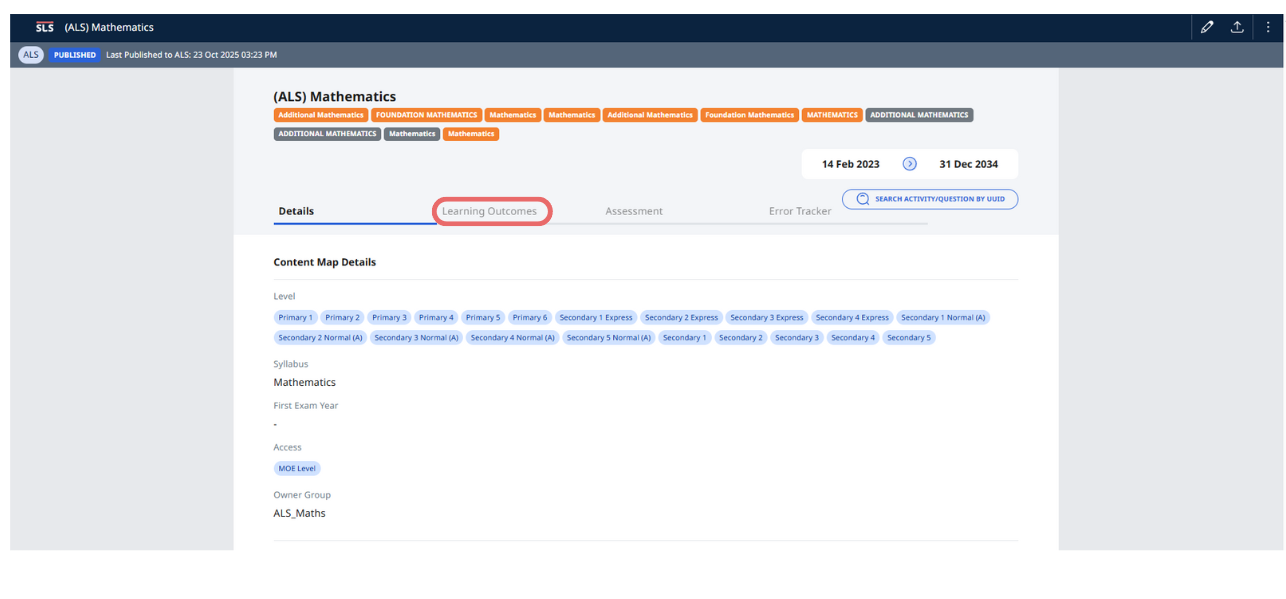
- Click on Learning Outcomes after selecting your ALS content map.
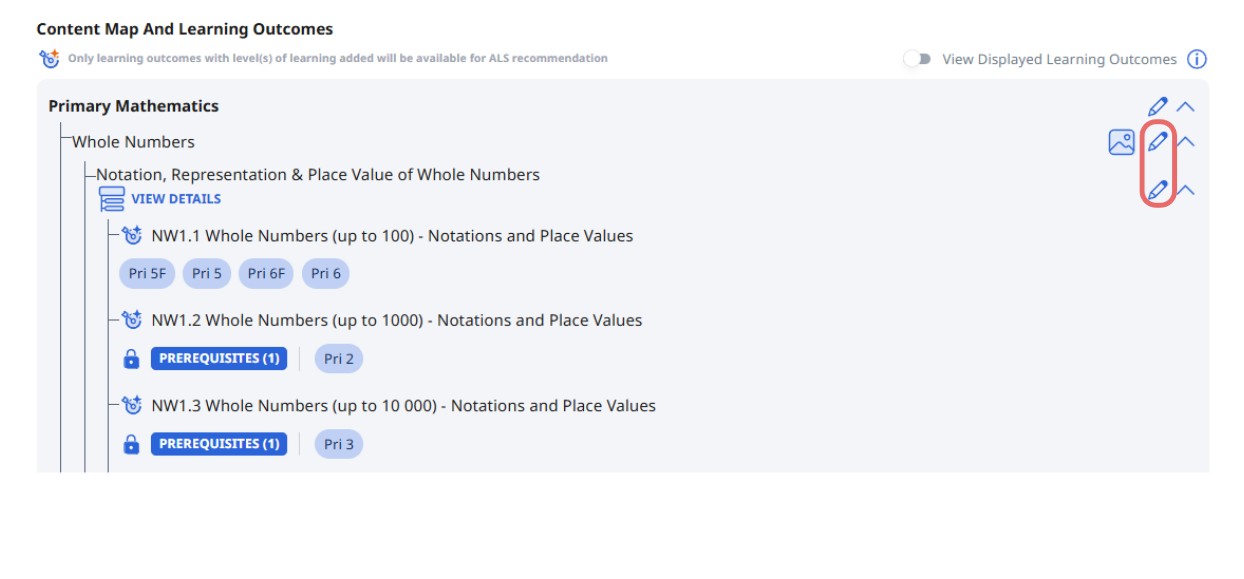
- Click on the Edit button beside the topic or subtopic.
- Click on Add Prerequisite.
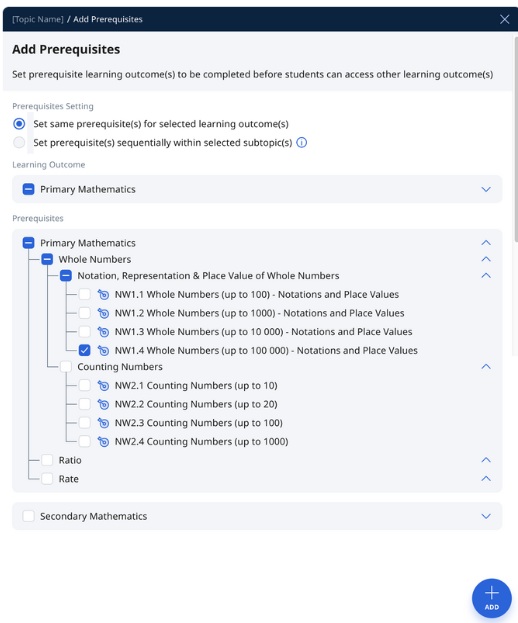
- Set the same prerequisite(s) for the selected learning outcome(s) or set prerequisite(s) sequentially within selected subtopic(s).
- Click ADD to save.
Add Level of Learning to Multiple Learning Outcomes (For ALS Content Map)
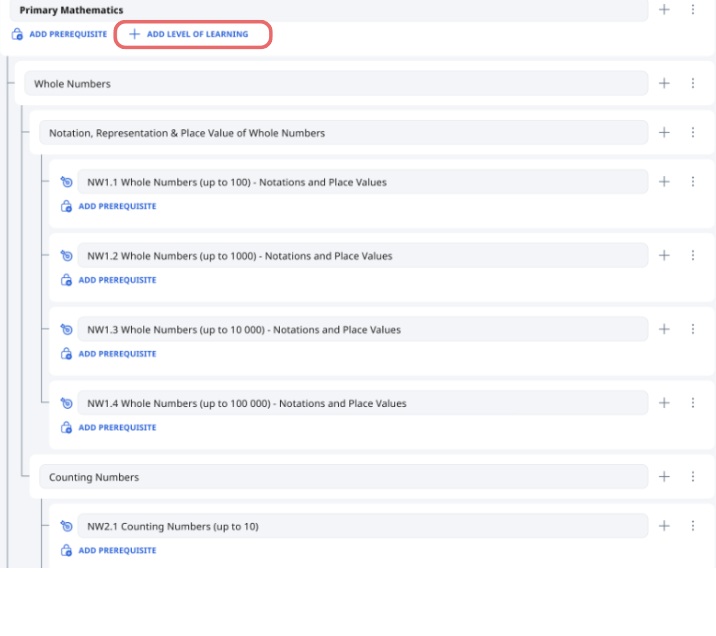
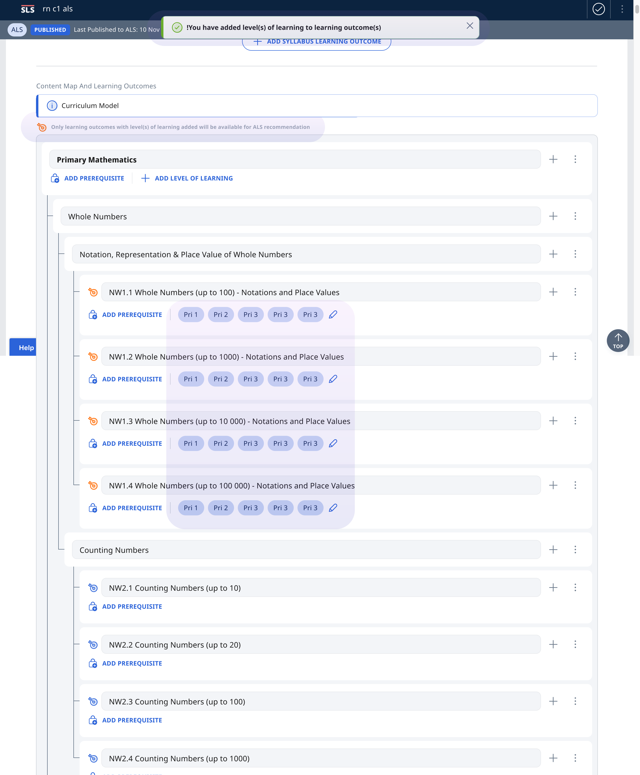
- When editing an ALS content map, you can now add Level of Learning to multiple learning outcomes. Similar to how you add prerequisites to multiple learning outcomes, click on Learning Outcomes after selecting your ALS content map and click on the Edit button beside the topic or subtopic.
- Click on Add Level of Learning.
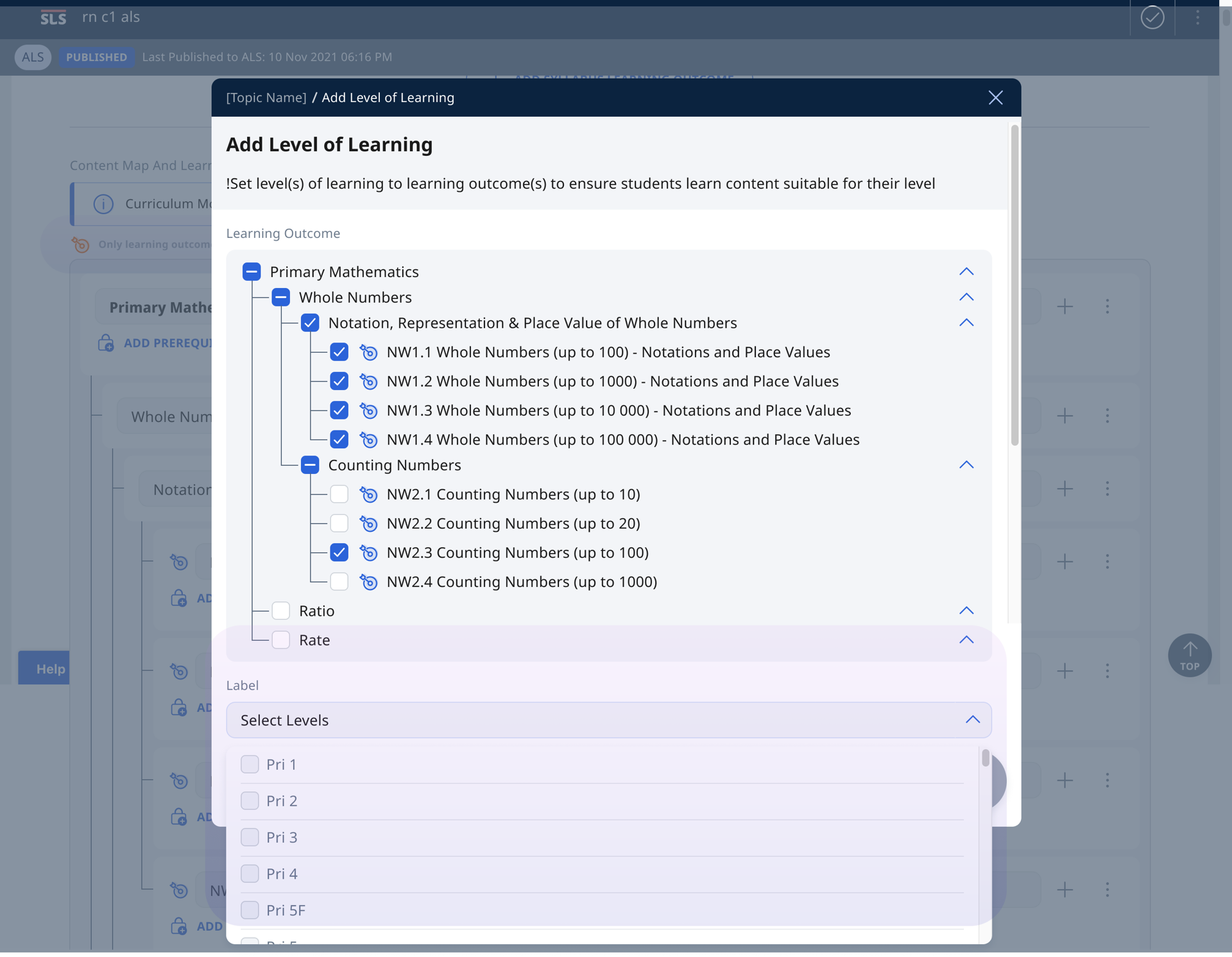
- After selecting your learning outcomes, select your levels of learning.
- The levels of learning will appear under the learning outcome after being added.
Add Error Tags to Content Map (For CAs)
Content Approvers can add error tags to their Content Map. If a question is tagged to a Content Map with a prescribed list of error tags, teachers can use the auto-complete tag suggestions to easily tag annotation that address student errors. Annotation tagged to the prescribed list of error tags will be tabulated and displayed in Learning Progress.
-
Click Open under the Title of your Content Map. By default, you will be on the Details tab.
-
To edit, click the Pencil icon
in the header. -
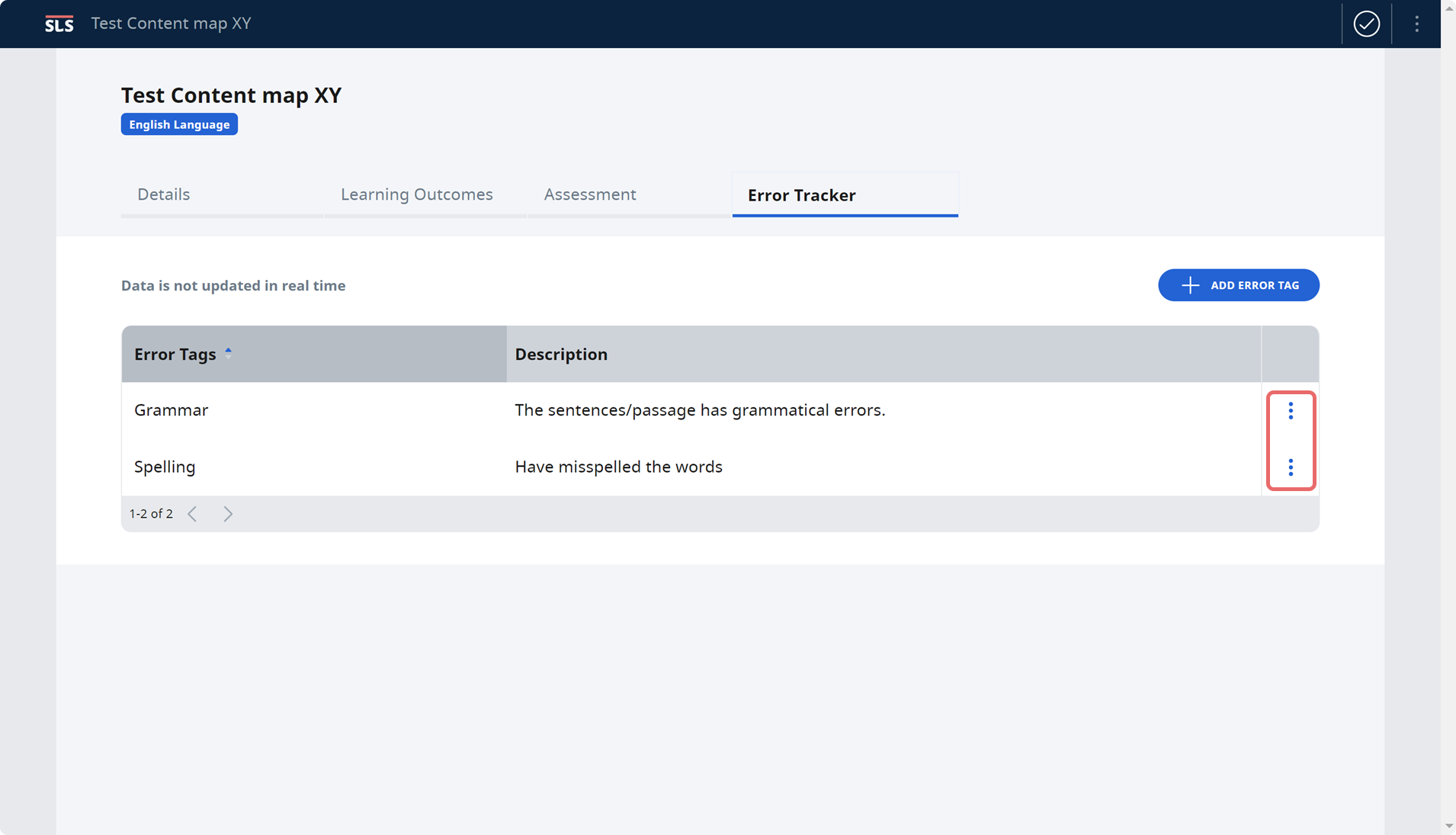
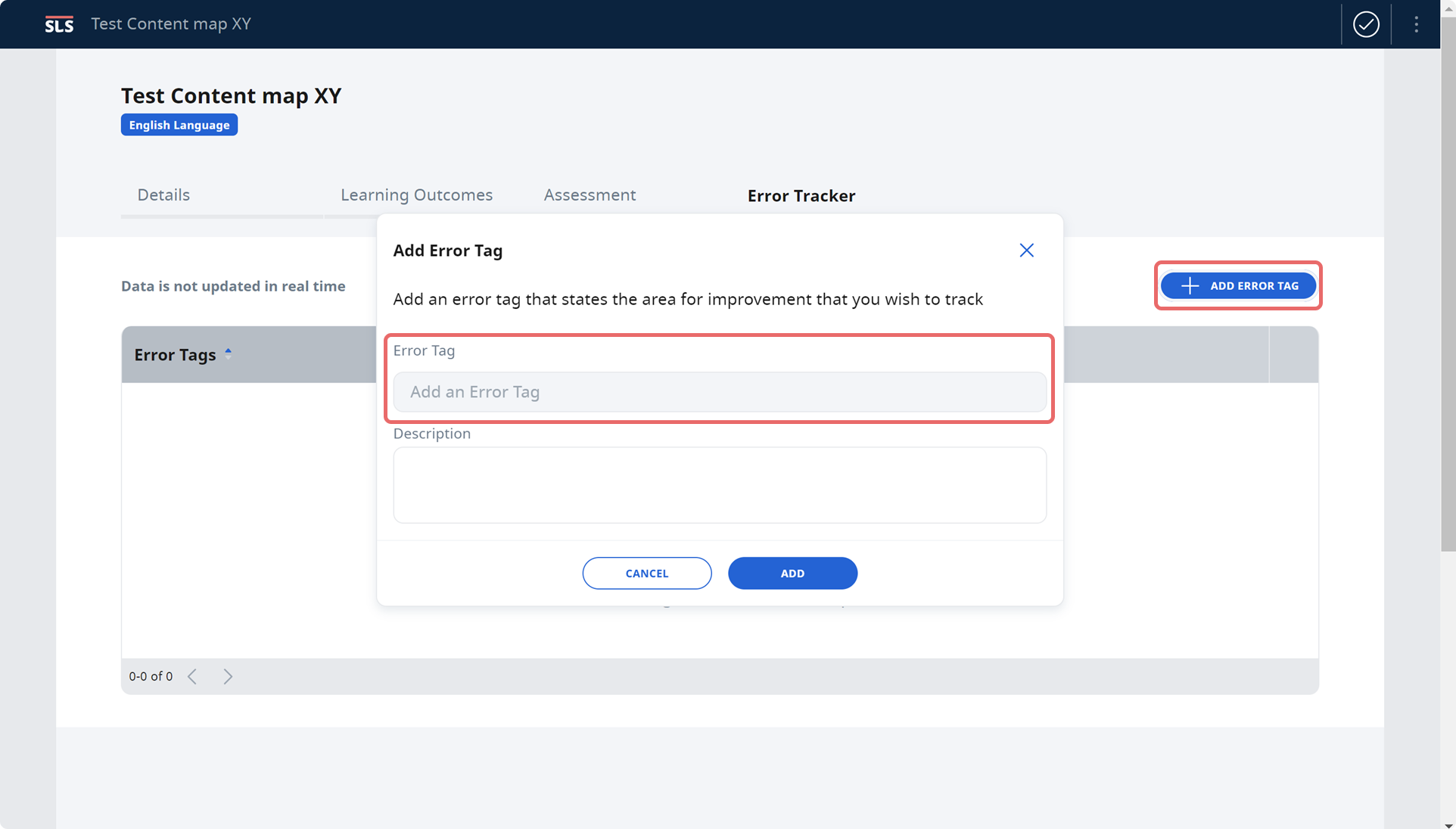
Select the Error Tracker tab and click “Add Error Tag”.
-
Key in the Error Tag and description. Click Add to proceed.
-
To delete the Error Tag, click the Overflow (3-dots icon) and select the Delete button.