

Customise SLS Homepage (New)
Customise SLS Homepage (New)
About SLS Homepage
Students can customise their SLS homepage according to their learning needs by pinning, unpinning, and rearranging frequently used shortcuts, allowing quick and easy access.
Navigate the SLS Homepage
-
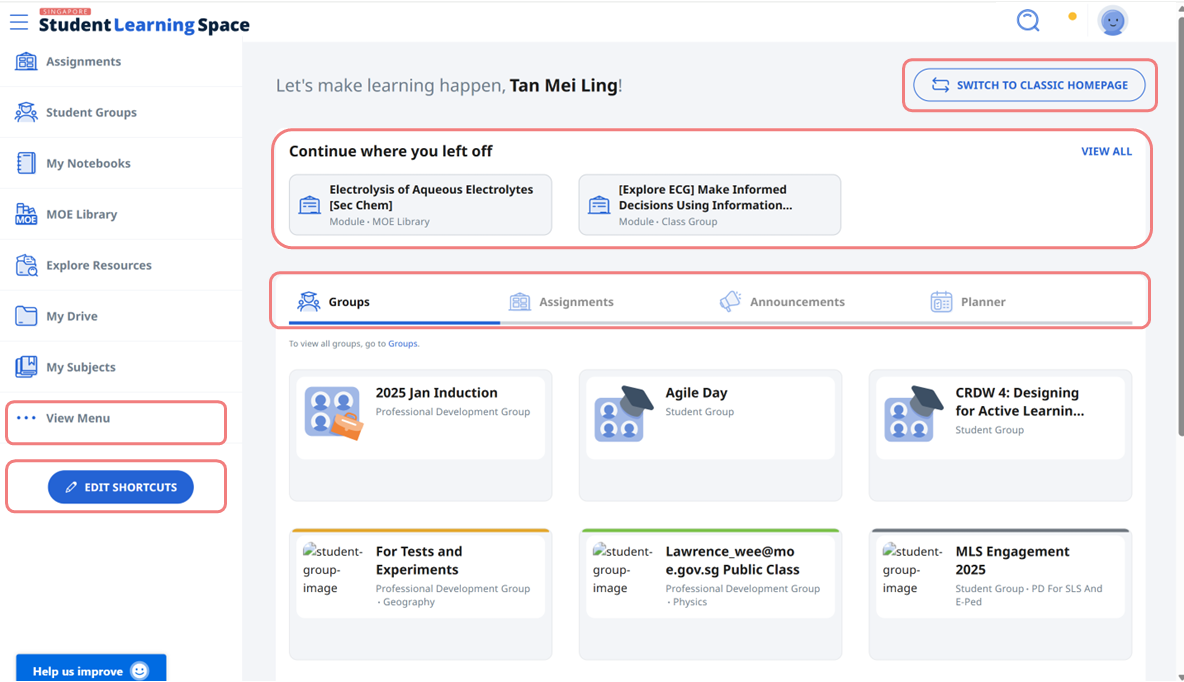
Upon login, Groups, Assignments, Announcements, and Planner will be displayed on the homepage. Under Groups, you will see either your pinned or most recent class groups. For Assignments, Announcements, and Planner, the most recent items will be displayed.
-
The three most recently accessed resources will appear under ‘Continue where you left off’ for easy access. Click View All to see more items.
-
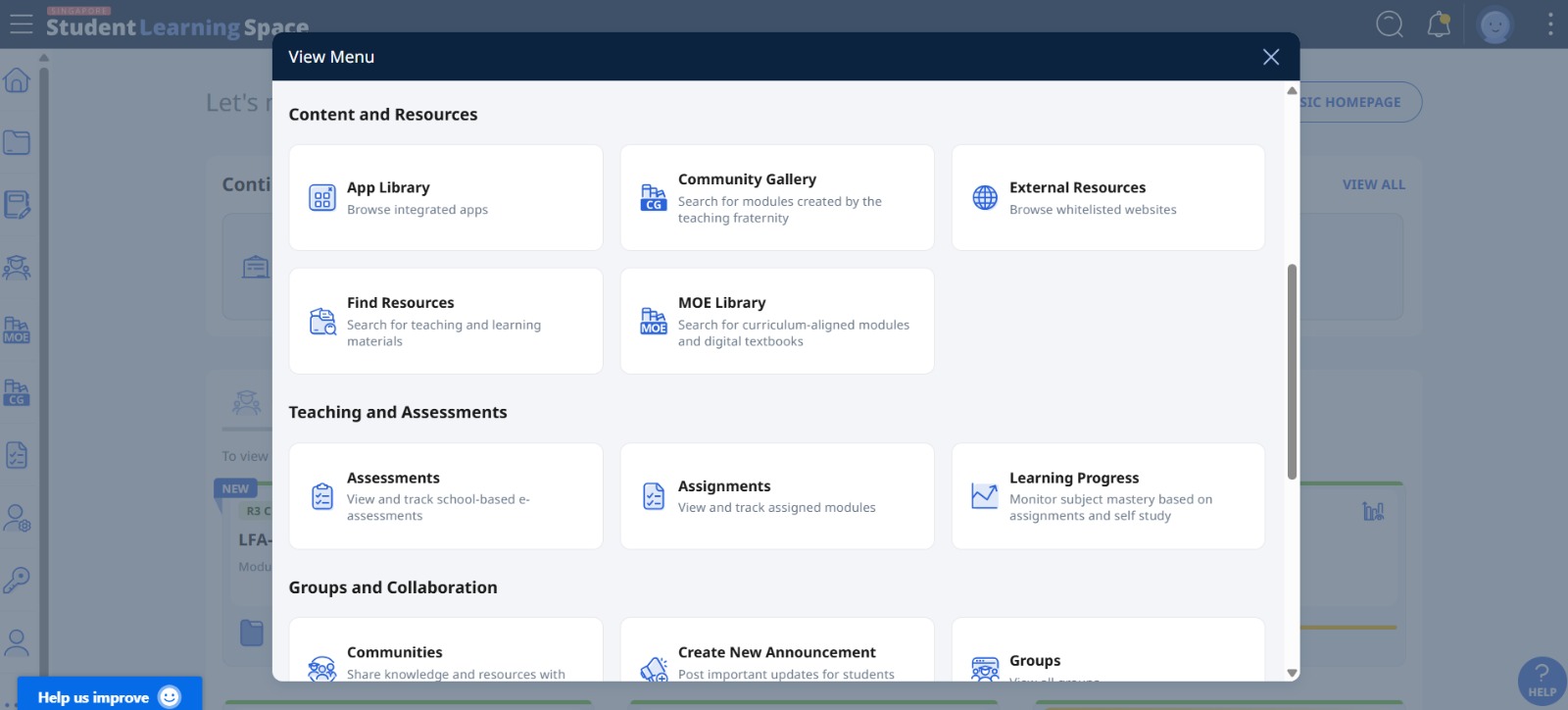
Open the left menu to view your pinned shortcuts. Click View Menu to see all shortcuts in SLS. New or enhanced tools are labelled, and each shortcut can be clicked to go directly to its page.
Note: To return to the previous SLS homepage version, select Switch to Classic Homepage at the top right-hand corner.
Customise your SLS Homepage
-
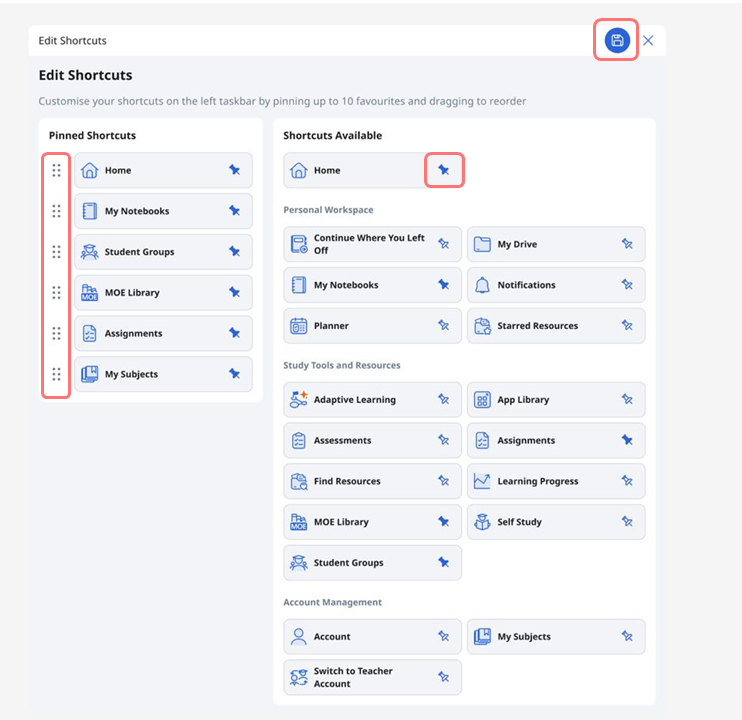
Open the left menu and click Edit Shortcuts to customise your SLS homepage based on your learning needs and usage.
-
Select shortcuts by pinning and/or unpinning them. You can pin up to 10 shortcuts.
-
In the Pinned Shortcuts menu, rearrange the shortcuts using drag-and-drop.
-
Click Save when done.
Navigate using Screen Reader
Press Tab to move through the interface with your keyboard.
Navigation begins at the top taskbar, moving from left to right across
the icons, then continues to the icons in the left menu, and finally to
the main page. Press Tab again to move to the next icon.
Video guide: