(A2) Interact in a Shared Assignment
Explore SLS Functions
Assess
Assess
(A1,1) Navigate an Assignment
(A1,2) Navigate Quizzes
(A2,1) Attempt a Multiple Choice Question
(A2,2) Attempt a Fill in the Blanks Question
(A2,3) Attempt a Click and Drop Question
(A2,4) Attempt an Error Editing Question
(A2,5) Attempt an Audio Response Question
(A2,6) Attempt a Free Response Question
(A2,7) Attempt a Multi Part Question
(A2,8) Attempt an Interactive Thinking Tool Component
(A2,9) Attempt a Poll
(A2,10) Attempt a Question with Rubrics
(A2,11) Attempt a Team Quiz & Activity
(A2,12) Attempt Google Attached Files
(A2,13) Complete an Activity & Section
(A3,1) Formatting & Paragraphing
(A3,2) Insert Tables
(A3,3) Upload File
(A3,4) Insert Drawing
(A3,5) Insert Chinese or Tamil Text
(A3,6) Insert Mathematical or Chemical Equations
(A3,7) Insert & Edit Links
(A3,8) Insert Emoticon
(A3,9) Insert Tooltip
(A3,10) Text to Speech
(A3,11) Speech Evaluation
(A3,12) E–Dictionary
(B1) View Completed Assignments
(B2) View Quiz Results
(B3) View and Respond to Teacher Comments
(C1) About Assessments
(D1) About Feedback Assistant Mathematics
(D2) About Annotated Feedback Assistant
(D3) About Short Answer Feedback Assistant
Assign
Authenticate
Authentication
How to Log In (Student)
Reset SLS Password (Student)
Forgot SLS Username
Unsuccessful Password Reset Attempts
Unlock Account
Collaborate
Request to Share Assignment
Accept a Share Request
Collaborate
About Assignment Sharing
(A1) Manage Study Buddy List (New)
(A2) Interact in a Shared Assignment
(B1) Access the Forum
(B2,1) Post and Respond to a Discussion Topic
(B2,2) Create a New Poll
(B3,1) View and Respond in the Forum
(B3,2) Edit a Poll
(C1) Join a Google Meet Video Conference
(D1) Join a Live Chat Discussion
Customise
Customise
(A1,i) Customise an Avatar
(A1,ii) Set Password Reset Email Address
(A1,iii) Set Email Notifications
(A1,iv) Manage Linked Account
(A1,v) Change Password
(A1,vi) Update Answers to Security Questions
Customise SLS Homepage (New)
Discover
Discover
About Self Study Resources
(A1) Access Self Study Resources
(A2) Search for Self Study Resources
(A3) Attempt Self Study Resources
(B1) Access App Library
Gamify
Gamify
About Gamification
(A1) Navigate a Gamified Assignment
(A2) Attempt a Gamified Assignment
(B1) Check Progress on Leaderboard
Notify
Organise
Organise
About Class Groups
(A1,i) Access Class Groups
(A1,ii) Access Past Class Groups
(B1) Search in My Drive
(B2) Create New Folders
(B3) Delete Resources
(C1,i) Manage Folders
(C1,ii) Restore Resources from Trash
(D1) Starred Resources (Enhanced)
(E1,i) Access My Subjects
(E1,ii) Follow & Unfollow Subjects
(F1,i) View Print Friendly Worksheet
(F1,ii) Copy to My Drive
Plan
Self Study
My Notebooks (New)
Self Study
Access Learning Assistant in Interactive Component
About Adaptive Learning System
(A1) Access Adaptive Learning System (Enhanced)
(B1,1) Annotate Text within Activities
(B1,2) Add Notes to Images
(B1,3) Add Notes to Audio or Video
(B2) View Notes
(B3) Comment on Notes
Track Progress
(A2) Interact in a Shared Assignment
In a shared assignment, you can view and share Notes with your study buddies and learn from one another. Assignment Sharing will work for both you and your peers and cannot be cancelled.
-
To view a Shared Assignment, click the User Avatar icon followed by the name of your peer.
-
When you are viewing your peer's assignment, your User Avatar will show the Viewer Avatar icon.

-
If commenting is turned on, you will be able to comment on any Notes or Annotations cards in your peer's Assignment and vice versa. You can also @-mention your study buddy and they will receive notifications.
-
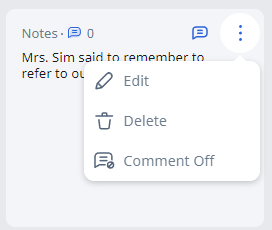
As the owner of your Assignment, you are able to turn commenting on or off (by default, commenting is turned off).
Note:
- Teachers have the authority to turn commenting on or off.
- Teachers are able to delete any comments.
-
To turn commenting on or off, open Overflow (3-dot icon) found on the top right of the Annotation card and click Comment On / Off.