(C1,iii) Add Short Answer Feedback Assistant (Enhanced)
Learn how to set up SAFA in SLS to give students AI-generated marks and feedback on free-response questions across any subject and level.
(C1,iii) Add Short Answer Feedback Assistant (Enhanced)
The Short Answer Feedback Assistant (SAFA) provides suggested marks and auto-generated content-related feedback for Free-Response Questions for any subject and level.
Important:
As SAFA uses generative AI, its response is probabilistic in nature. Thus, it may not be suitable for questions involving mathematical computation and may at times be inaccurate. You can consider using FA-Math for questions that require mathematical computation instead. Also, Teachers can review the feedback generated before returning it to students. Also, you can review the feedback generated before returning it to students.
You can use SAFA to provide feedback on a wider variety of responses, including more open-ended responses such as composition writing or reflections.
Before using AI-enabled features in SLS, you are encouraged to have students complete the Basic Modules for AI and AI-enabled features in SLS in the following links:
Create a SAFA question
SAFA can be used in standalone questions and all types of quizzes. Depending on the selected mode (i.e. standalone question or quiz), you can determine how students will receive the feedback from SAFA.
Mode
Feedback
Teacher Marked Quiz
Students receive feedback after teacher marks and releases the quiz
1. Progressive Quiz
2. Standalone QuestionStudents receive feedback automatically after submitting each question
Auto-Graded Quiz
Students receive feedback automatically after submitting the entire quiz
To learn more about the different quiz modes, click here.
To use SAFA in a quiz, click Add New on the Module Editor page, then select Quiz. Proceed to Step 2 to continue creating a quiz.
To use SAFA in a standalone question, click Add New on the Module Editor page then select Activity. Proceed to Step 3 to continue creating a standalone question.
After selecting Quiz, you will see that the default Quiz Mode is Progressive Quiz. You can change the Quiz Mode, add Description and Instruction to Students by clicking on the Quiz Component. To add a question, click [+] on the collapsed question list.
Select Short Answer Feedback Assistant under Free-Response Questions from the Component Bar. The Create New Question subpage will open.
Alternatively, you can choose Default Free-Response then click the checkbox next to Use and select Short Answer Feedback Assistant.
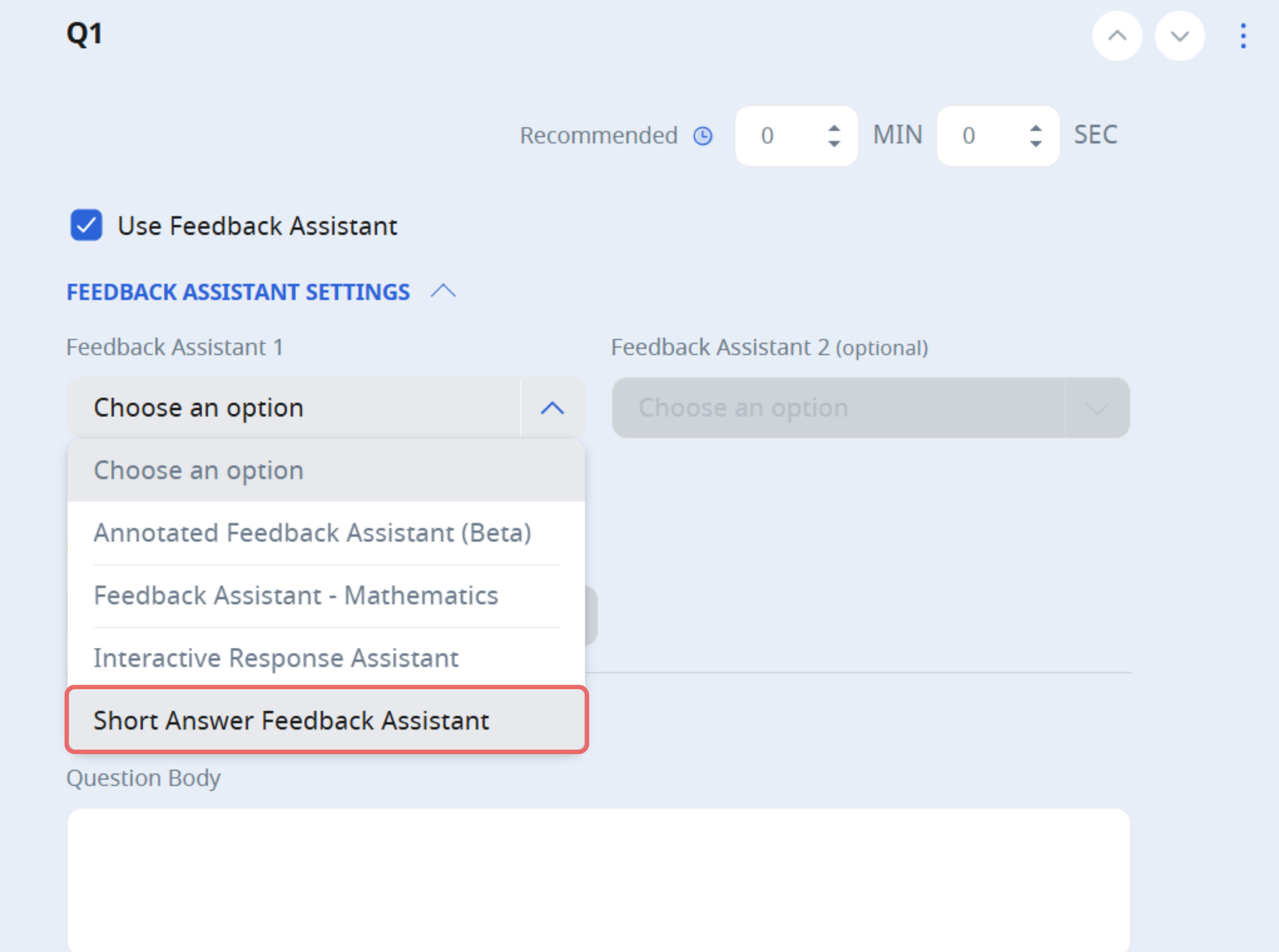
Additionally, you may choose to use Annotated Feedback Assistant (opens in new tab) concurrently to allow students to receive more than one type of feedback in a single response.
[New] When using both Annotated Feedback Assistant (AFA) and SAFA, you can now choose whether to use and show rubric marks to students. This gives you greater control over how feedback is scaffolded in multi-assistant configurations.
You can now customise how the Short Answer Feedback Assistant (SAFA) marks students’ response and generates feedback by providing additional details or specific instructions.
Under Additional Details, you may choose one of the suggested recipes below or create your own to adjust the marking leniency and style of the feedback.
Notes:
At the end of the prepopulated recipe, you can also enter your own Instructions to Short Answer Feedback Assistant, such as: “Award only [number] marks if the student does not mention [specific concept] in their response.”
The previous Leniency dropdown has been removed. You can now adjust feedback style and marking using the recipe options or your own written instructions.
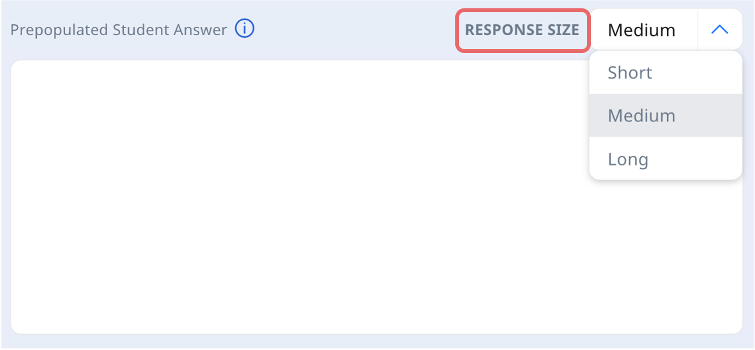
From the Response Size dropdown list, select the response size, or estimated length of students’ response. A short response would be approximately 100 words, a medium response would be 300 words long, and a long response would be approximately 500 words. The default Response Size is set to Medium.
Note: If students need to submit longer responses, consider breaking the question into multiple FRQs. For example, you can create two FRQs to divide the response or structure it as one FRQ per paragraph to facilitate structured and manageable submissions.
Specify a detailed mark scheme in the Suggested Answer. You can include PDFs or images here for assessment of students’ responses.
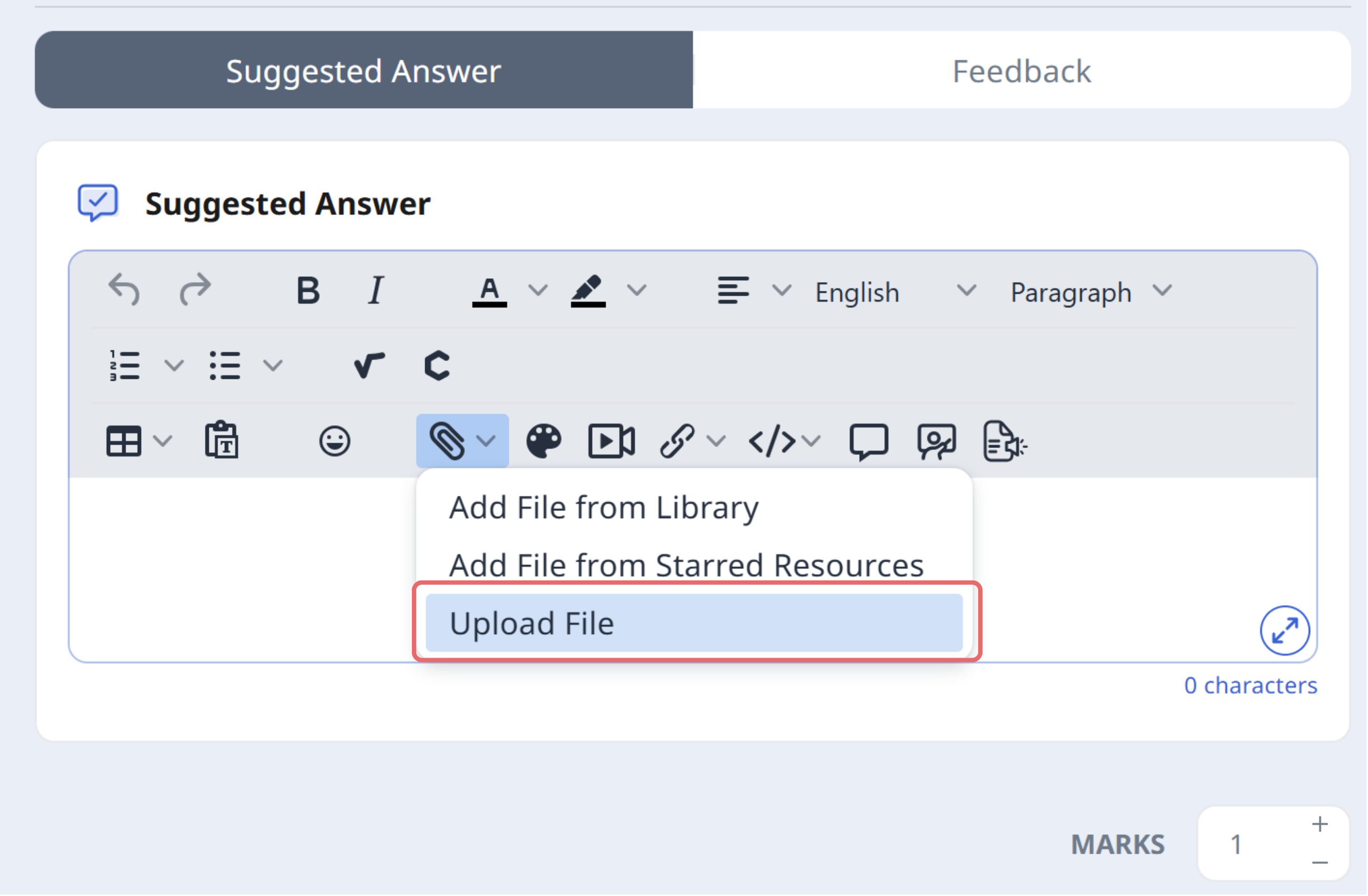
You can provide suggested answers in PDF or image format, and students can also submit their responses using PDFs or images. This feature is particularly useful for subjects requiring handwritten responses, diagrams, or visual work, such as Mathematics, Science, or Geography. Enable this option if students’ answers are better represented visually rather than through typed responses.
Google Files uploaded by students will also be accepted and automatically converted into PDF or image format before evaluation by the system. This allows for more flexible student submissions across subjects.Note: When using images or PDFs for suggested answers, ensure clarity and readability by using high-quality scans or images with legible text or handwriting. Clearly indicate key points through annotations, highlights, or labels, and align the marking scheme by providing a text-based breakdown of criteria where necessary. If multiple answers are acceptable, specify alternatives either within the image or as a separate explanation. PDFs can be useful for structured responses, such as worked solutions, annotated diagrams, or essay-style answers, with clear indications of how each section aligns with the marks awarded. Where possible, providing an exemplar response can help guide students in understanding expected formatting and content depth.
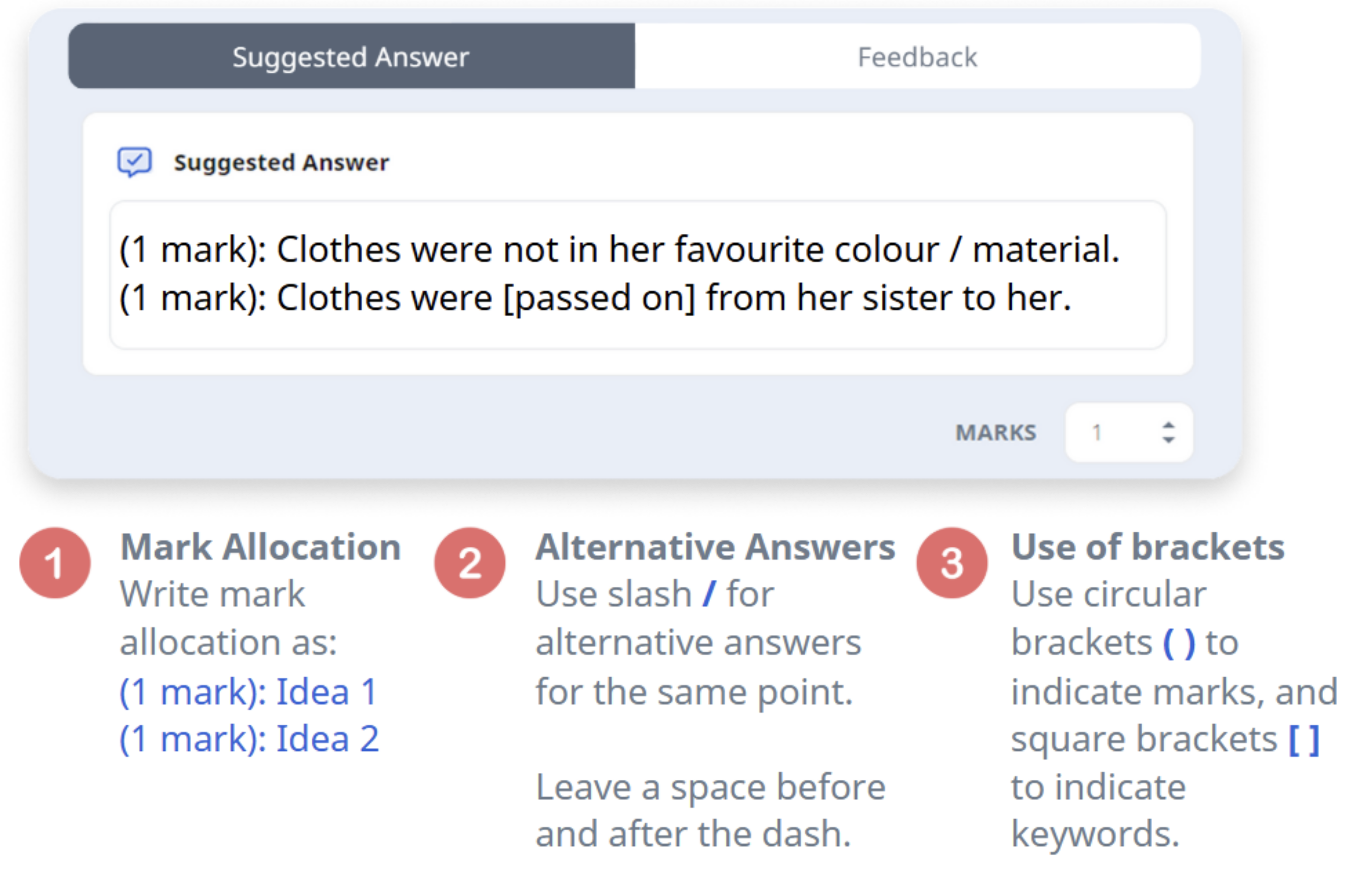
To learn more about writing the Suggested Answer, click on this e-Poster (opens in new tab).
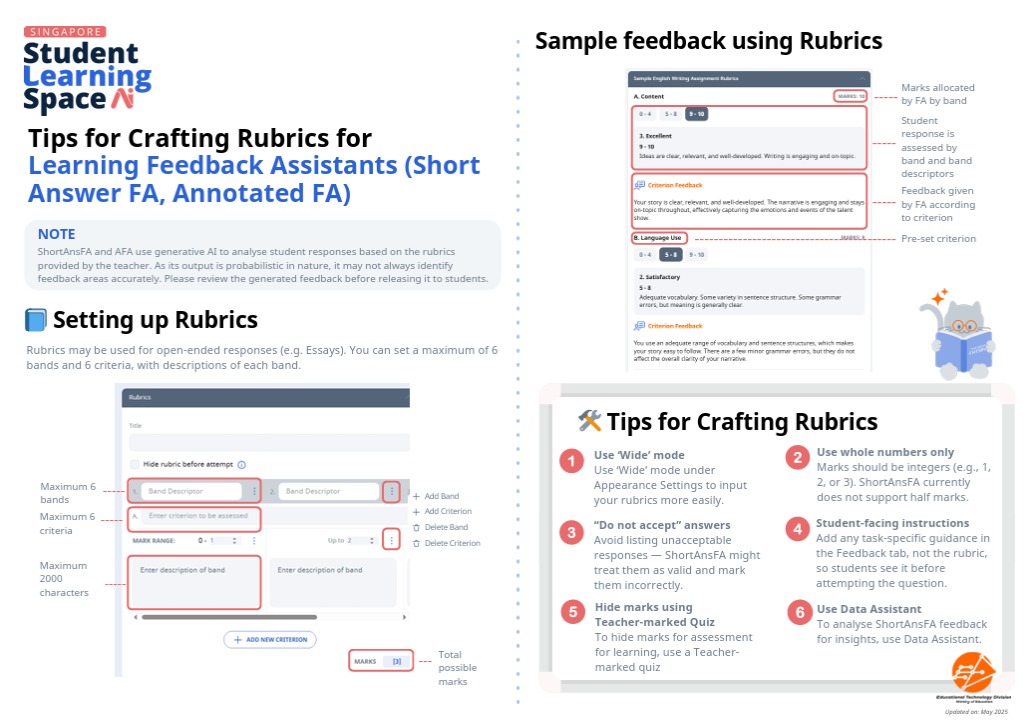
To mark more open-ended responses based on rubrics, click Add Rubric.
You can now choose from four options:Create New – Create a rubric manually from scratch.
From Library – Select an existing rubric from My Drive, Community Gallery or MOE Library.
From Starred Resources – Use a rubric you’ve starred for quick access.
Generate Rubric – Use Authoring Copilot (ACP) to automatically generate a rubric based on your instructions. For more details, to please refer to this page on rubrics generation.
Note:
For each question, feedback from SAFA can only be provided using either Suggested Answer or Rubrics at a time.
Click outside the Component to save.
Click the Up/Down arrows to set the Marks for the question.
Tag the question to the Subject/ Level/ Learning Outcome or Content Map to increase accuracy of the response.
When you are done editing, click outside the Component to save.
Before assigning to students, you can preview the feedback by clicking Preview as Student to ensure that the question has been configured correctly.
For standalone questions, Progressive Quiz and Auto-graded Quiz, feedback from SAFA will be shown immediately after students have completed the question. For Teacher Marked Quiz, feedback will be shown after you have marked and released the quiz. Click here for more information on how to return the feedback for Teacher Marked Quiz.
You may still review and edit the feedback generated by SAFA (refer to Table A and B). Under the Monitor Assignment page and clicking Teacher Comments. You are encouraged to check that the feedback and marks are accurate and appropriate; and engage in further discussions with your students.
SAFA with rubrics
Table A: SAFA with Rubrics | ||||||
Mode | Add Comments | Edit Comments | Add Criterion Feedback | Edit Criterion Feedback | Add Marks | Edit Marks |
|---|---|---|---|---|---|---|
Standalone Free-Response Question | ✓ | ✓ | ✓ | ✗ | ✓ | ✗ |
Progressive Quiz | ✓ | ✓ | ✓ | ✗ | ✓ | ✗ |
Auto-Graded Quiz | ✓ | ✓ | ✓ | ✗ | ✓ | ✗ |
Teacher Marked Quiz (before release) | ✓ | ✓ | ✓ | ✓ | ✓ | ✓ |
Teacher Marked Quiz (after release) | ✓ | ✓ | ✗ | ✗ | ✗ | ✗ |
SAFA with suggested answer
Table B: SAFA with Suggested Answer | ||||||
Mode | Add Comments | Edit Comments | Add Criterion Feedback | Edit Criterion Feedback | Add Marks | Edit Marks |
|---|---|---|---|---|---|---|
Standalone Free-Response Question | ✓ | ✓ | NA | NA | ✓ | ✗ |
Progressive Quiz | ✓ | ✓ | NA | NA | ✓ | ✗ |
Auto-Graded Quiz | ✓ | ✓ | NA | NA | ✓ | ✗ |
Teacher Marked Quiz (before release) | ✓ | ✓ | NA | NA | ✓ | ✓ |
Teacher Marked Quiz (after release) | ✓ | ✓ | NA | NA | ✗ | ✗ |
Click here (opens in new tab) for a Quick Guide to Writing Rubrics and Suggested Answers for Learning Feedback Assistants.