(E1,v) Tag Resources to Adaptive Learning System
(E1,v) Tag Resources to Adaptive Learning System
ALS has been enhanced to allow teachers to better customise ALS according to the needs of their students. Teachers can tag their own content and assessment items to ALS content maps and allow these to be recommended by ALS for their students, in addition to existing content items developed by CPDD.
Overview of how to add resources to ALS
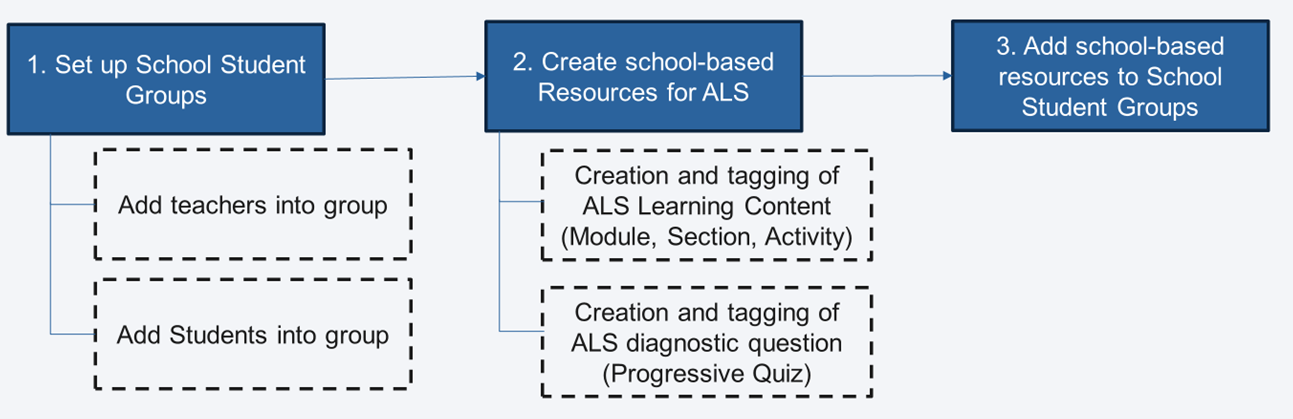
Setting up School Student Group
-
Before tagging content to ALS, departments are encouraged to create level/ school-wide Student Groups to alleviate the need for teachers to upload resources individually for each class. To learn how to create level/ school-wide Student Groups, click here.
2a. Creation and tagging of ALS Content (Modules, Section & Activities)
-
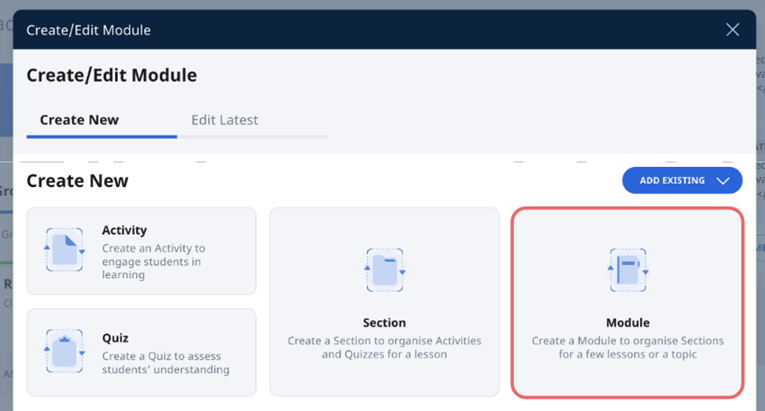
On the homepage, click Create New/Edit Module. Click Module.
-
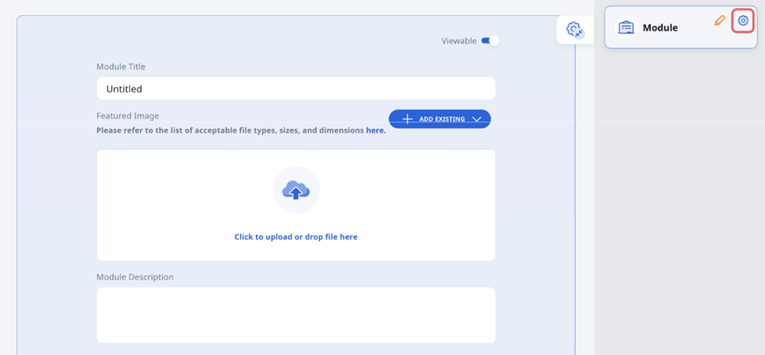
Click on the Setting icon on the Module card.
-
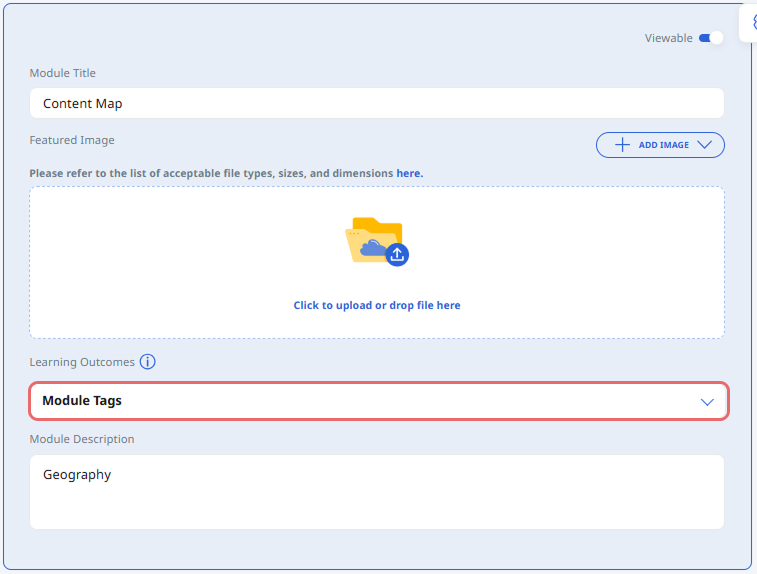
Click the dropdown arrow next to Module Tags.
-
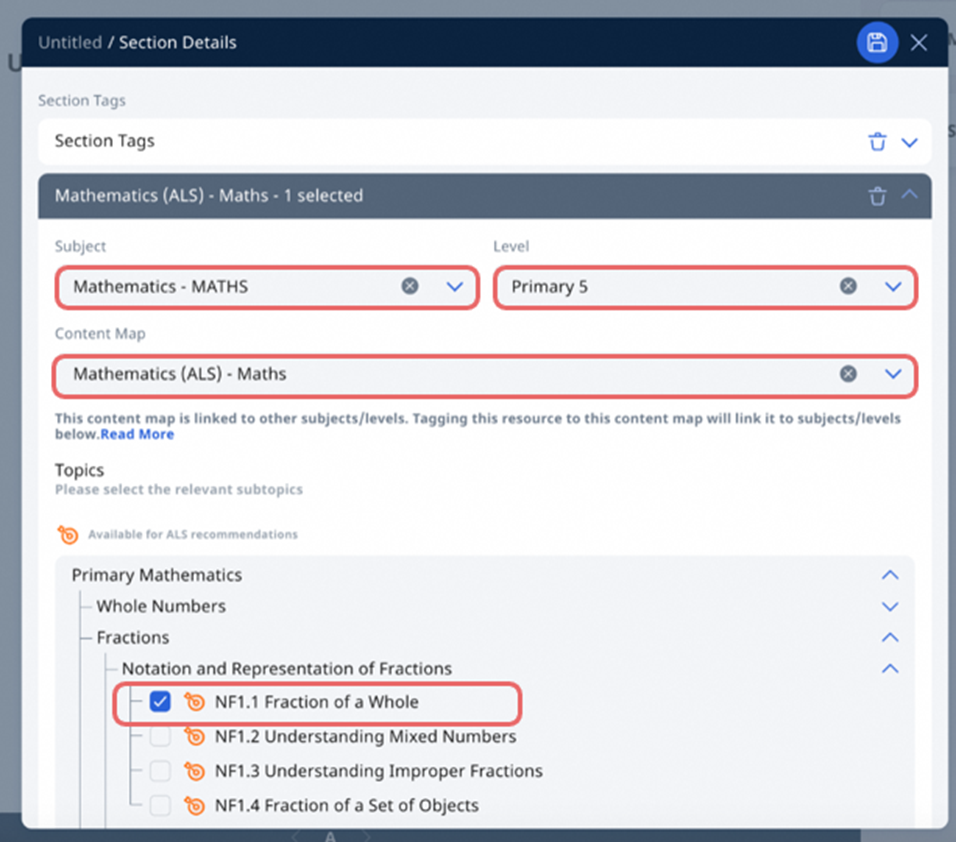
Select the Subject and Level. From the Content Map dropdown list, select the content map with ‘(ALS)’ indicated. Select the checkboxes with the orange Learning Outcome next to the intended learning outcomes of the subtopic.
Note:-
Only learning outcomes with the orange Learning Outcome icon are available for recommendation in ALS.
-
Select the learning outcomes which correspond to the subtopic.
-
Select only 1 learning outcome for each section. If more than 1 learning outcomes are selected, the student may experience the same content being recommended across different learning outcomes.
-
-
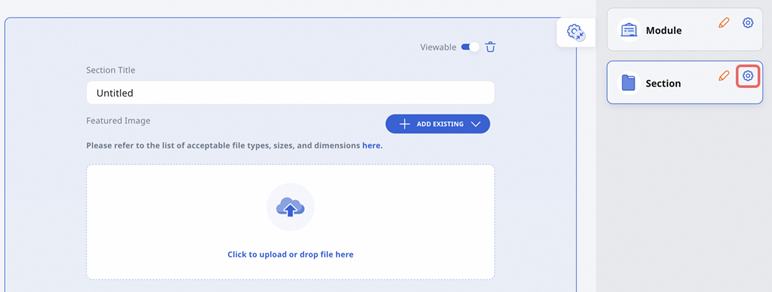
Click the Setting icon on the Section card.
-
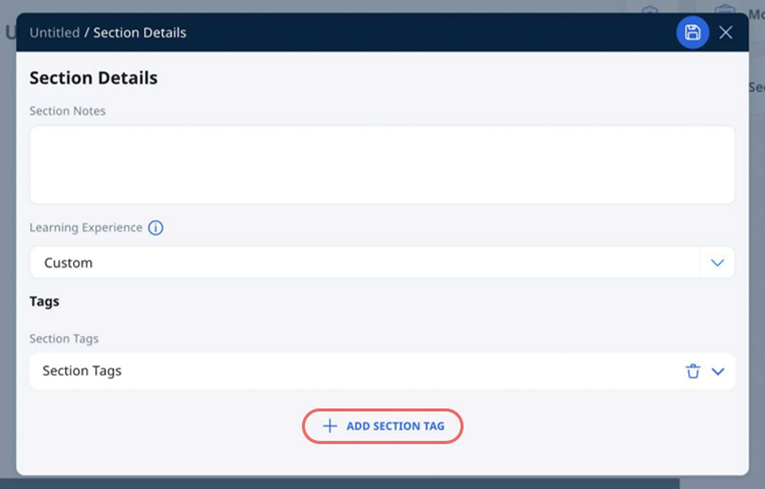
Click Add Section Tag.
-
Click the Save icon to proceed.
-
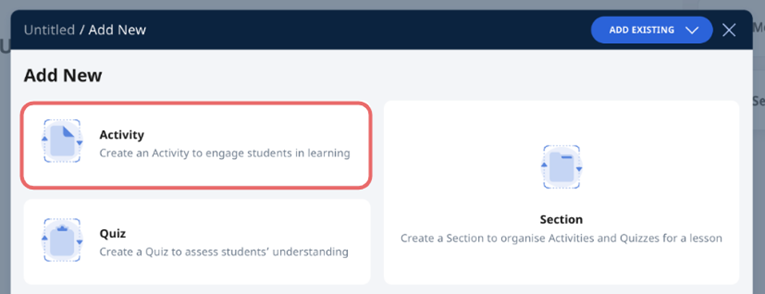
Create new activities in the Section by clicking Add New and selecting Activity.
Note:-
For each Section, it is recommended to have 3 activities and 1 progressive quiz. These activities should correspond to the Active Learning Processes (ALPs) outlined in the e-Pedagogy Guide (requires iCON login).
Activities in Section
Active Learning Process
Suggested Content
Activity 1
ALP 1: Activate Learning
Videos, interactive tools, open-ended questions to activate students’ prior knowledge
Activity 2
ALP 2: Promote Thinking and Discussion
Text/ Media objects to present new knowledge and guide students in deepening their learning
Activity 3
ALP 3: Facilitate Demonstration of Learning
Multiple choice questions, free response questions to allow students to consolidate and apply their knowledge, and receive feedback.
Activity 4
Custom
Multiple choice questions, Learning-Feedback Assistants (LFAs) enabled free response questions to assess students’ mastery level.
-
Each activity should be designed to be completed independently, as the recommended activities by ALS may not follow a specific sequence.
-
-
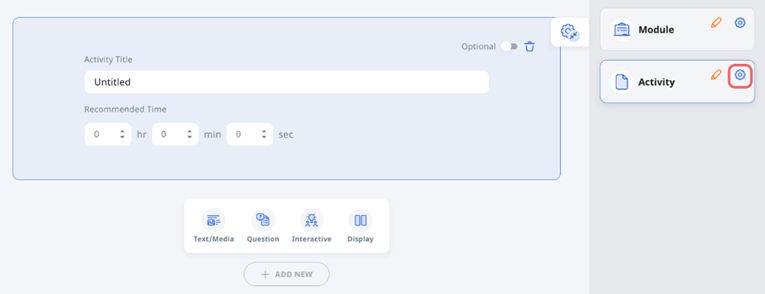
Click the Settings icon from the Activity card.
-
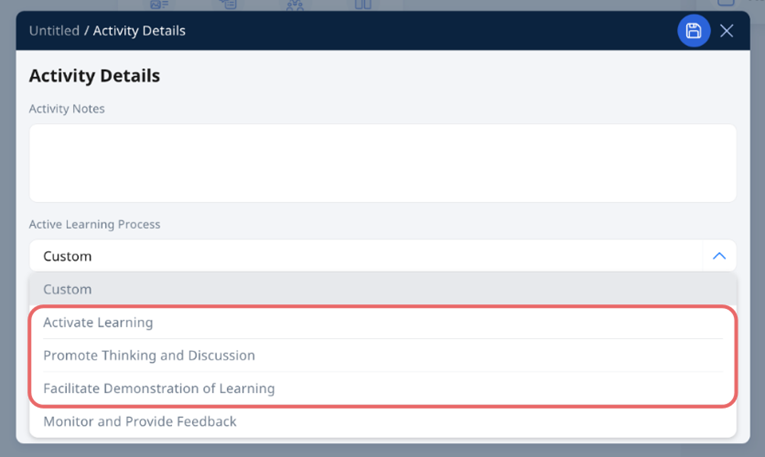
Select the appropriate Active Learning Process for each Activity from the dropdown list. Click the Save icon to proceed to populate the content for the Activity.
-
2b. Creation and tagging of ALS Content (Quiz)
-
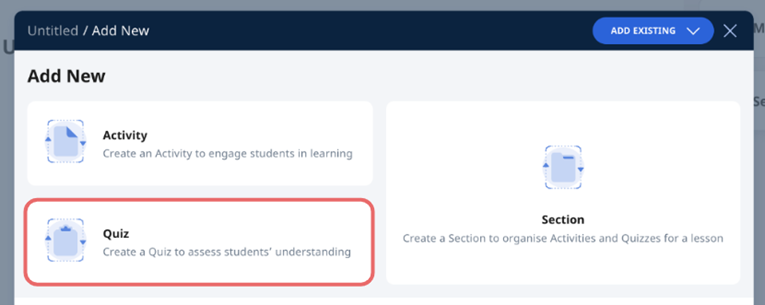
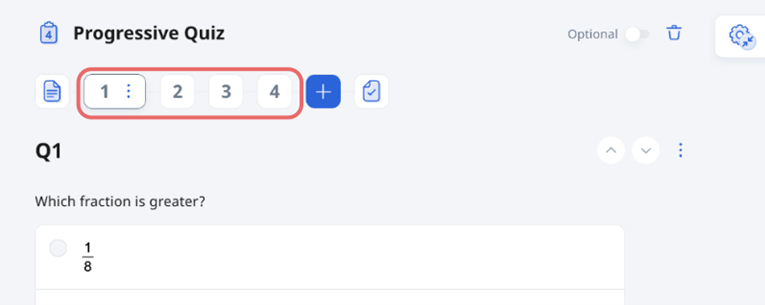
Create a Progressive Quiz in the Section by clicking Add New and selecting Quiz. The default Quiz Mode is Progressive Quiz.
-
ALS can support a range of question types: Multiple-Choice, Fill-in-the-Blanks, Click-and-Drop, Error Editing and Free-Response questions. LFA-enabled questions, such as FA-Math, AFA or SAFA questions can also be added to the quiz. Each question should be on a separate page.
-
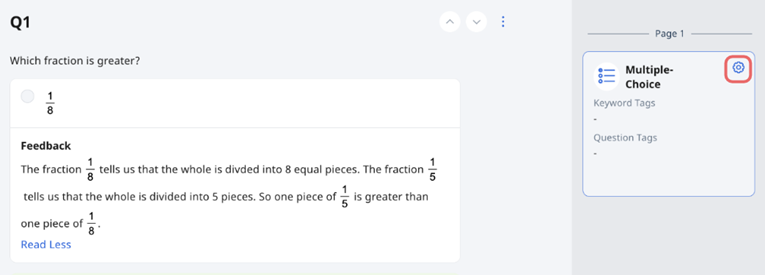
Click the Settings icon on the Question card.
-
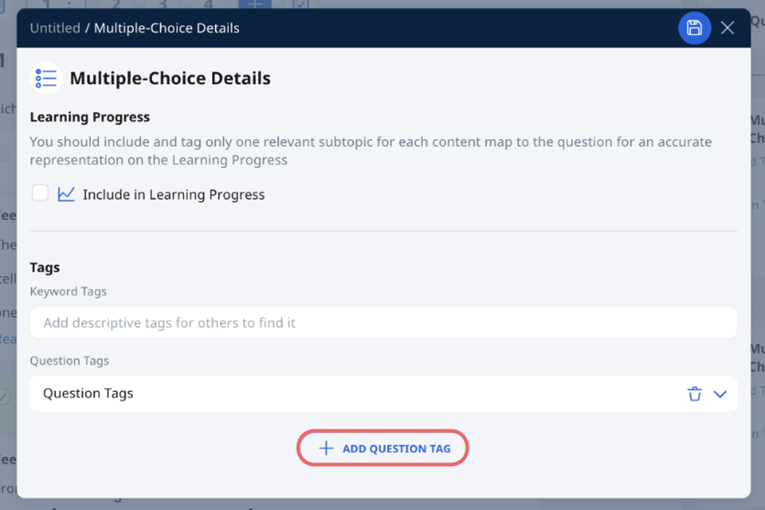
Click Add Question Tag.
-
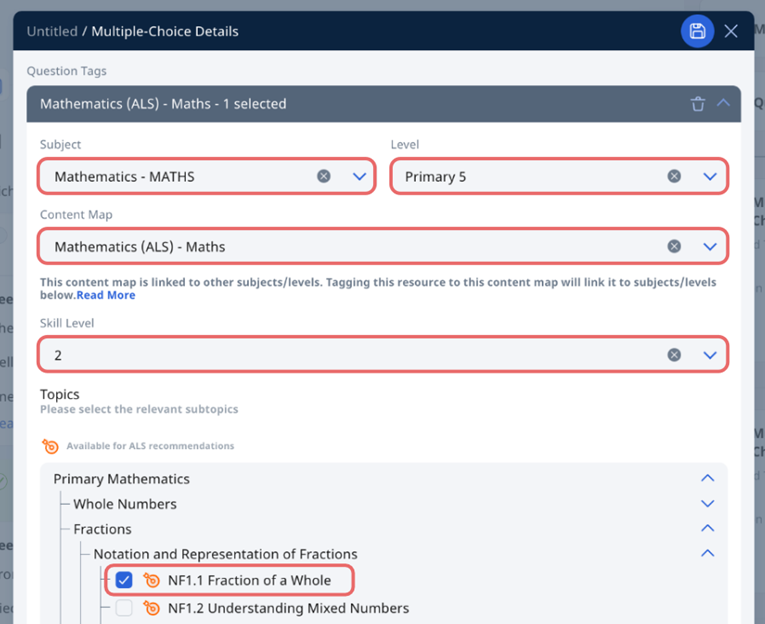
Select the Subject and Level. From the Content Map dropdown list, select the content map with ‘(ALS)’ indicated. Select the Skill Level of the question. Select the checkbox with the orange Learning Outcome icon next to the learning outcome assessed by the question.
Note:-
Skill Level 1 denotes an easy question while Skill Level 3 denotes a challenging question.
-
Ensure that you select only from the orange Learning Outcome icon, and a maximum of 1 learning outcome for each question.
-
-
Click the Save and proceed to tag the rest of the questions in the Progressive Quiz.
-
Click the Done icon to save your changes.
3. Add school-based resources to School Student Group
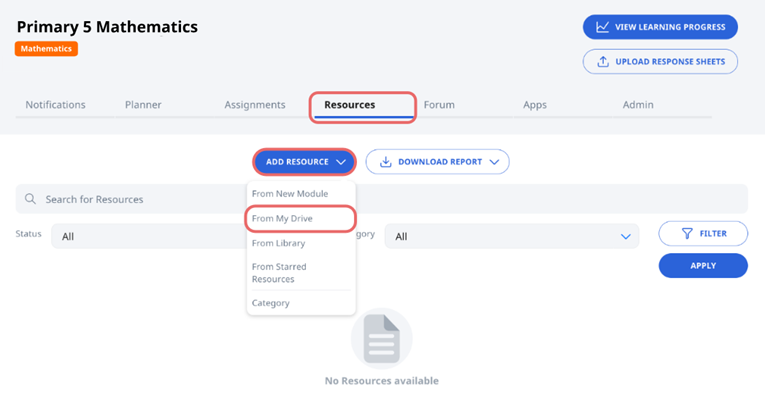
To enable ALS to suggest Activities in the Section you have created, navigate to the class group where you want the content to be recommended. Click the Resources tab. Click Add Resource and select From My Drive.
-
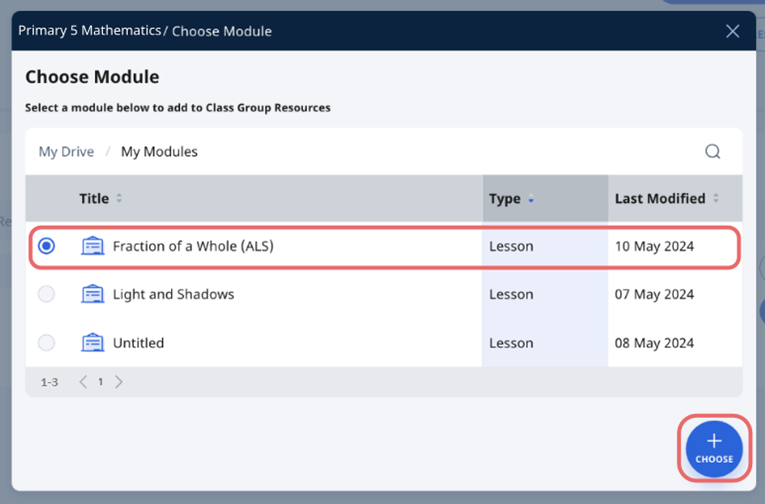
Select the resource you have created and click Choose.
-
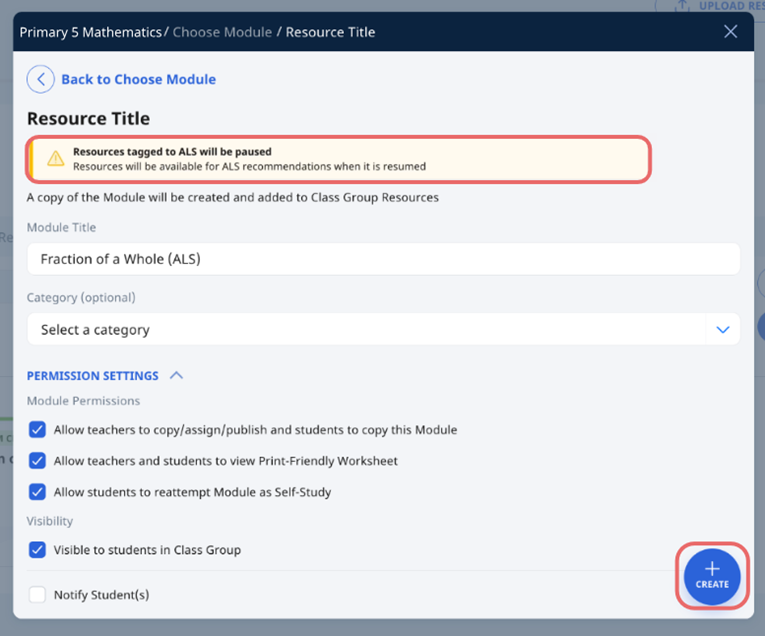
Click Create to add the resource to the Class Group.
Note:-
Resources tagged to ALS will be paused by default. Ensure you carry out the next step to resume the resource and activities in the resource to be recommended by ALS.
-
Students will be able to receive ALS recommendations from all class groups that they are in with relevant subjects, regardless of the levels tagged.
-
-
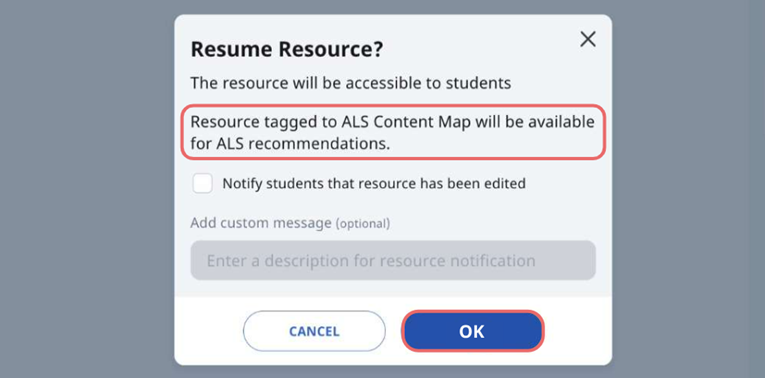
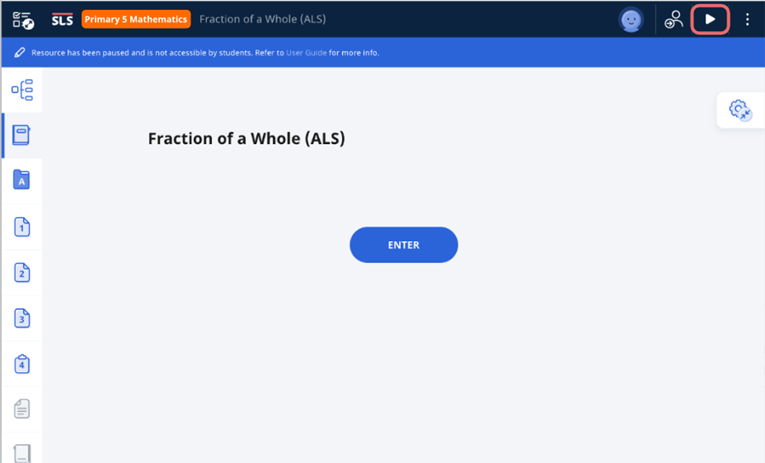
Click to enter the resource. Click the Resume button.
-
Click OK. Resources tagged to ALS Content Map will now be available for ALS recommendations.