

(A2,13) Add Rubrics to Audio and Free Response Questions (Enhanced)
(A2,13) Manage Rubrics for Audio- and Free-Response Questions (Enhanced)
Star Rubrics (New)
From Dec 2025, teachers will be able to add existing rubrics to starred resources.
-
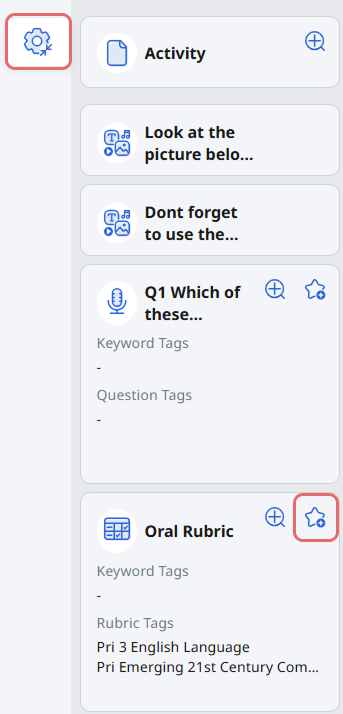
To star rubrics, click on the Drawer Settings icon followed by the Star icon on the rubrics card.
-
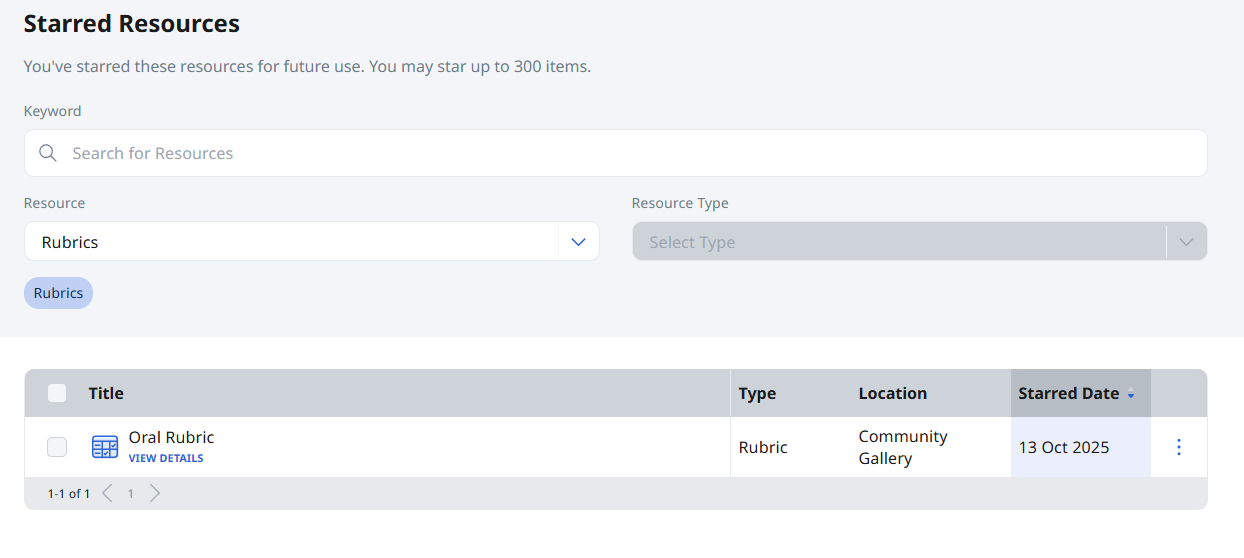
You may manage the starred rubrics under the Starred Resources folder.
Add and Edit Rubrics (Enhanced)
Rubrics can be added to Free-Response or Audio-Response Questions to assess students holistically on performance tasks.
There are two ways teachers can add or edit rubrics:
-
Use Existing Rubrics – Add rubrics from your Library or Starred Resources (available from Dec 2025).
-
Generate Rubrics using Authoring Copilot (ACP) – Create a new set of rubrics or generate a first draft using Authoring Copilot.
Use Existing Rubrics
-
From a Free-Response or Audio-Response Question, click Add Rubrics dropdown
list.
Note: From Dec 2025, teachers can also add rubrics from Library or Starred Resources.
-
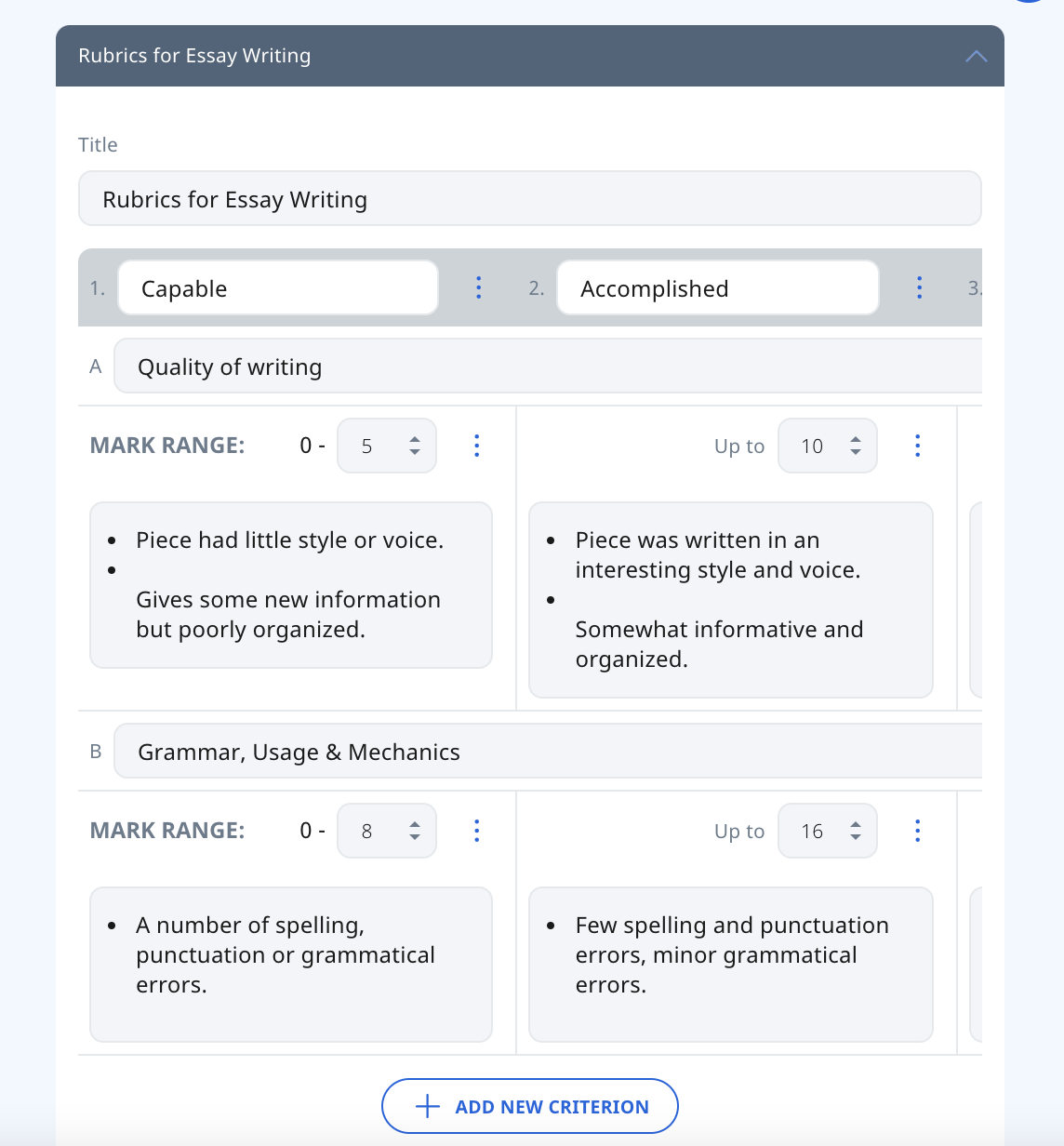
A maximum of 8 bands (columns) and 6 criteria (rows) can be added in a set of Rubrics. Click the Overflow (3-dot icon) to Add Band, Add Criterion, Delete Band, or Delete Criterion.
-
Enter the following fields:
- Title
- Band Descriptor
- Criterion
- Mark Range
Note: Please see below on how to use the marks of the rubrics for the question.
-
Band Description
Note:
- You may enter descriptions in the form of text, mathematical formulae, chemical formulae, and media.
- Teachers can edit the band descriptions after students have submitted their responses.
-
Click outside the Component to save.
-
To add rubric notes, click on the Drawer Settings icon
followed by the Settings icon on the rubrics cards.
Note: Teachers can also add keywords tags and subject/level/content map tags.
-
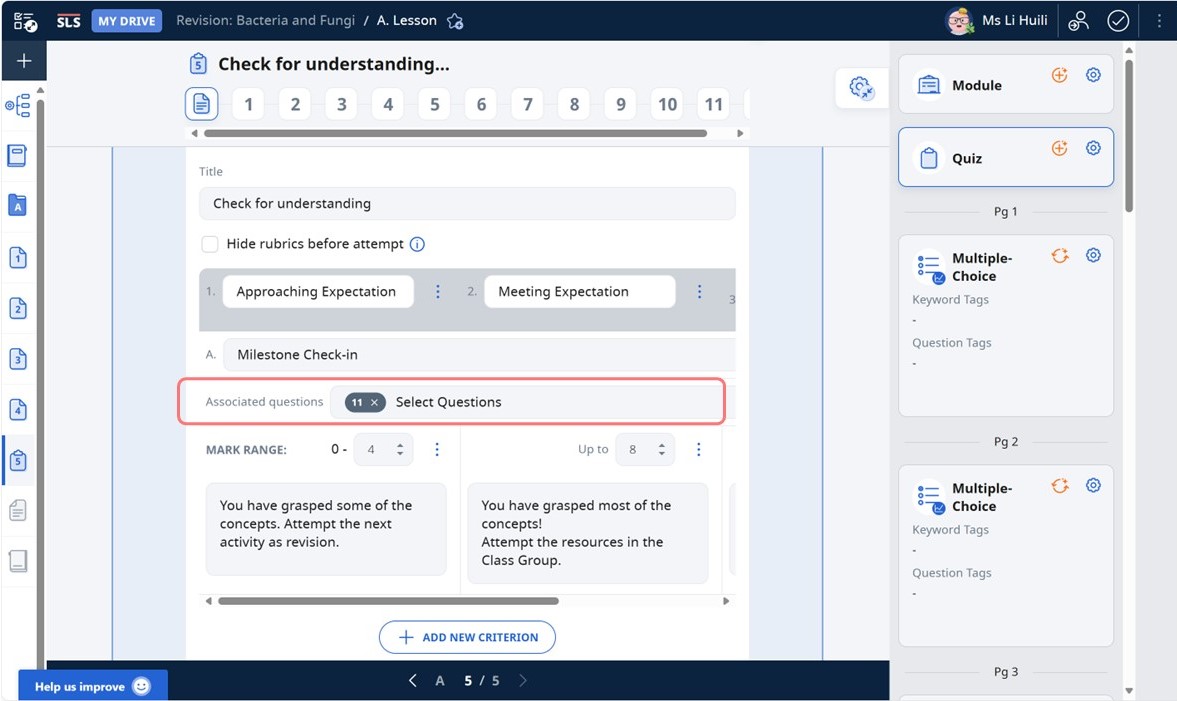
When rubrics are added to a quiz, teacher can select questions to be associated with the rubrics.
Generate Using Authoring Copilot (ACP)
-
Teachers can also use Authoring Copilot (ACP) to generate rubrics by selecting Generate Rubric (Beta).
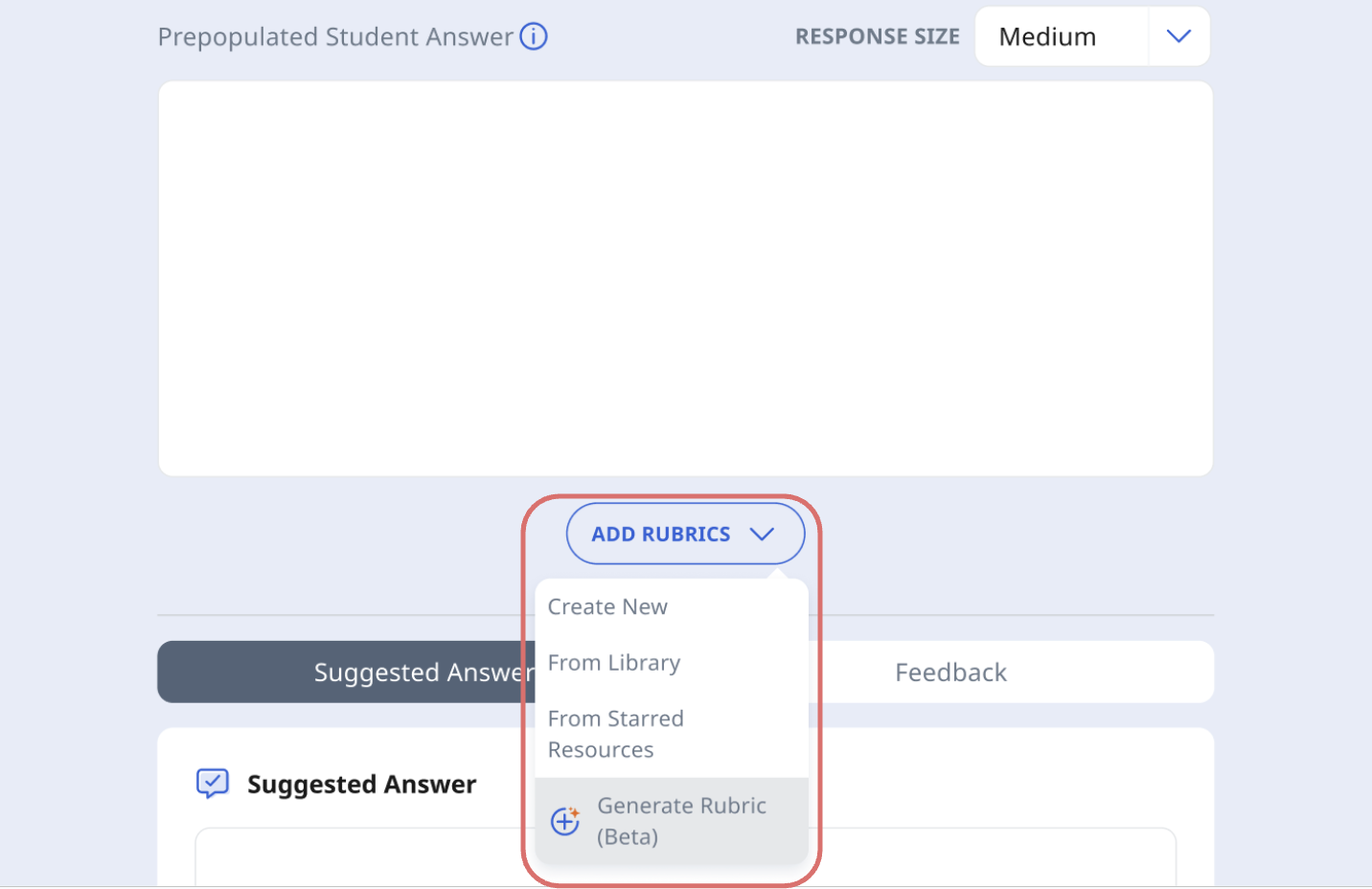
-
When you select Generate Rubric (Beta), the Generate Rubric page opens. Here, you can enter short text-based prompts to guide ACP in creating a rubric from scratch or based on an existing one.
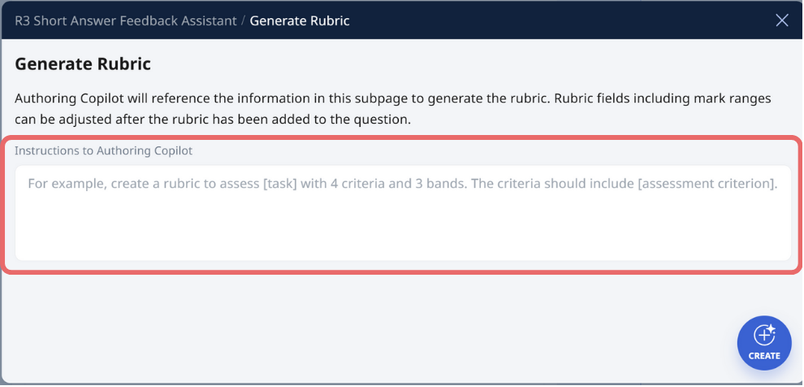
In the Instructions to Authoring Copilot field, type clear guidance such as:
“Create a rubric to assess students’ reasoning with 4 criteria and 3 bands. Criteria should include accuracy, clarity, use of evidence, and structure.”
After you click Create, ACP will generate the rubric automatically and attach it to the question.
You can review and modify criteria, band descriptors, and mark ranges as needed.
Note:
- Rubrics generated via ACP can be adjusted after creation.
- Teachers can refine or overwrite the generated rubric anytime before saving.
-
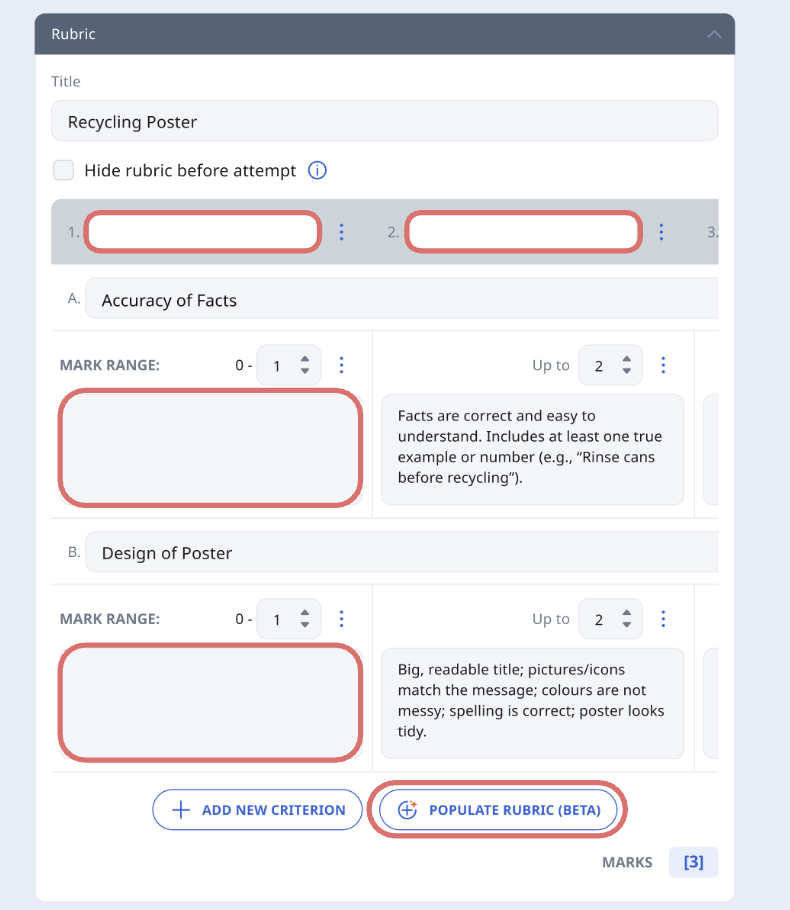
Alternatively, teachers can use ACP to adapt existing rubrics in a Module, the Library or Starred Resources. To do so, they can clear fields (criteria, band descriptors and band descriptions) and click Populate Rubric (Beta).
Rubrics Display Settings (Enhanced)
Teachers can edit the rubrics display settings in two ways:
-
Show/Hide Rubrics before Student Attempt
-
Show/Hide Marks for Rubrics
Show/Hide Rubrics before Student Attempt
-
Teachers can check the box Hide rubrics before attempt to hide the rubrics from students during their attempt. The relevant bands from the rubrics will be shown to students after the question has been marked.
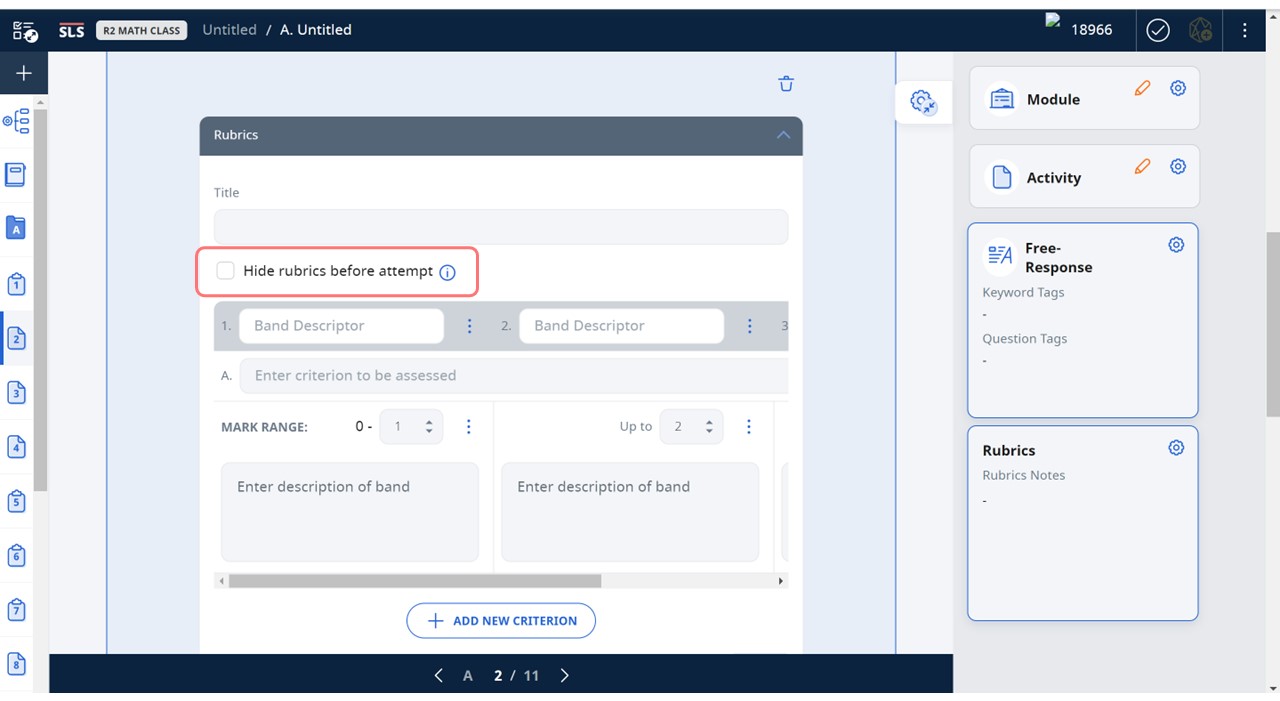
Note: This is available for both standalone Free-Response and Audio-Response Questions, and all quiz modes.
-
When using SAFA at quiz level, teacher can also check the box Hide rubrics before attempt to show only the relevant bands from the rubrics, after SAFA has generated feedback and suggested marks for Free-Response Questions.
Show/Hide Marks for Rubrics
-
There could be instances where teachers may not wish to show the marks tied to the rubric band descriptor, to allow students to focus on the qualitative feedback provided. In such situations, you can uncheck the box for Show and use rubrics marks.
-
However by default, the Show and use rubric marks box is checked. The total marks will be calculated based on the marks allocated by the teacher for each criterion in the rubrics. This will also impact students' quiz scores in a Teacher-Marked Quiz.
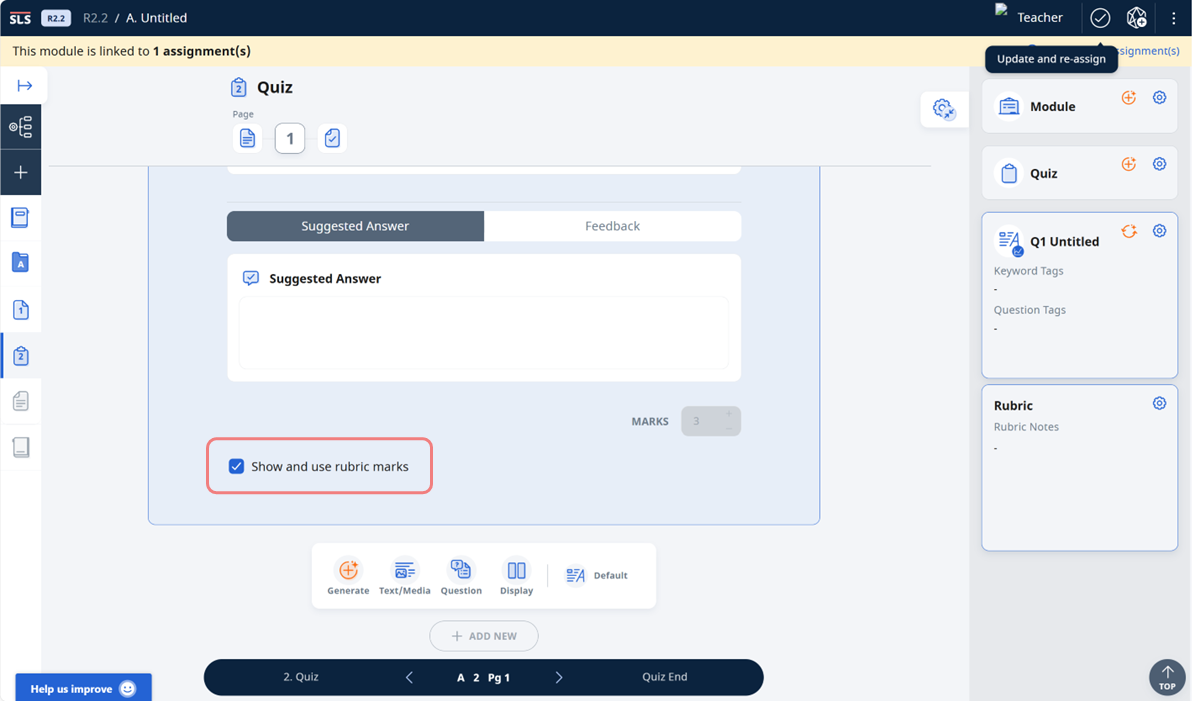
Note: This is only available for Free-Response and Audio-Response Questions in quiz mode.
-
Teacher can also select Hide quiz marks where only the relevant bands from the rubrics will be shown to students after the questions have been marked. This can be used for creating personality tests, performance tasks etc., for students to focus on the feedback.
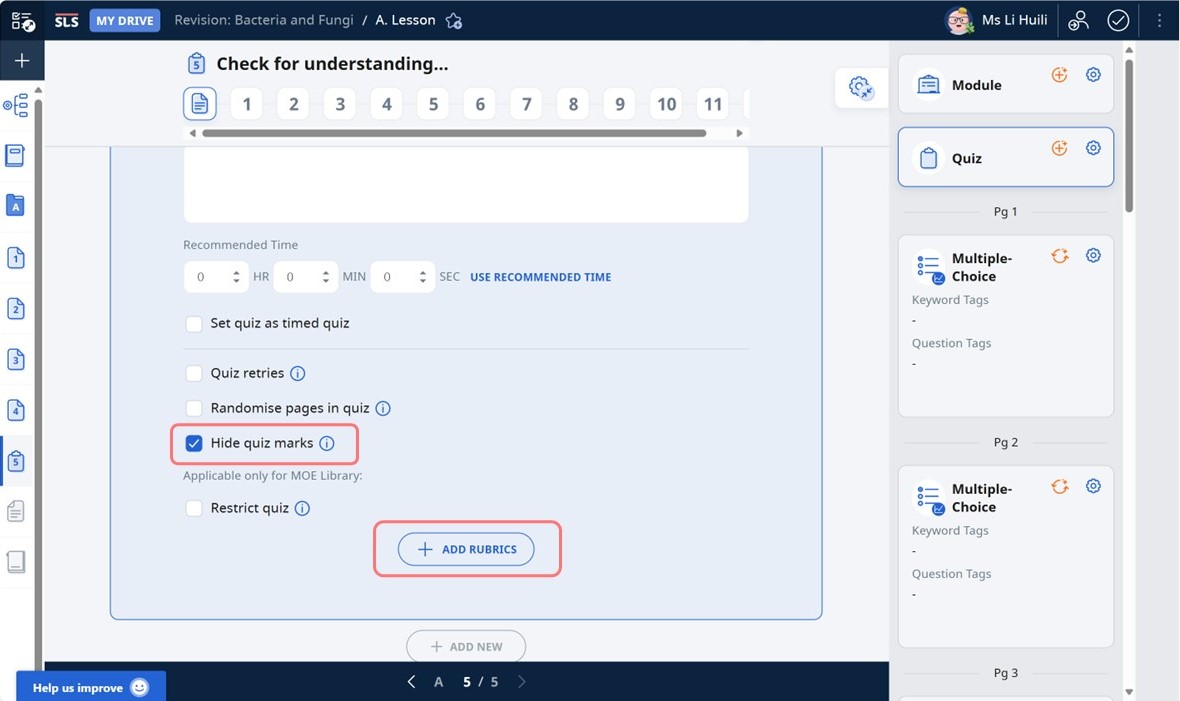
Note: This is available for all quiz modes.